

Open Reviewbird from Apps in your Shopify admin. Setup takes you through Branding, Import, Widgets, and Emails. You can manage your reviews and settings inside Shopify after setup.
Add your brand
Add your store logo, choose your button and star colors, and select your default customer language. Check the preview before you continue.
You can change these later in Settings > Branding and Settings > Display Widget. See Branding and languages for the email design and language settings.
Bring your existing reviews
On Import, select Yes if you have reviews to move. Choose the app that exported your file, or use the Reviewbird CSV format. Check the required columns, then upload a CSV or XLSX file up to 10 MB.
Your products need to be available in Reviewbird so the import can match each review to the right Shopify product. Check Settings > Products if a product is missing. For a move from another store, use the destination Shopify product IDs or matching SKUs; the old store's product IDs may be different.
Select Not right now if you have no reviews to import. You can return to Settings > Import later. The import and export guide explains product matching, failures, and backups.
Add both product blocks
The Widgets step checks for two blocks in your saved, active theme:
- Add the Product Reviews Widget. Add to theme opens Shopify's theme editor with the Reviewbird Reviews Widget block.
- Choose its position on your product page and select Save in the theme editor.
- Return to Reviewbird and check the installation. Continue when you see Review widget enabled.
- Add the Star Rating Badge, shown as Reviewbird Rating Badge in the theme editor. Position it near the product title and save.
- Return to Reviewbird. Continue when you see Star rating badge enabled.
Both blocks are required to complete this setup step. Reviewbird checks the default product template in the active theme. If you use other product templates, check those separately.
Follow Install widgets and rating stars for theme compatibility, collection-page stars, and missing-block troubleshooting.
Choose your review request schedule
On Emails, choose whether to Enable review request emails. Set Wait (days) and Start the delay, edit the Email subject, and choose whether to Send reminder emails. Allow enough time for customers to receive and use their purchase. New reminders use a seven-day wait after the first request; existing reminder timing is kept.
After setup, Settings > Collect is where you edit the full request messages, timing, reminders, and sending switches. Settings > Email Settings controls eligibility rules, such as excluded products, countries, and marketing consent.
Use Automatic review requests to check the difference between Fulfilled and Delivered, preview an order without sending anything, and request reviews from past customers.
Check your plan
Reviewbird may show an optional plan offer after setup. Read the price, trial terms, included usage, and any spending limit before approving a subscription in Shopify.
Open Settings > Plan to see the plan and allowances for this store. Shopify billing differs from the plans on the WooCommerce website. See Plans and billing.
Find the guide you need
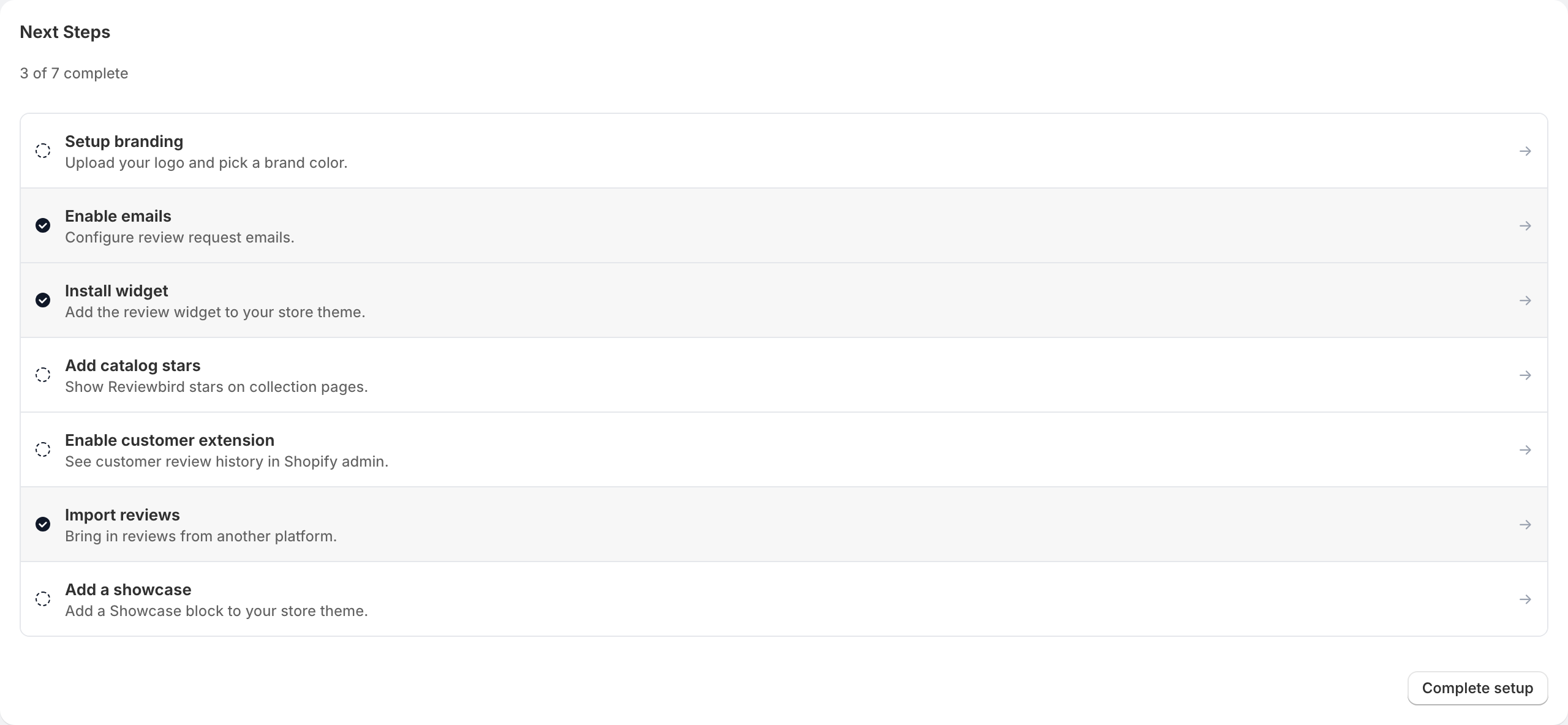
After setup, the Dashboard includes Next Steps with shortcuts to common tasks. Its completion marks reflect your store's setup.
Collect and manage reviews
- Automatic review requests and past orders
- Import and export reviews
- Manage reviews, moderation, and replies
- Review forms and customer emails
- Discount incentives
Display reviews and match your store
- Install widgets and rating stars
- Customize the display widget
- Showcases and trust badges
- Products and product groups
- Branding and languages
Manage your connection
- Integrations, Google reviews, and Shopify Flow
- Plans and billing
- Store access, reconnecting, and uninstalling
FAQ
Where are the settings after setup?
The app's main navigation is Dashboard, Reviews, Emails, and Settings. Open Settings for the review, email, and store settings described in these guides. Select Reviews to moderate reviews and write replies.
Do I need the WordPress plugin?
No. The Shopify app connects your store and provides Shopify theme app blocks. Follow the Shopify guides linked above for setup.
Setup cannot find a block I added. What should I check?
Save your changes in the theme editor, confirm that you edited the active theme's default product template, and return to Reviewbird. Select Check again. If the app reports a theme-access problem, resolve that access request and refresh the page.
Does finishing setup import reviews from another app automatically?
No. Export your existing reviews and upload the file in Import. Installing Reviewbird does not replace the other app's storefront blocks; check your theme so shoppers do not see duplicate review widgets.