

Use a Reviewbird Showcase to display reviews on your home page, a landing page, or another supported theme section. Use a Reviewbird Trust Badge to show your overall store rating and a link to reviews.
For the full reviews widget on a product page, follow Install widgets and rating stars.
Add a showcase
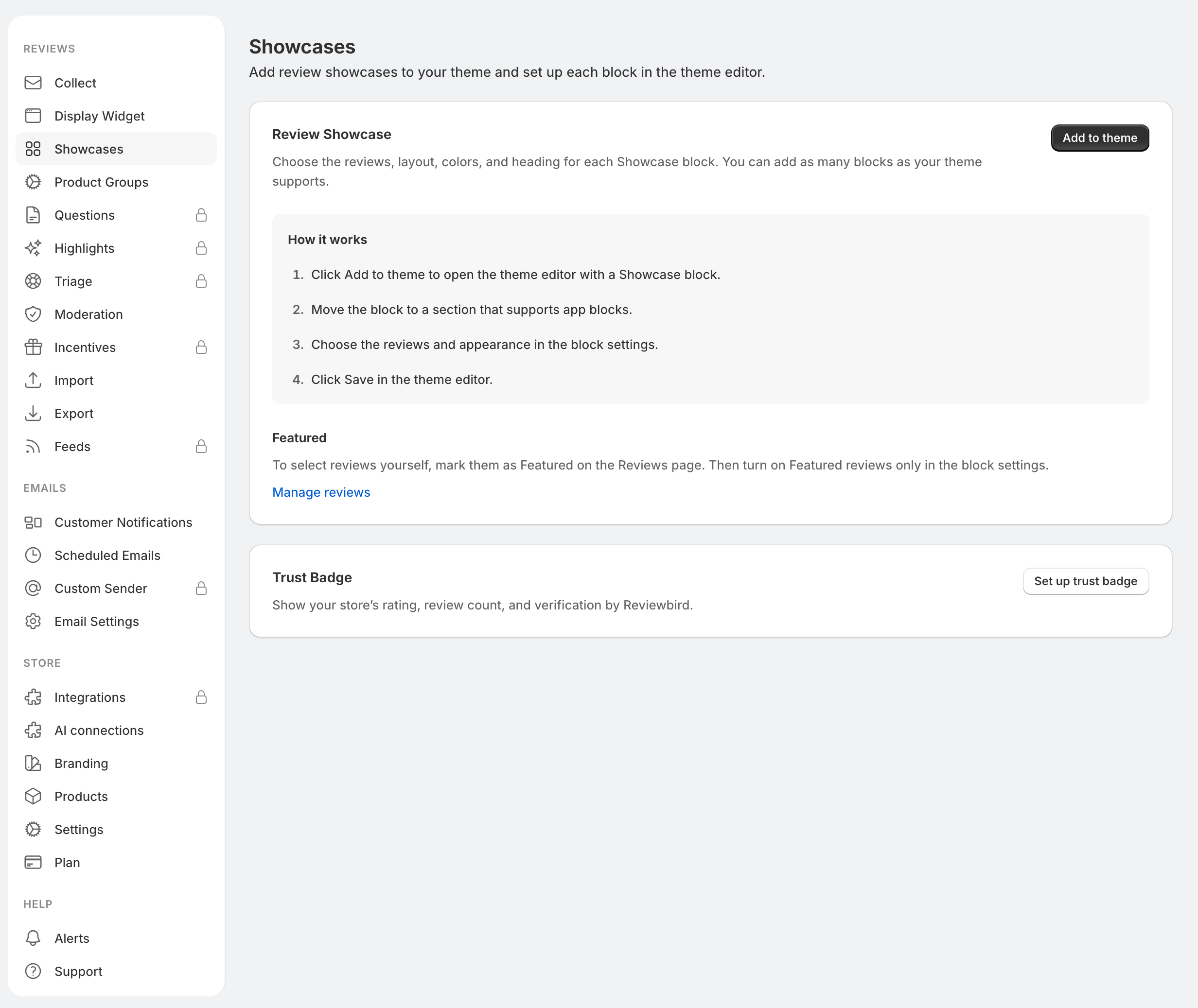
- In Reviewbird, open Settings > Showcases for the theme placement options.
- Open the Shopify theme editor for the page you want to change.
- Add an app block named Reviewbird Showcase in a supported section.
- Choose the reviews, layout, and display options in the block settings.
- Select Save, then check the page on your store.
Configure each Shopify showcase in the theme editor. You do not need to create a reusable showcase or copy a WooCommerce shortcode.
Choose reviews
The review source can be All products, Current product, or Selected products. You can select up to 50 products.
Use Current product on a page with a product context. Use All products or Selected products for a home page or another page that has no current product.
The block also lets you set a minimum rating and limit the showcase to featured reviews. To select featured reviews:
- Open Reviews in the app.
- Mark the reviews you want as Featured.
- In the showcase block, enable Featured reviews only.
- Save the theme.
A showcase needs published reviews that match its filters. If it looks empty, check the selected products, rating filter, featured status, and whether the reviews are published.
Choose a layout
| Layout | Where it works well |
|---|---|
| Slider | A row of reviews that shoppers can move through. |
| Grid | Several reviews visible together. |
| Ticker | A moving strip of reviews. |
| Hero | A prominent review section. |
| Review Wall | A larger collection of review cards. |
Use the block's controls to adjust the heading, review count, card content, colors, and movement where available. Check long reviews and the mobile preview before you save.
Add a trust badge
- In the theme editor, choose a section that supports app blocks.
- Add Reviewbird Trust Badge.
- Choose the badge's style and alignment.
- Save the theme and check the result.
The trust badge uses your overall store rating. It stays hidden until your store has its first published review. Footer placement depends on whether your theme's footer supports app blocks.
FAQ
Does the badge show the current product rating?
The trust badge shows the store rating. Use Reviewbird Rating Badge for a product's rating, including a rating next to a product title or on a supported collection card.
Can I use different showcases on different pages?
Yes. Each showcase block has its own settings. Check which pages use the template you are editing, because a template change can affect more than one page.
Why did a showcase disappear after changing themes?
Block placement belongs to the theme. Add and configure the blocks in the new theme, save, and check the pages that use it.