

Reviewbird uses app blocks in Shopify's theme editor. Each block goes in a position you choose, and changes appear after you save the theme.
Add reviews to product pages
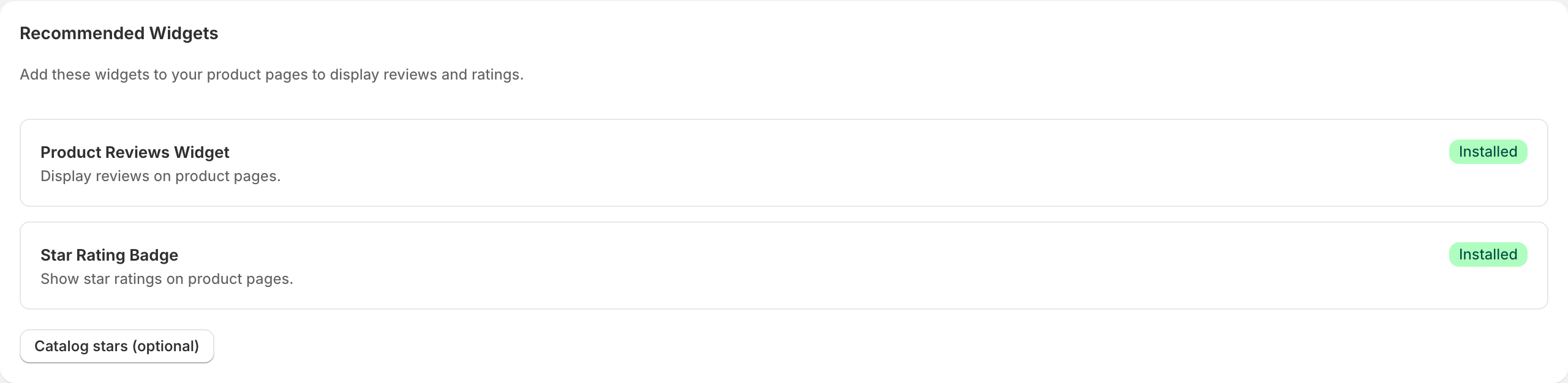
During setup, use Add to theme on the Product Reviews Widget card. You can also add the block directly in Shopify's theme editor:
- Open your store's theme editor and choose a product template.
- In a section that supports app blocks, select Add block, then Apps.
- Select Reviewbird Reviews Widget.
- Move the block to the place where customers should read and write reviews.
- Select Save.
The reviews widget is available on product templates. It uses the product on the page. Change its colors, text, layout, and review form in Reviewbird > Settings > Display Widget. See Customize the display widget.
Add stars near the product title
- In the product template, add Reviewbird Rating Badge from the app blocks.
- Place it near the product title or price.
- Check the product selection, alignment, text color, and star size in the block settings.
- Save the theme and open a product with published reviews.
The badge shows the product's rating and review count. A product without published reviews may have no rating to show. The badge and full reviews widget are separate blocks; add both during onboarding.
Add stars to collection product cards
The Reviewbird Rating Badge is also available on collection templates. Its placement depends on your theme.
- Open a collection template in the theme editor.
- Find the product card or product grid area and check whether it accepts app blocks.
- Add Reviewbird Rating Badge where the card provides the current product.
- Keep the product connected to the current card so each badge shows that product's reviews.
- Save and check several products in the collection.
Some themes do not expose an app-block position inside product cards. Adding a standalone badge elsewhere on the collection page does not automatically insert a badge into every card. If your theme does not offer the placement you need, contact support with the theme name and a collection URL.
Check all product templates
Reviewbird's setup check looks at the default product template in the active theme. The catalog check looks at the default collection template. Those checks do not inspect every custom template.
If you use different templates for different products or collections, add the blocks to each relevant template and check a page assigned to it. When you change or publish another theme, check the blocks in that theme too.
FAQ
Is there an app embed to enable?
No. Reviewbird uses theme app blocks. Add and save the blocks in your theme; there is no separate global app-embed switch to turn on.
Why does setup still say the widget is missing?
Check that you saved the theme, edited the active theme, and added the block to its default product template. Return to Reviewbird and select Check again. If the page says theme access is required, resolve the access request and refresh before checking again.
Why is the block unavailable in this section?
The theme and section must support app blocks, and the reviews widget must be on a product template. Try a supported section in the product template. Ask support for help if your theme does not provide one.
Why do I see two review widgets?
Check for a second Reviewbird block or a review block from your previous app. Remove the duplicate placement in the theme editor and save. Keep a copy of any review data you need before uninstalling another app.
Does adding the block guarantee review stars in Google?
No. Stars on your store and ratings in Google search are separate. The Shopify app does not offer the WordPress plugin's Enable Schema Markup switch. Check the product structured data supplied by your theme or SEO app. The Google Product Ratings feed is a separate feature for Merchant Center.
Reviewbird also syncs ratings to Shopify's standard reviews.rating and reviews.rating_count product metafields. A theme that supports those fields can use them, but that does not guarantee a particular theme display or Google result.
For review sections on your home page, see Showcases and trust badges.