

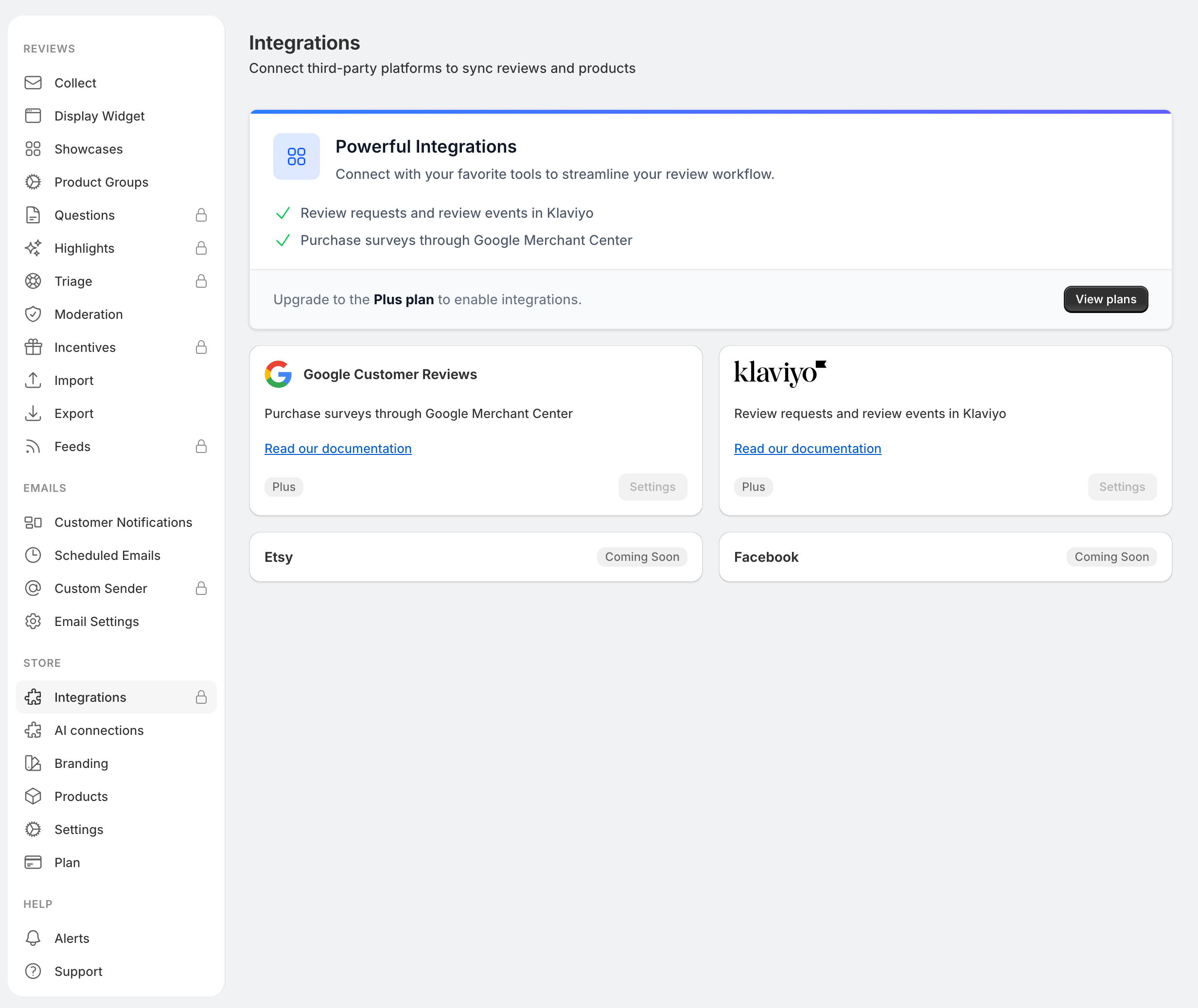
Open Settings > Integrations for Klaviyo and Google Customer Reviews. These integrations require Plus or Everything. Etsy and Facebook are marked Coming Soon and cannot be connected yet.
Connect Klaviyo
- Open Settings > Integrations and select Settings on the Klaviyo card.
- Select Connect Klaviyo and approve the connection for the correct Klaviyo account.
- Choose Review requests and reminders, Photo and video requests, or both.
- Select Switch selected flows, or Later in Collect to leave your current sending choices in place.
When Klaviyo sends a flow, Reviewbird supplies events and review links. Build the messages, delays, reminders, and stop conditions in Klaviyo. Connecting the account alone does not create and activate those emails.
Use Settings > Collect to check which service sends each supported flow. Requests already in progress keep their existing sequence. Check both services before enabling a new flow so customers do not receive duplicate requests.
The Klaviyo settings page includes Send test event. Use an address you control when testing and check whether your Klaviyo flow will send an email in response. A successful test event confirms the event connection, not delivery of a customer email.
Disconnect Klaviyo
Open its settings and select Disconnect. If the page shows Retry disconnect, complete that step before treating the connection as removed. Check your sending choices in Collect and your active Klaviyo flows after disconnecting.
Choose the right Google feature
| Your goal | Where to start |
|---|---|
| Invite customers to Google's purchase survey. | Settings > Integrations > Google Customer Reviews, then Collect. |
| Send your existing product reviews to Merchant Center. | Settings > Feeds > Google Product Ratings. |
| Ask for public reviews on your Google Business Profile. | Settings > Collect > Review requests, using the Google Business Reviews option. |
These features have different setup requirements and results. Sending a product review feed does not send survey invitations.
Google Customer Reviews
First enable Google Customer Reviews in Merchant Center and verify your store domain there.
- In Reviewbird, open Settings > Integrations.
- Select Settings on the Google Customer Reviews card.
- If you see Reconnection required, use Reconnect to approve the required Shopify permissions.
- Select Enable Google Customer Reviews.
- Enter your Merchant ID and Estimated days to deliver orders.
- Select Save.
- Open Collect to configure the Google Customer Reviews message, timing, and sending switch.
The delivery estimate is in calendar days from the order date, using your store time zone. Use 0 for same-day delivery.
This integration sends invitations by email. It does not add Google's opt-in to Shopify checkout or the order confirmation page. Set up Google's order confirmation opt-in separately. Keep Reviewbird's Shopify app proxy URL at /apps/reviewbird so invitation links work.
An invitation click does not mean the customer completed Google's survey. Use Merchant Center to check survey results.
Google Product Ratings feed
- Open Settings > Feeds.
- Enable Google Product Ratings feed and select Save feed settings.
- Wait for the feed to generate, then copy the Feed URL.
- Add that URL as a Product Ratings feed in your Google Merchant Center account.
- Check Google's processing results and the product matches.
The feed screen shows eligible reviews, products with GTINs, and generation status. Accurate product identifiers help Google match reviews to the correct products. Use Regenerate feed after correcting data if you need a fresh file.
Imported reviews are excluded by default. The app shows a policy warning and requires acknowledgment before including them. Check Google's current program requirements before changing that setting. A generated feed does not guarantee that Google will accept it or display ratings.
Use Shopify Flow
Reviewbird provides a Review Approved trigger for Shopify Flow. Create the workflow in Flow; there is no separate Flow settings card in Reviewbird.
Select the Reviewbird trigger and add the conditions and actions your workflow needs. The event includes the review ID, product information, reviewer details, rating, review text, verified-purchase status, source, and creation date. Check the source if your workflow should treat imported reviews differently.
Review the workflow before turning it on, especially if its actions send messages or change customer records.
Connect an AI app
Use Settings > AI connections to connect an MCP client. Connections begin with read access to this store only. The Shopify store owner controls write access for each connection.
See Store access and AI connections for setup, plan requirements, and removing access when staff leave.
FAQ
The integration says I need to reconnect. Should I uninstall?
Use the integration's Reconnect action first. Uninstalling has separate billing and data consequences and is not a routine troubleshooting step.
Why did connecting Klaviyo not send any requests?
Check that the appropriate flow is selected in Reviewbird, that you built and activated the matching flow in Klaviyo, and that an eligible event has occurred. Eligibility rules still apply. See Automatic review requests.