

Reviewbird can ask customers for a review after their Shopify order is fulfilled, then remind them if they have not responded. Open Reviewbird in Shopify admin, select Settings, then choose Collect under Reviews.
Use Collect for request timing and messages, Email Settings for eligibility, and Scheduled Emails to check individual emails.
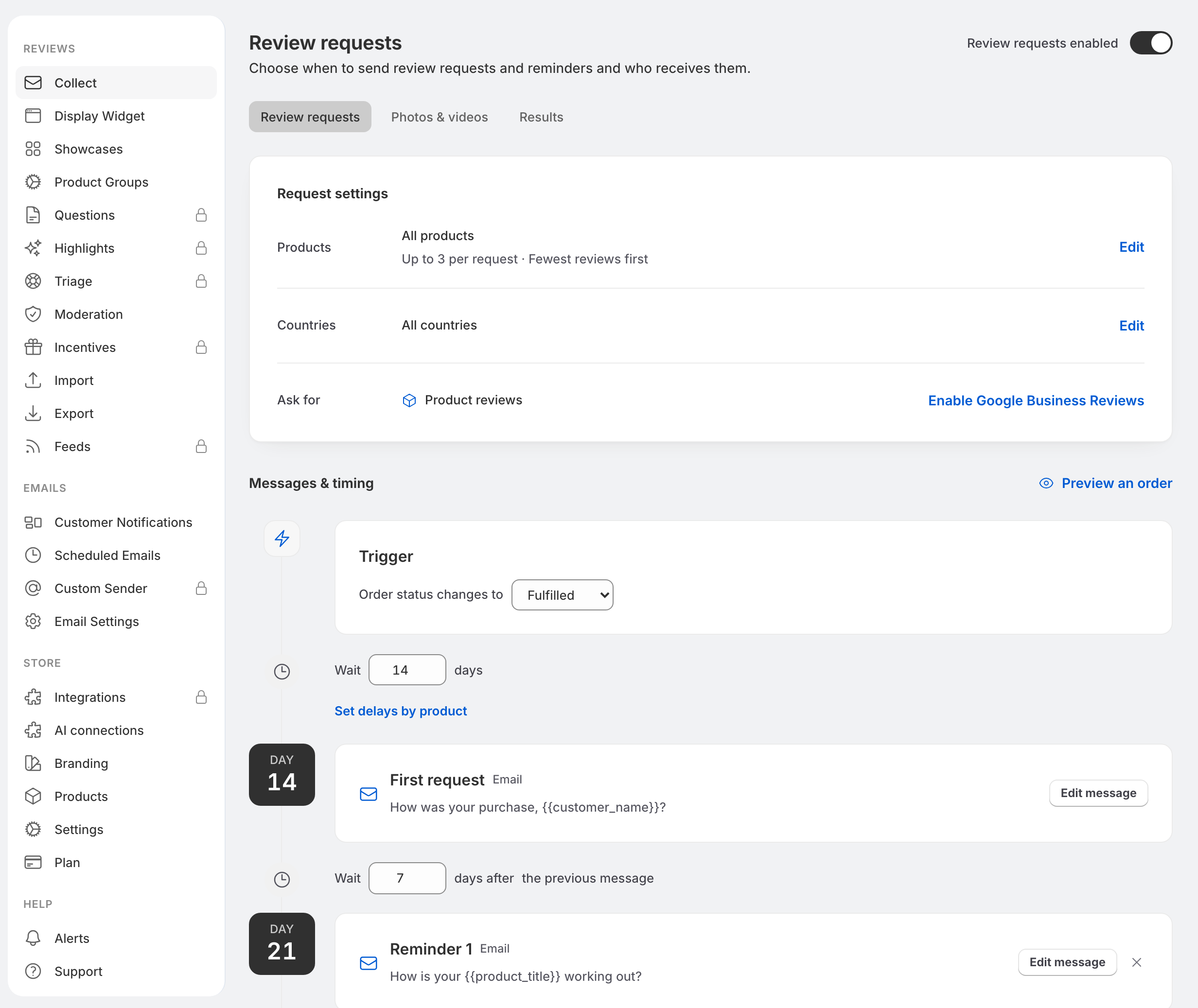
Choose when to send the first request
- Open Collect > Review requests.
- Under Messages & timing, set Order status changes to to Fulfilled.
- Set Wait to a whole number from 0 to 60 days. Give customers time to receive and use their products.
- Select Save in Shopify's save bar. If the page shows a Save timing button instead, use that button.
Reviewbird uses Shopify fulfillment information to schedule these emails.
If your plan includes delivery tracking, you can choose Delivered instead. This waits for Shopify to report delivery before starting the delay. If delivery is not detected within 30 days of fulfillment, Reviewbird does not fall back to sending from the fulfillment date. Use Fulfilled when reliable delivery information is unavailable.
Choose products and countries
Select Edit beside Products in Collect to choose how many products appear in a request, from 1 to 10, and how to select them. You can give priority to products with the fewest reviews, for example. Reviewbird leaves out products the customer has already reviewed.
To exclude products, open Settings > Email Settings > Exclude products. Choose individual products, tags, categories, or collections, then select Save email settings. An exclusion removes matching products; the other products in the order can still receive a request.
Under Country filter mode, choose Exclude countries or Include countries only and select the countries. An empty country list allows all countries. Country rules use the order's shipping country.
Give some products more time
In Collect, select Set delays by product, then Add a delay. Choose the products or groups shown in the picker, enter Wait at least, and select Save delay.
The longest applicable delay applies to the whole order. A 21-day product delay makes the order wait 21 days even if your standard delay is 14 days.
Add reminders and edit messages
Reminders are available on Starter, Plus, and Everything.
- Select Add reminder below the last message.
- Set Wait from 1 to 60 days after the previous message, then save.
- Select Edit message on the request or reminder.
- Edit the subject and message, choose the sections to show, and check the preview.
- Save the message using the save control shown in the editor.
You can add up to 10 reminders. Keep the first delay and all reminder waits within 89 days, including any longer product delay. Reminders stop when the customer has reviewed all the requested products or unsubscribed.
The first request can use a Standard review email or an Order follow-up layout. Order follow-up requires Plus or Everything and a verified Custom Sender. See branding and email sender settings.
If you send a flow through Klaviyo, edit its email content, delays, reminders, and stop conditions in Klaviyo. A disconnected Klaviyo flow pauses; Reviewbird does not automatically send its saved emails in place of Klaviyo.
Check Shopify marketing consent
Open Settings > Email Settings > Shopify Marketing Consent. The setting Send request emails (reviews, media, reminders) to customers who have opted out of Shopify marketing emails controls whether Reviewbird checks Shopify marketing subscription status.
When this is off, Reviewbird checks the customer's current status in Shopify. An existing customer must be subscribed for these requests to send. If Shopify cannot return a consent result, the email is deferred. This setting does not override a customer's Reviewbird unsubscribe or your email blocklist.
Under Email Blocklist, enter addresses separated by commas to stop future emails to those customers. Saving a newly blocked address also cancels its scheduled emails.
Turn on requests and check an order
When the timing and messages are ready, turn on the switch at the top of Collect > Review requests. The page will show Review requests enabled.
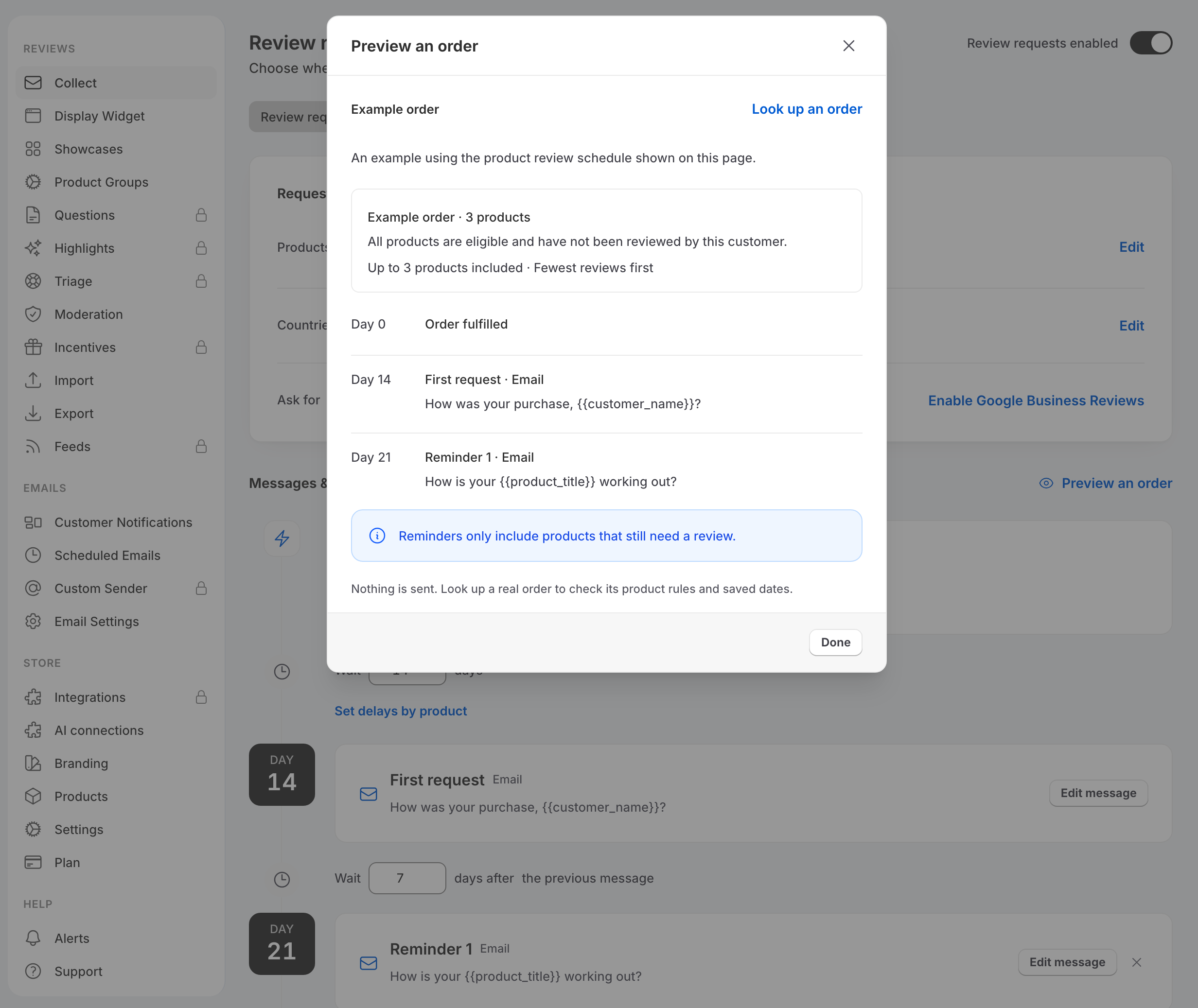
Select Preview an order > Look up an order, enter an order ID or number, and select the matching order. The preview shows the planned emails and reasons an order may not receive a request. Previewing does not send an email.
Open Collect > Results for request and response totals. Open Settings > Scheduled Emails to preview individual emails or cancel a pending email. Send now sends an email, so use Preview when you only want to inspect it.
Ask for reviews from past orders
You can request reviews from eligible Shopify orders placed before you turned on automatic requests.
- Open Settings > Scheduled Emails.
- Select Request reviews.
- Choose a Cutoff date within the past 60 days. Reviewbird checks orders created on or after that date, starting with the oldest matching orders.
- Review the explanation in the dialog, then select Request reviews to start the run.
The run processes up to 5,000 orders. Eligible requests are scheduled for 10 minutes later, giving you time to inspect them in Scheduled Emails. Orders already in Reviewbird are skipped. Fulfillment, exclusions, consent, unsubscribe, delivery requirements, and usage limits still apply. Reviewbird emails you a summary when the run finishes.
This does not resend canceled requests for orders already in Reviewbird.
Ask for photos and videos
Use Collect > Photos & videos to ask customers to add media after their review is approved. Set the delay, edit the message, add any reminders, and turn on the sending switch for this tab.
These requests target reviews without photos or videos. Reminders stop after the customer adds media or unsubscribes. The media a customer can upload depends on your plan; see Shopify plans and billing.
Troubleshooting
Why has an order not received a request?
Check the order preview first. Confirm that requests are enabled, the order is fulfilled, the wait has elapsed, and there are products left to review. Also check country and product exclusions, consent, the blocklist, unsubscribes, and your plan's usage limits.
Canceled orders and orders with refunds, including partial refunds, are excluded. A schedule that waits for delivery also needs a delivery update from Shopify.
How do I pause requests?
Turn off the switch in Collect > Review requests and confirm Turn off sending. This cancels unsent requests and reminders while keeping the settings. Turning the switch back on does not restart canceled emails. Photo and video requests have a separate switch.
Uninstalling Reviewbird disconnects the Shopify store and cancels its pending emails. Use the Collect switch when you only need to stop review requests.
Where are confirmation and discount emails?
Open Settings > Customer Notifications. This is where you edit Published, Discount, Confirmation, Reply Notification, and Edit Link emails. Review requests and reminders stay in Collect.
Return to Shopify getting started.