

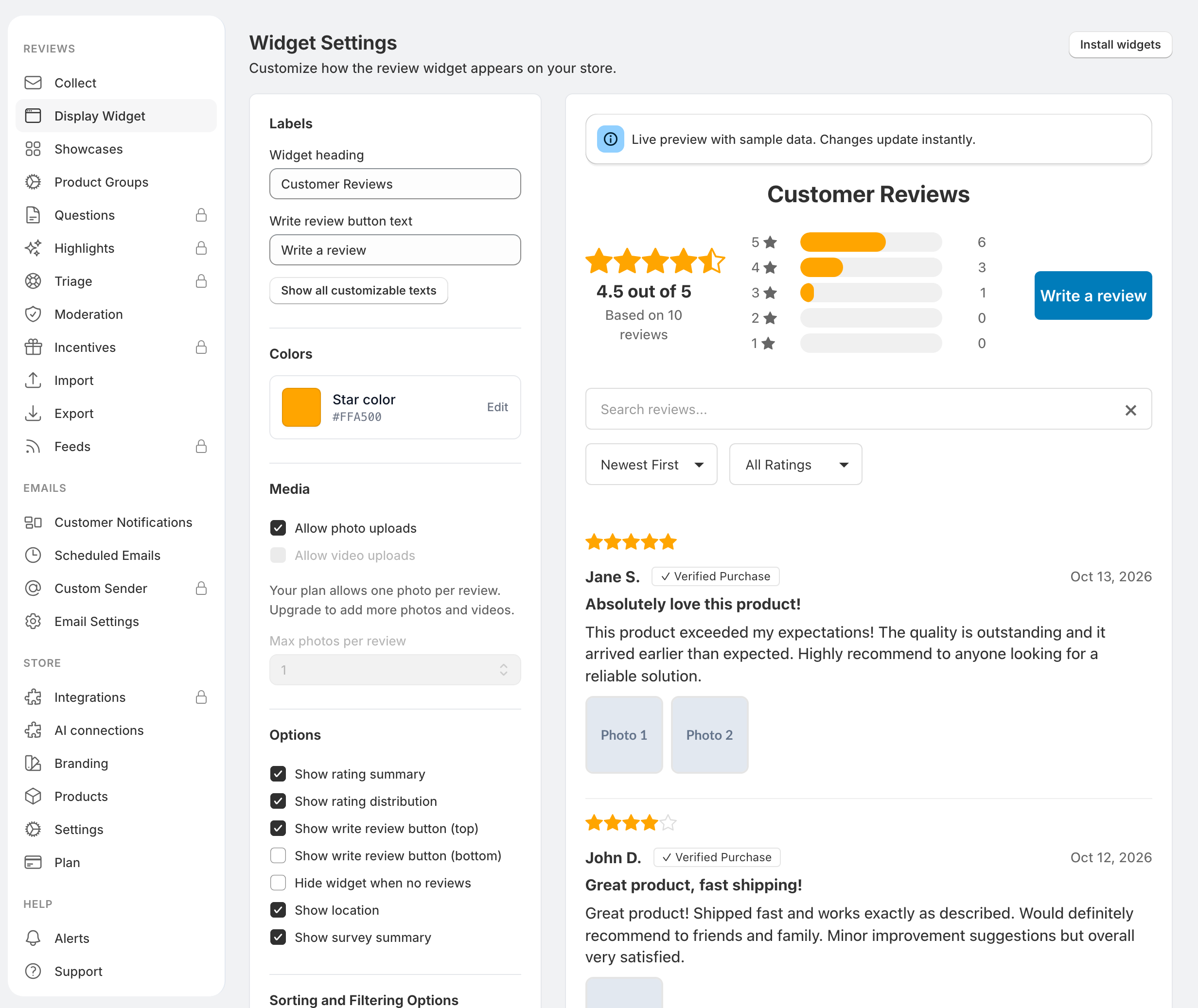
The display widget shows product reviews and lets customers write a review on your store. Open Reviewbird in Shopify admin, then go to Settings > Display Widget. The page is called Widget Settings.
These settings control the widget's content and appearance. To place the widget on your storefront, add the Reviewbird app blocks to your Shopify theme.
Change labels and colors
Use Labels to edit Widget heading and Write review button text. Select Show all customizable texts to edit more text, including review form headings, button labels, placeholders, error messages, and the hosted review thank-you page.
Use Star color in the Colors section to change the rating stars. The Masonry layout also provides Verified icon color and Card background color settings.
Use the live preview to check your changes before you save. The preview contains sample data; it does not show which reviews are published on your storefront.
Allow photos and videos
Under Media, select the upload types you want to allow:
- Allow photo uploads lets customers add photos to a review.
- Allow video uploads lets customers add a video when your plan includes video uploads.
- Max photos per review limits the number of photos a customer can add.
Your plan determines which upload options and photo limits are available. The app disables unavailable controls and shows the relevant upgrade information.
Choose what shoppers see
Under Options, select the parts of the widget you want to show:
- Show rating summary displays the average rating.
- Show rating distribution displays the breakdown by star rating.
- Show write review button (top) and Show write review button (bottom) control the review buttons.
- Hide widget when no reviews removes the widget when there are no reviews to display.
- Show location displays the customer's location when it is available.
- Show survey summary displays eligible summaries from your custom review questions.
The survey summary option also needs questions configured to contribute to a summary. See Add custom questions.
Set sorting, filtering, and helpful voting
Under Sorting and Filtering Options, choose whether to Show search, Show sort, and Show rating filter. Search availability depends on your plan.
Under Review Feedback, enable Show helpful button to let visitors mark reviews as helpful and sort by helpfulness. This also depends on your plan.
Choose a layout
Under Layout, select List or Masonry.
- List places reviews in a vertical list.
- Masonry places reviews in a grid and gives more space to photos and videos.
The app disables Masonry if your plan does not include it.
Show AI summaries and highlights
Under AI Review Summaries, enable Show AI summary when this feature is available. Reviewbird creates summaries for eligible products with at least three published reviews that contain review text. Generation runs in the background, so a summary might not appear immediately after you save.
AI highlights are configured separately in Settings > Highlights. Enable Enable AI review highlights to emphasize a selected sentence from eligible four- and five-star reviews. You can change the highlight colors, text style, corners, and animation. Save your changes with the Shopify save bar.
Highlights appear in the review widget. Shopify showcases have their own option for displaying highlights. See Showcases and trust badges.
Save and check your storefront
- Select Save widget settings.
- Open a product page that uses the theme template where you installed the Reviewbird widget.
- Check the widget on desktop and mobile.
- Check a product with published reviews and, if relevant, one without reviews.
Select Restore defaults only when you want to reset the widget customizations. This resets the saved settings; it is not a way to discard only your latest edits.
If the widget does not appear
Check that the Reviewbird Reviews Widget block is saved in the active theme and in the product's assigned template. Updating Display Widget settings does not install the block.
If Hide widget when no reviews is enabled, check whether the product has published reviews. Pending, flagged, hidden, and unconfirmed reviews do not appear publicly.
See Install Reviewbird widgets on Shopify for theme placement, or Manage reviews to check review status.