

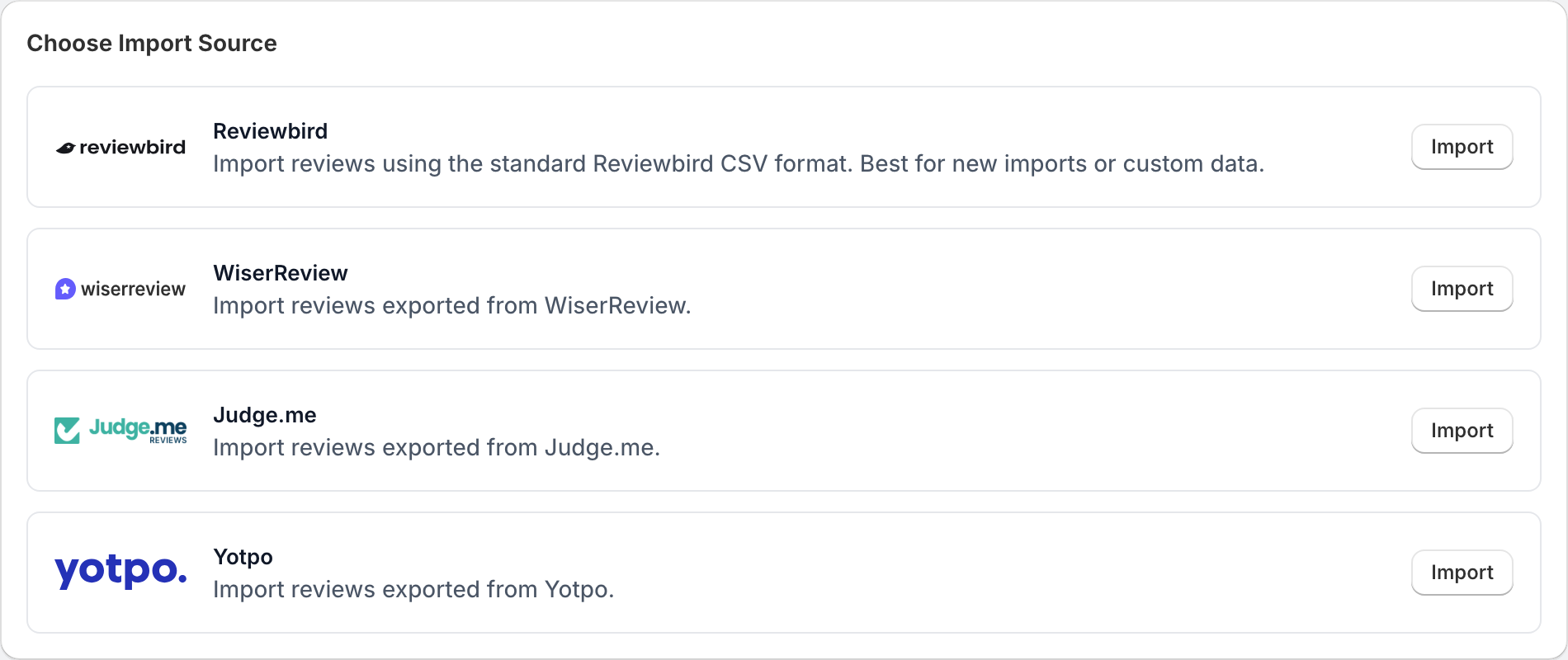
Open Settings > Import to bring reviews into your Shopify store. Reviewbird accepts files from Judge.me, Yotpo, and WiserReview, or a file in the Reviewbird format.
Before you import
Keep a copy of the original export. Check Settings > Products to make sure your Shopify products have synced into Reviewbird before importing their reviews.
If you use Shopify Flow, check workflows that start with Reviewbird's Review Approved trigger. Imported approved reviews can trigger those workflows too. Use the event's source to distinguish imports before starting a large import.
If you moved from another store or platform, its product IDs may not match Shopify's IDs. Map the reviews to the products in the destination store. A matching SKU can help when IDs have changed.
Upload a file
- Open Settings > Import.
- Under Choose Import Source, select Import next to the source that matches your file.
- Read the required and optional columns. Use the example file when one is available.
- Choose a CSV or XLSX file up to 10 MB.
- Upload it and open the import status page.
Reviewbird validates the file and imports valid reviews automatically. You can leave the page while the import runs and return through Recent Imports.
The onboarding Import step offers the same file import. Select Not right now during setup if you want to do this later.
Prepare a Reviewbird file
Include these column headers:
| Column | What to enter |
|---|---|
product_external_id |
The numeric Shopify product ID for this store. |
author_name |
The customer's name. |
rating |
A whole number from 1 to 5. |
body |
The review text. |
created_at |
The review date, such as 2026-09-01. |
You can add product_sku to match a product by SKU when the product ID does not match. For a review of a variant, Reviewbird uses its parent product. Keep SKUs unique so the match is clear.
Optional columns include author_email, title, verified_purchase, location, external_id, photos, and video. The import screen lists the current format and all supported columns.
New-review imports do not currently preserve public replies. Keep those replies in your original export so you can add them again where needed.
Set verified_purchase to true only when you have verified the purchase. Use public photo and video URLs that can be opened without signing in. Media availability depends on your store's plan.
For an export from another supported app, keep that app's column names and select its import source. A Judge.me or Yotpo file is not the same format as a Reviewbird file.
Check the results
Open the import from Recent Imports. Check Successful, Failed, and Duplicate totals. Completed means processing finished; it does not mean every row imported.
Read Validation Errors and use Failure Report > Download Report for a detailed list of issues. Correct the affected rows before trying again.
If a product does not match, check its Shopify ID or SKU, make sure it has synced, and confirm that the file is for the store you are currently viewing. Do not substitute a product ID from your old platform.
Cancel or undo an import
Cancel Import is available while the import is pending or validating. It is not available once processing starts.
Undo Import removes reviews created by an import when undo is available. This permanently deletes those imported reviews and cannot be reversed. It does not restore earlier versions of reviews that the import updated. Keep your source file before using it.
Export your approved reviews
- Open Settings > Export.
- Check the approved review count.
- Select Export Reviews.
- Wait for the export to complete, then select Download Export on the status page, or Download under Recent Exports.
The export includes approved reviews, with reviewer details, rating, review content, product, date, and verification status. Pending and rejected reviews are not included in this export.
Find earlier exports under Recent Exports. Download the file before its link expires; create another export if the old one shows Expired. If export is locked, check your access in Settings > Plan.
FAQ
Can I import from an app that is not listed?
Copy its data into the Reviewbird format. Check the required columns and product matches before uploading.
Can I update existing reviews?
Use the Reviewbird format and include the Reviewbird review id for the review you want to update. You can include public_reply when updating an existing review. The external_id column is the original review ID from another app; it is not the same as the Reviewbird id.
Does an import remove my previous review widget?
No. Review data and theme placement are separate. After checking the imported reviews, follow Install widgets and rating stars and check for duplicate blocks from your previous app.
Should I export before uninstalling?
Yes. Download the data you want to keep while the app is installed and you have export access. Read Store access and uninstalling before removing Reviewbird.