

Reviewbird can ask customers for a review after an order, then send a reminder if they have not replied. Use Collect to choose when these emails go out and what they say.
To send product review requests or photo and video requests through Klaviyo, follow the Klaviyo setup guide. For flows that use Klaviyo, set messages, delays, reminders, and stop conditions there. The email timing and message instructions below apply when Reviewbird sends the emails.
Open Collect
Open your store dashboard and select Collect in the sidebar. Start with the Review requests tab.
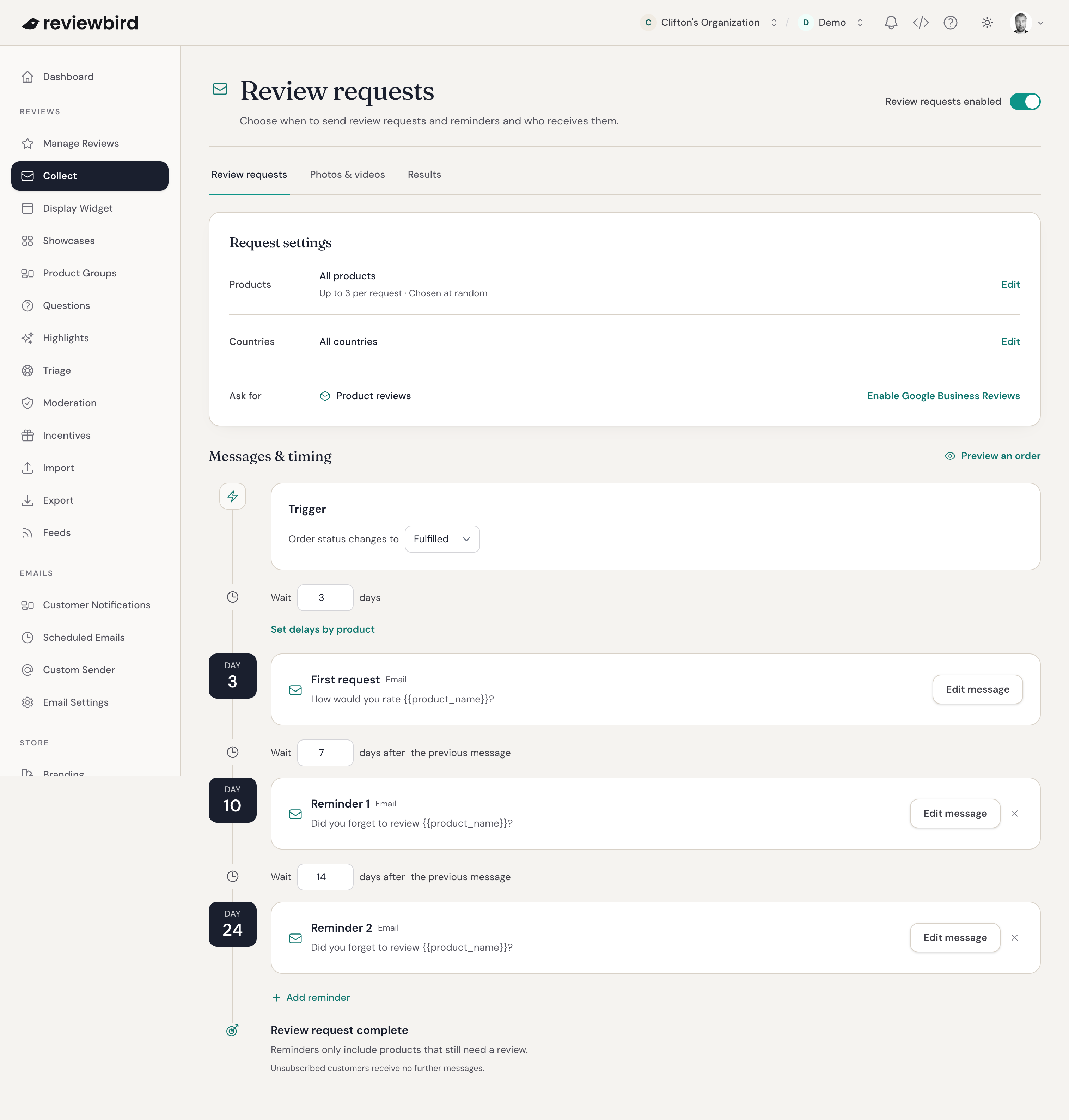
The Photos & videos tab lets you ask customers to add photos or videos after they leave a review. Use Results to see how customers respond.
You can also collect Google Business Reviews or send invitations for Google Customer Reviews. Each guide explains how to set up that service.
Set the first request date
Choose a delay that gives customers time to receive and use their products.
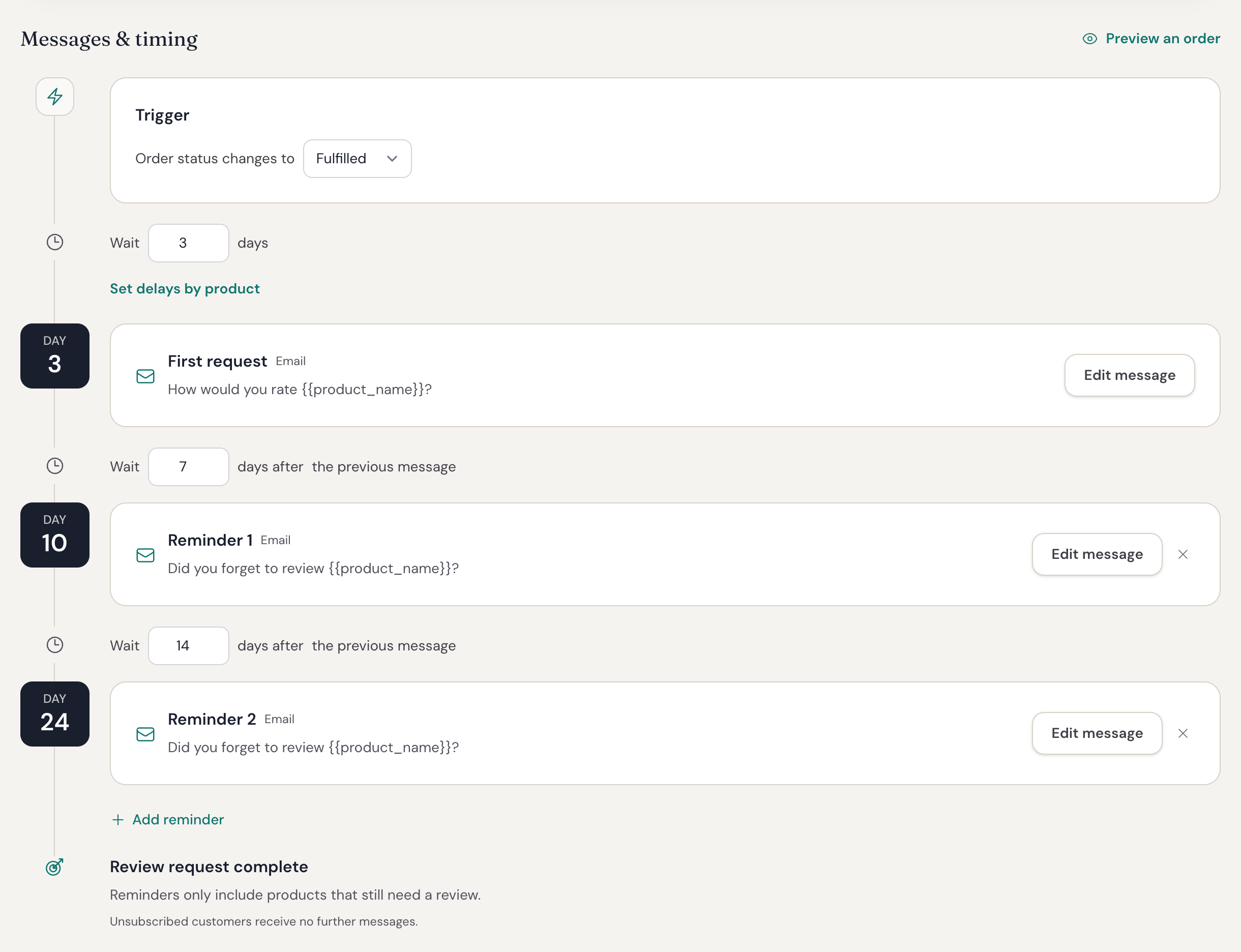
- Under Messages & timing, find Trigger.
- Set Order status changes to to Fulfilled.
- Set Wait to a whole number from 0 to 60 days.
- Select Save timing.
For WooCommerce, Reviewbird normally treats Completed orders as fulfilled. To use a different status, open Emails > Email Settings, change Order Fulfillment Status, and save.
Choose products and countries
Select Edit next to Products. You can:
- Include 1 to 10 products in each request.
- Choose which products appear when an order has more than that number. For example, you can give priority to products with the fewest reviews.
- Exclude individual products, categories, or tags.
Select Save changes. Reviewbird can still ask for reviews of the other products in an order. It does not ask a customer to review a product they have already reviewed.
To limit requests by country, select Edit next to Countries. Choose All countries except those selected or Only the selected countries, select the countries, and save. Leave the list empty to send to all countries.
Give some products more time
Some products need more time before a customer can give useful feedback. You can add a longer delay for these products without changing the emails.
- Below the first Wait field, select Set delays by product.
- Select Add a delay.
- Select the products, categories, tags, or product groups.
- Set Wait at least to a whole number from 0 to 60 days.
- Select Save delay.
The longest delay applies to the whole order. For example, with a standard delay of 14 days and a product delay of 21 days, Reviewbird waits 21 days before it asks for reviews of that order.
You can edit or remove a delay from Set delays by product. Product groups are available on Starter, Plus, and Everything plans.
Add and edit reminders
Reminders are included with Starter, Plus, and Everything plans.
- Select Add reminder below the last message.
- Set Wait to a whole number from 1 to 60 days after the previous message.
- Select Save timing.
- Select Edit message to change the reminder email.
You can add up to 10 reminders. Keep the first request and all reminders within 89 days of fulfillment. Product delays count toward this total.
Reminders include only products that still need a review. They stop when the customer has reviewed all the requested products or unsubscribed. To remove a reminder, select its remove button.
Edit an email
- Select Edit message on the first request or a reminder.
- Edit the subject and email text. The available fields depend on the message.
- Use Show in email to choose which sections to include, such as the product image and star rating.
- Check the preview, then select Send test to send a copy to your inbox.
- Select Save message.
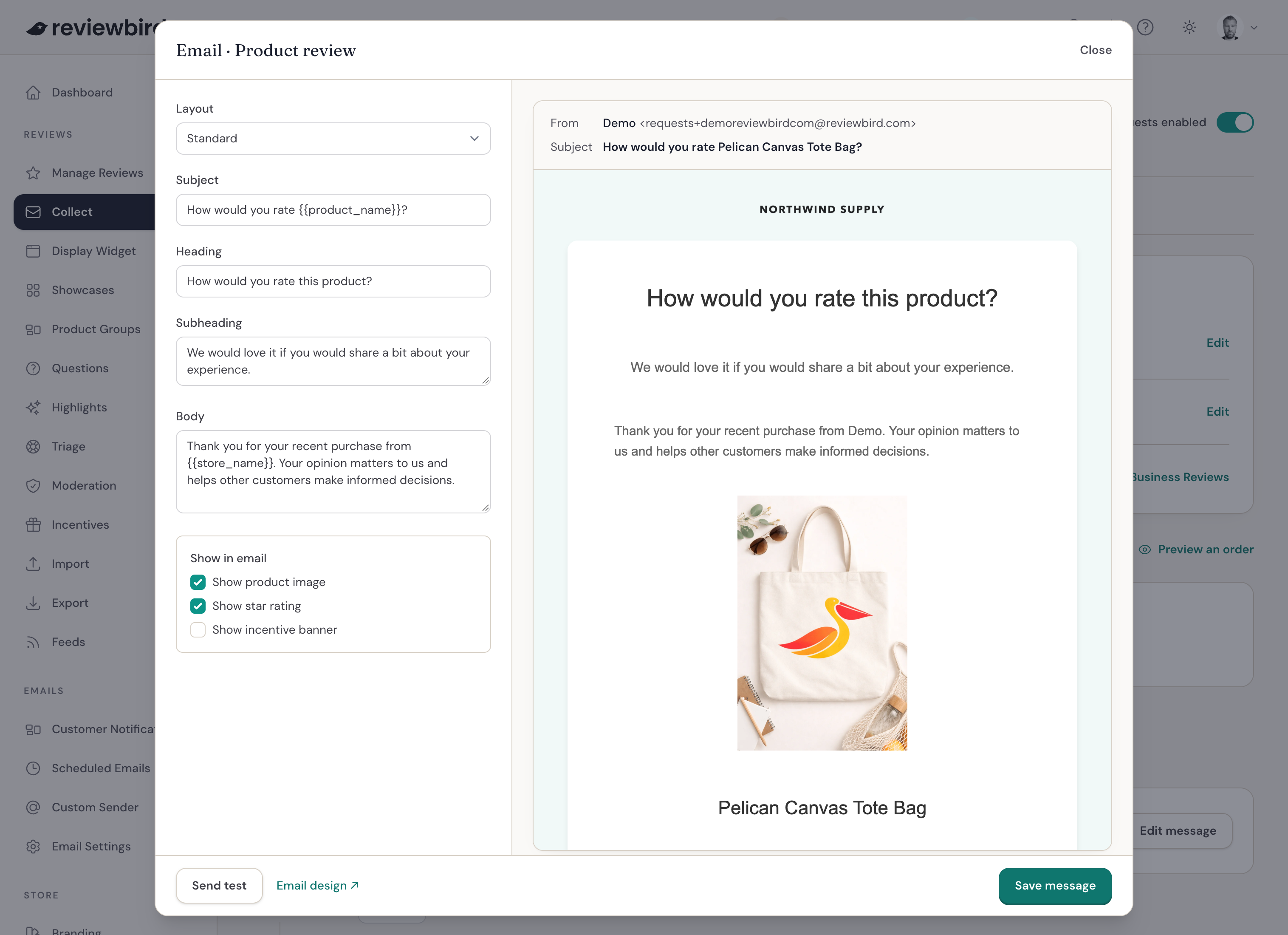
The first product review email has two layouts:
- Standard shows a review request with the sections you select.
- Order follow-up checks on the customer's order and includes a text link to leave a review.
Order follow-up is available on Plus and Everything plans after you set up and verify a Custom Sender. You can also edit its sender name, reply address, and signoff. Use a reply address that your team checks.
If you have saved more than one version of a message, select message versions to edit them. Reviewbird chooses one version at random for each customer.
Turn on automatic review requests
When you are happy with the messages and timing, turn on the switch at the top of Collect > Review requests. The page will show Review requests enabled.
This switch controls product and Google Business Review requests. Photo and video requests and Google Customer Reviews invitations have separate switches on their tabs.
Ask for photos and videos
You can invite customers to add photos or videos after they leave a review. These requests are included with Starter, Plus, and Everything plans. Starter accepts one photo per review. Plus and Everything also accept videos and multiple photos per review.
- Open Collect > Photos & videos.
- Select View saved settings if the schedule is not open.
- Set the first Wait from 0 to 60 days after the review is approved.
- Select Save timing.
- Select Edit message to change and test the email.
- Add reminders if you want to follow up.
- Select Enable photo & video requests, or turn on the sending switch.
Reviewbird asks customers whose reviews have no photos or videos. Reminders stop after a customer adds a photo or video, or unsubscribes.
Preview an order
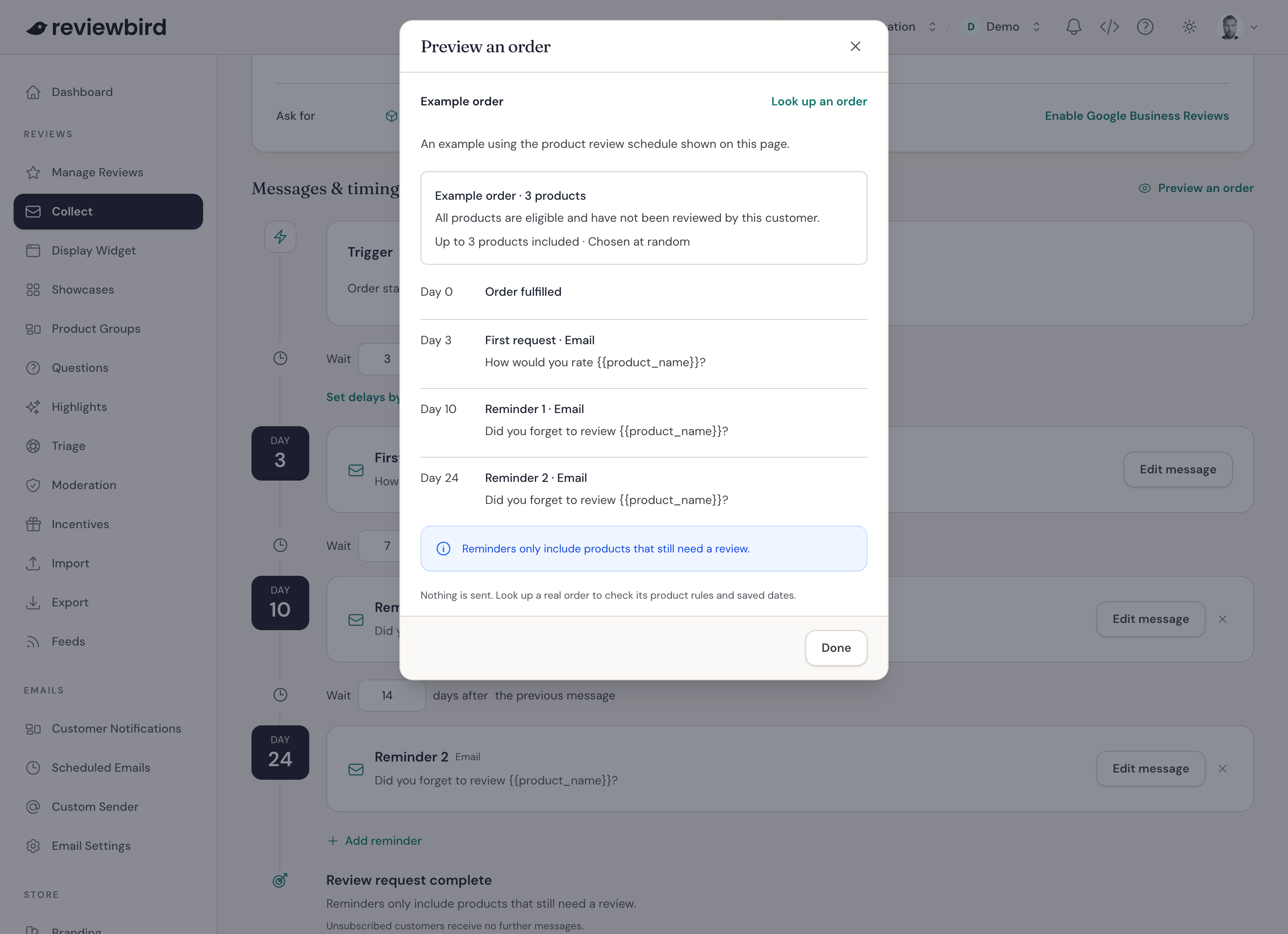
Select Preview an order above the timeline to see how your settings work. To check an actual order:
- Select Look up an order.
- Enter an Order ID or number and select Search.
- Select the order from the results.
The preview shows the products, planned emails, and reasons an order might not receive a request. Opening a preview does not send an email.
Check results and scheduled emails
Open Collect > Results to see how many requests you have sent and how customers responded.
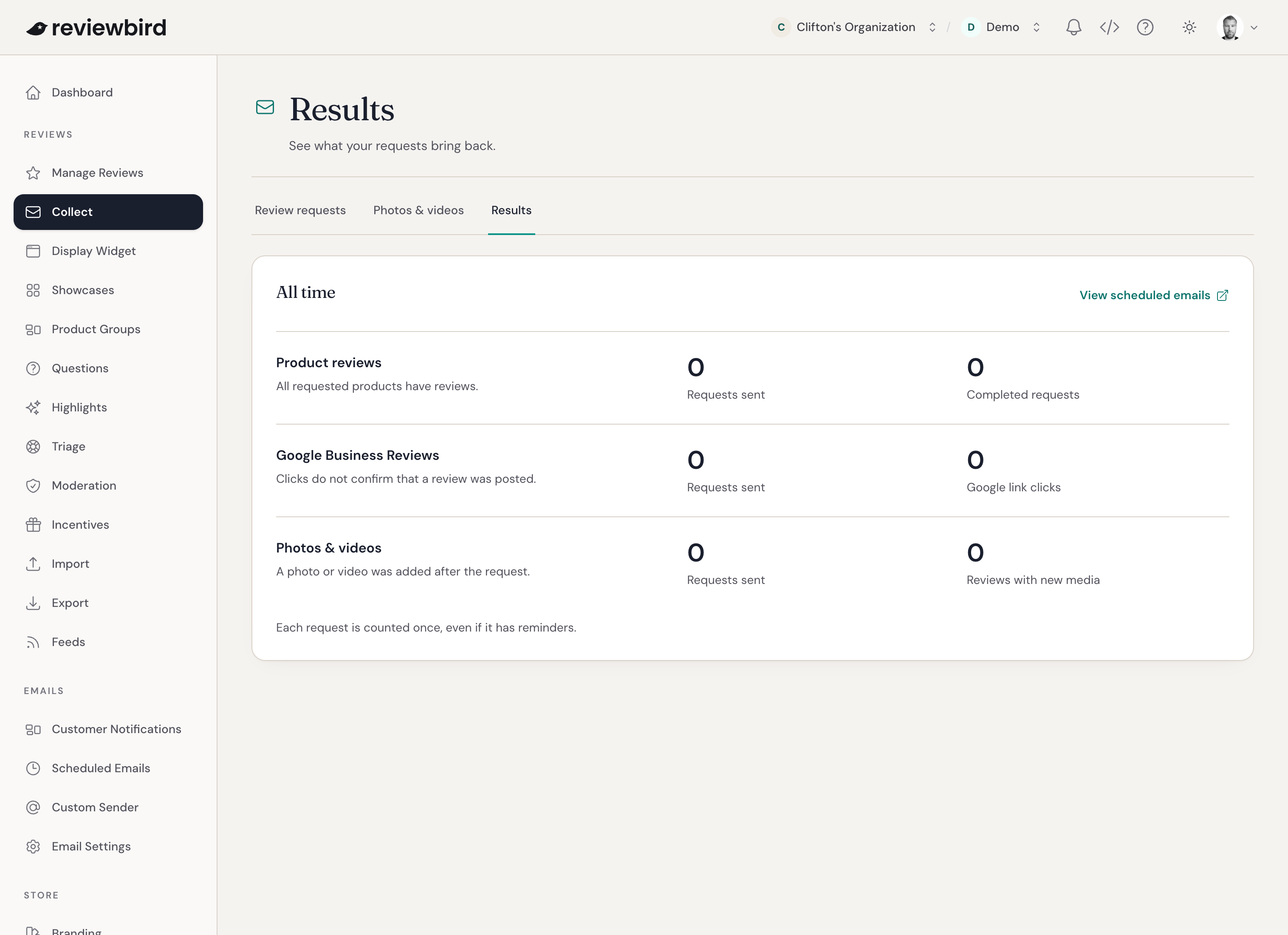
To check individual emails, select View scheduled emails or open Emails > Scheduled Emails. You can preview an email, send it now, or cancel it before it sends.
To block all future emails to an address, add it under Emails > Email Settings > Email Blocklist. Reviewbird also cancels scheduled emails to that address.
Frequently asked questions
How do I pause review requests?
Turn off the switch at the top of Collect > Review requests and confirm Turn off sending. This stops new requests and cancels unsent requests and reminders. Your settings stay saved, but turning requests back on does not restart canceled emails.
Where are my previous email settings?
Your review request messages, timing, and reminders are now in Collect. You do not need to set them up again. Scheduled emails keep their dates, and Reviewbird keeps your sending history and unsubscribe records.
To find a custom schedule you created before Collect, open Set delays by product > Existing custom schedules. The first matching custom schedule applies. Other orders use the standard schedule. A custom schedule can exclude the whole order; a product exclusion leaves the other products in the request.
Other customer emails, such as review confirmations, are under Emails > Customer Notifications.
Can I ask for reviews from past orders?
Yes. See Bulk review requests. Reviewbird sends requests within 90 days of fulfillment.
Can product reviews and Google Business Reviews use different schedules?
They share timing and reminders, but each has its own message text. Use the tabs above the timeline to edit the messages for each review type.
What counts as a response in Results?
For product reviews, a request is complete when the customer has reviewed all the requested products. Photo and video results count reviews that received new photos or videos after the request.
Google Business Review results count clicks on the Google review link. Google Customer Reviews results count responses to the invitation. These actions do not confirm that the customer posted a review or agreed to Google's survey. Each request is counted once, even when it includes reminders.