

Google Customer Reviews asks customers about their shopping experience after their order arrives. Reviewbird helps you invite them from your WooCommerce thank you page and by email. Google then sends the survey to customers who agree to receive it.
What you need
- A Plus or Everything plan, with an active subscription or trial.
- Your WooCommerce store connected to Reviewbird.
- The Reviewbird WordPress plugin, version 1.2.0 or later.
- A Google Merchant Center account with your store domain verified and claimed.
In Merchant Center, open Settings > Add-ons > Discover and activate Google Customer Reviews. Accept Google's program agreement. Google's account setup guide can help with this step.
Add your Merchant ID
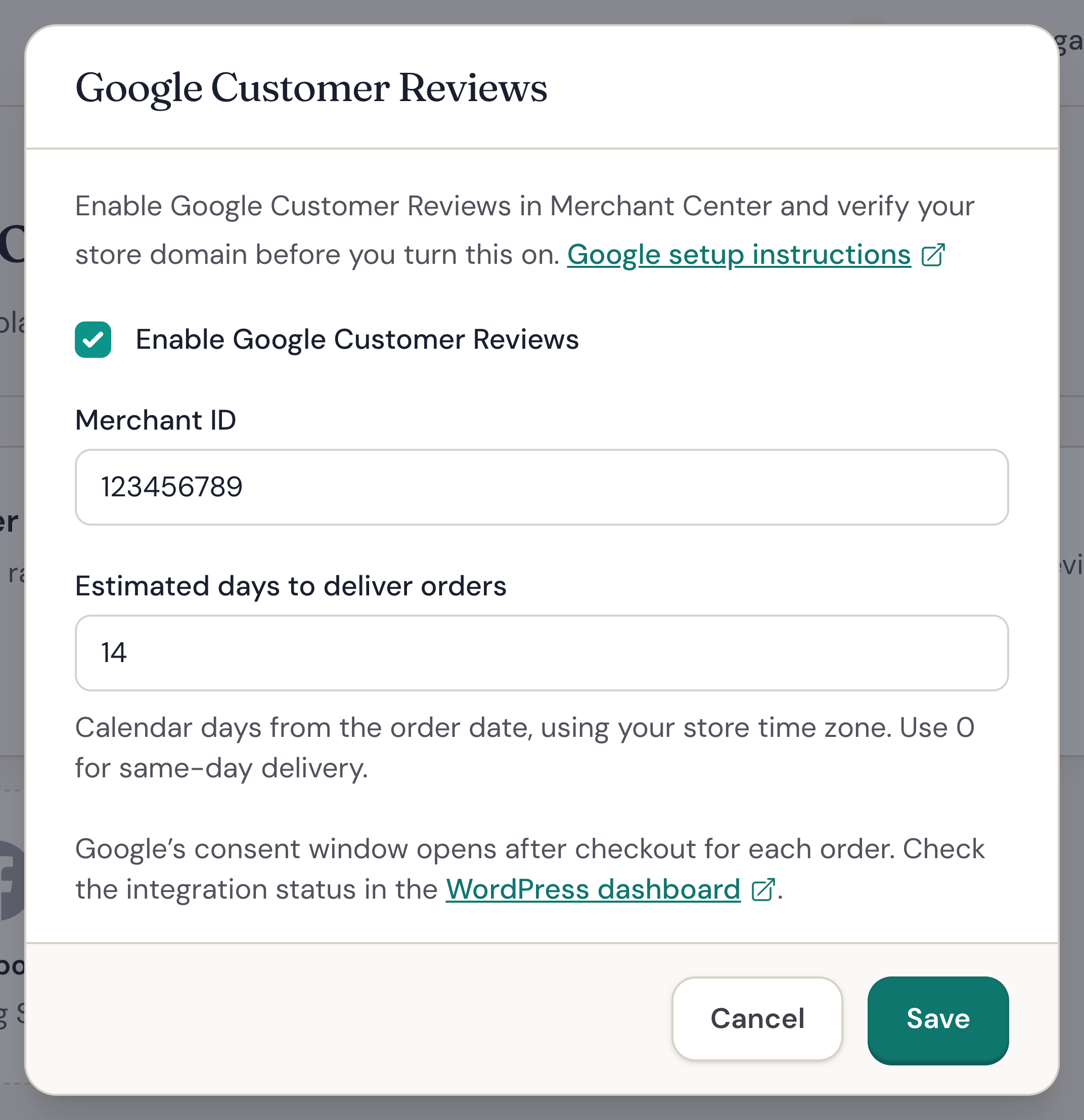
- Open your store in Reviewbird and select Integrations.
- Select Google Customer Reviews.
- Select Enable Google Customer Reviews.
- Enter your Merchant ID from Google Merchant Center.
- Enter Estimated days to deliver orders. Include the time you need to prepare and ship an order.
- Select Save.
For example, enter 5 if an order usually reaches the customer five days after they place it. Google uses this estimate to decide when to send the survey. Use 0 for same-day delivery.
Invite customers on the thank you page
Once you enable the integration, Google's consent window opens automatically on your WooCommerce thank you page. This also works with CheckoutWC. Customers choose whether they want to receive Google's survey.
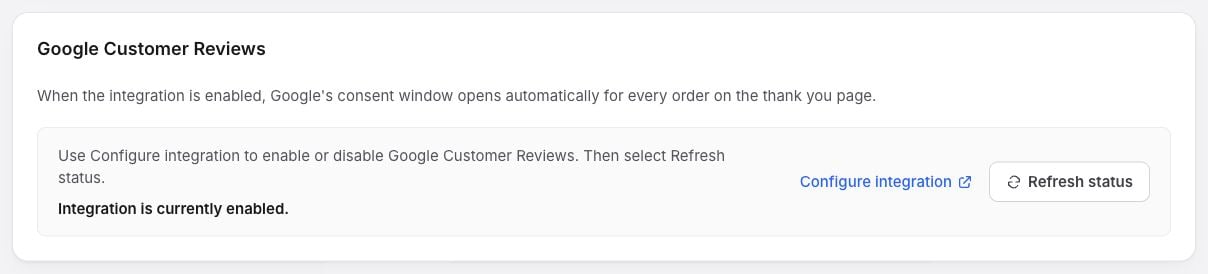
To check that WordPress has the settings you saved:
- Open Reviewbird > Settings in WordPress.
- Find Google Customer Reviews and select Refresh status.
- Check that the status reads Integration is currently enabled.
Google requires the survey option on every order confirmation page. Those pages must use HTTPS. Email invitations do not replace this requirement. Read Google's setup requirements.
Send email invitations
You can also invite customers by email. The email button opens Google's consent window on your store. Google sends the survey later, after the estimated delivery date.
These invitations are optional and separate from your product review requests. To send them:
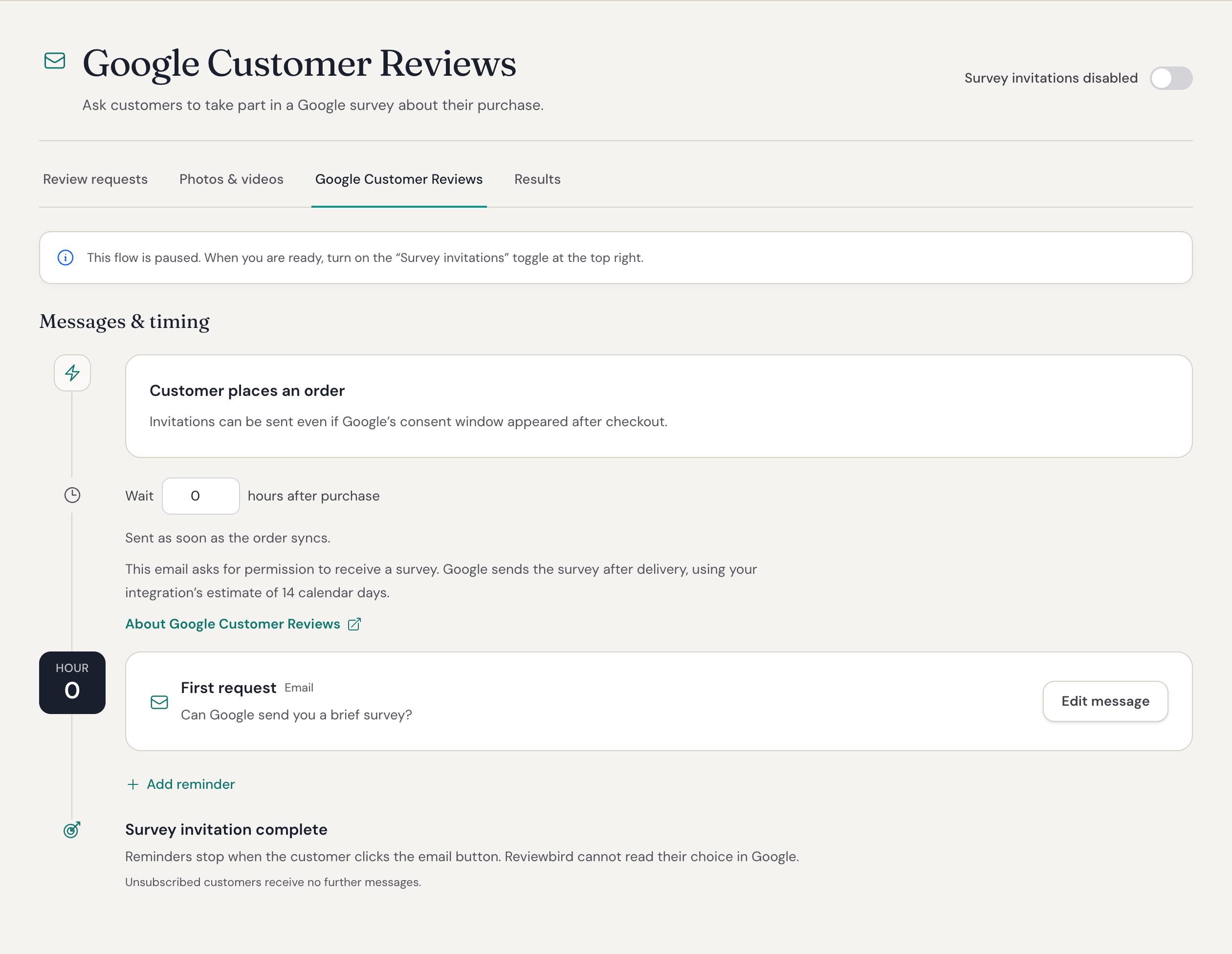
- In Reviewbird, open Collect > Google Customer Reviews.
- Under Messages & timing, choose when to send the first invitation: 0 to 12 hours after purchase. Use 0 to send it as soon as Reviewbird receives the order.
- Select Save timing if you change the wait.
- Edit the First request message and its button text.
- Add a reminder if you want to follow up. Set its wait in days after the previous email.
- Turn on the switch at the top of the page. It will show Survey invitations enabled.
Invitations start with new orders placed after you turn on sending.
Do not offer a discount or other reward for completing a Google survey. Google's policy prohibits these incentives.
Check your results
Open Collect > Results to check Requests sent and Customers who responded for Google Customer Reviews. Responses count clicks on the email invitation, not completed surveys.
To see completed surveys, open Reviews > Google Customer Reviews in Merchant Center. Google's dashboard shows survey invitations, surveys sent, and responses received. Read Google's guide to these results.
FAQ
Is this the same as Google Business Reviews?
No. Google Customer Reviews is a purchase survey sent by Google. Google Business Reviews are public reviews on your Google Business Profile in Search and Maps.
The Google Product Ratings feed is another feature. It sends your existing product reviews to Merchant Center for use with product listings.
Can I use this with a Multistore or Agency plan?
Yes. Multistore Plus, Multistore Everything, and all Agency plans include Google Customer Reviews.
Why is the Google Customer Reviews tab missing from Collect?
First, open Integrations > Google Customer Reviews. Check that the integration is enabled and that you saved your Merchant ID and delivery estimate.
Then check Connect for your WooCommerce connection and Billing for an active Plus or Everything subscription or trial. In WordPress, use plugin version 1.2.0 or later and select Refresh status under Reviewbird > Settings.
Will customers still get an email if they saw Google at checkout?
Yes, if you enable email invitations. Reviewbird cannot read the customer's choice in Google's consent window, so that choice does not stop an invitation or reminder.
If you want to ask only at checkout, leave sending off in Collect > Google Customer Reviews.
When do reminders stop?
Reviewbird stops the remaining Google survey reminders for an order when the customer clicks the invitation button in the email. Customers still need to agree to receive the survey in Google's window.
Why are my click totals different from Google's survey totals?
A click on the email button opens the invitation. It does not confirm that the customer agreed to receive a survey or completed one. Google may not send a survey to every customer who agrees.
Use Merchant Center to check completed surveys.
Why does my dashboard still show Yes and No clicks?
These are saved responses to the former Reviewbird prompt. They do not include choices in Google's consent window. Older Customers who responded totals in Collect can also include responses to that prompt.
How do I turn off invitations?
To stop invitation emails and reminders, open Collect > Google Customer Reviews, turn off the sending switch, and confirm Turn off sending. Google's consent window stays available after checkout. Links in emails you already sent still work.
If you turn sending on again, new orders can receive invitations and pending reminders can resume.
To turn off Google Customer Reviews entirely, open Integrations > Google Customer Reviews, clear Enable Google Customer Reviews, and select Save. Then select Refresh status under Reviewbird > Settings in WordPress. This removes the checkout consent window and stops existing invitation links from working. Google may still send surveys to customers who already agreed to receive them.