

Send your product reviews to Google Merchant Center so Google can use them with your product listings. Reviewbird creates a feed, which is a file that Google reads to get your reviews and match them to products.
What you need
Google Product Ratings is included with Plus and Everything. Multistore Plus, Multistore Everything, and Agency plans include it too.
You also need approval for Google's Product Ratings program and at least 50 product reviews across your products. Google's Product Ratings guide explains how to join. Google decides where ratings appear, so an accepted feed does not guarantee that every listing will show stars.
Create your feed
- Open your store in Reviewbird.
- Select Feeds.
- Turn on Google Product Ratings.
- Wait for Reviewbird to prepare the feed. This can take a few minutes for a large catalog.
- Select Copy next to Feed URL.
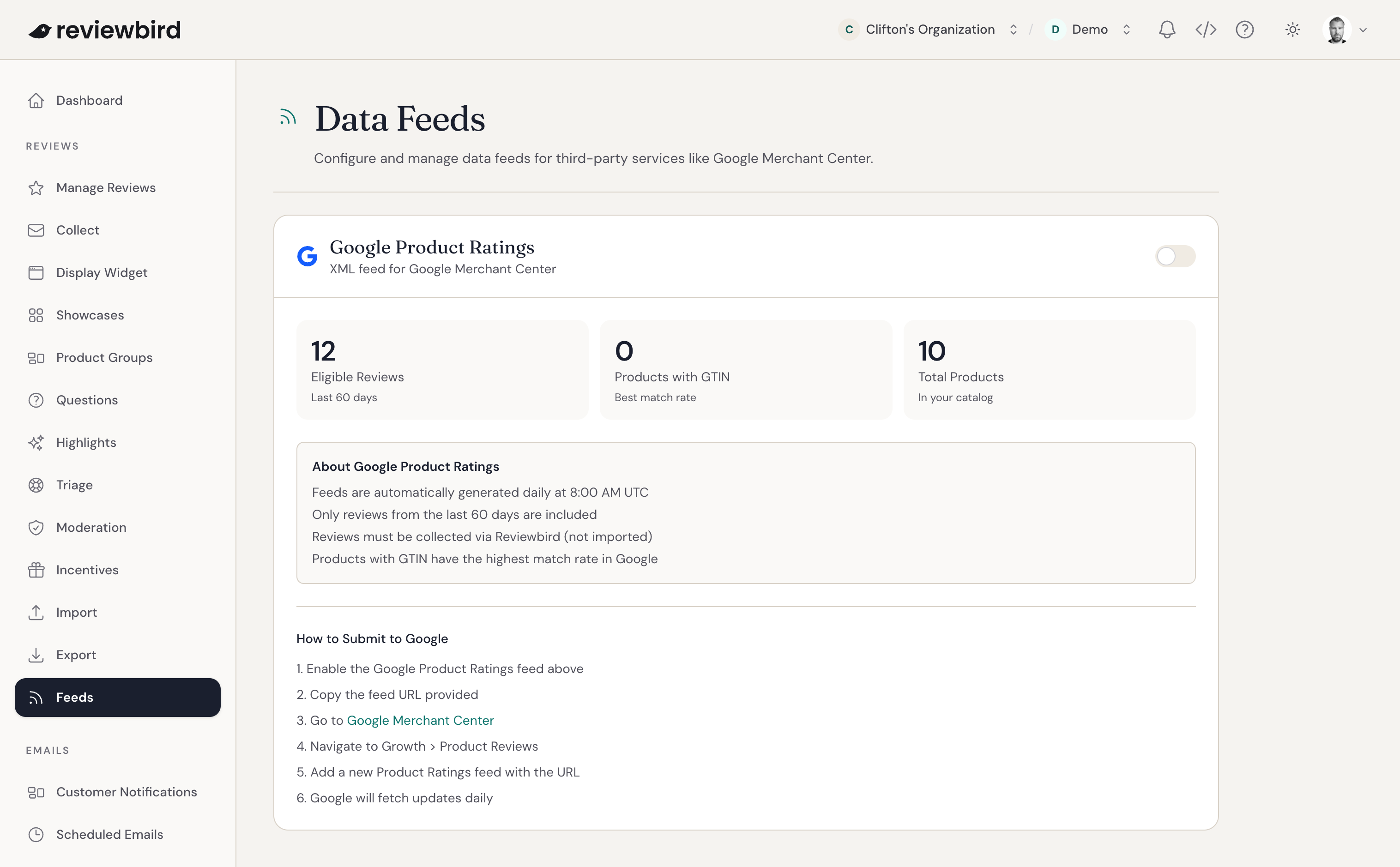
Reviewbird updates the feed each day at 8:00 AM UTC. Select Regenerate Now if you have made changes and want to update it sooner.
Add the feed to Google Merchant Center
- In Merchant Center, open Reviews > Product reviews.
- Select Product review data sources, then Add product reviews.
- Choose the option to enter a link to your file.
- Paste the Reviewbird Feed URL.
- Choose how often Google should check the file. Schedule the check after Reviewbird's daily update.
- Save the schedule and select Continue.
Google's data source guide has more help with these steps. Google requires an updated feed at least once a month.
Help Google match reviews to your products
Use the same product identifiers in Reviewbird and Merchant Center. A GTIN (Global Trade Item Number) gives Google the best chance of finding the correct product.
The Feeds page shows Products with GTIN and Total Products so you can check your catalog. Eligible Reviews shows the reviews that meet Reviewbird's standard feed rules.
Open the data source's Latest update tab in Merchant Center to check for errors. If Google cannot match a product, compare its identifiers in Reviewbird and Merchant Center.
FAQ
When will my ratings appear on Google?
Google says reviews can take 2 to 4 weeks to appear after the first submission. Check Merchant Center for any errors that need your attention. Read Google's processing guidance.
Which reviews does Reviewbird include?
By default, the feed includes reviews collected through Reviewbird's review form, widget, or email form. Each review needs text and a product. Imported reviews are off by default.
The feed includes the rating, review text, product name, product URL, and available identifiers such as GTIN, SKU, and brand.
Can I include reviews imported from another app?
Yes, if the reviews belong to your store and meet Google's rules. Google generally requires you to have collected and own the reviews. Check Google's review ownership policy before you include them.
On Feeds, turn on Include Imported Reviews. Review the warning, select the confirmation checkbox, and choose Enable Imported Reviews.
Can I include reviews collected with a discount or other reward?
Select Support in your Reviewbird dashboard before submitting these reviews. Google requires a disclosure for permitted incentive reviews, and Reviewbird's feed does not currently include that disclosure.
Reviewbird excludes reviews collected while its discount incentive for all approved reviews was active. Reviews collected with other rewards still need to meet Google's incentive rules.
Is this the same as Google Customer Reviews?
No. This feed sends existing product reviews to Merchant Center. Google Customer Reviews invites customers to receive a Google survey after a purchase.
Google Business Reviews asks customers for a public review on your Business Profile in Search and Maps.