

Ask some customers for a Google Business Review while others receive a product review request. Google Business Reviews appear on your Business Profile in Google Search and Maps.
You choose the share of customers to invite. Reviewbird sends the requests after their orders, using the schedule in Collect.
Get your Google review link
- Open your Google Business Profile.
- Select Read Reviews > Get more reviews.
- Copy the review link for your business or location.
If you need help finding the link, follow Google's review link instructions.
Set up Google Business Reviews
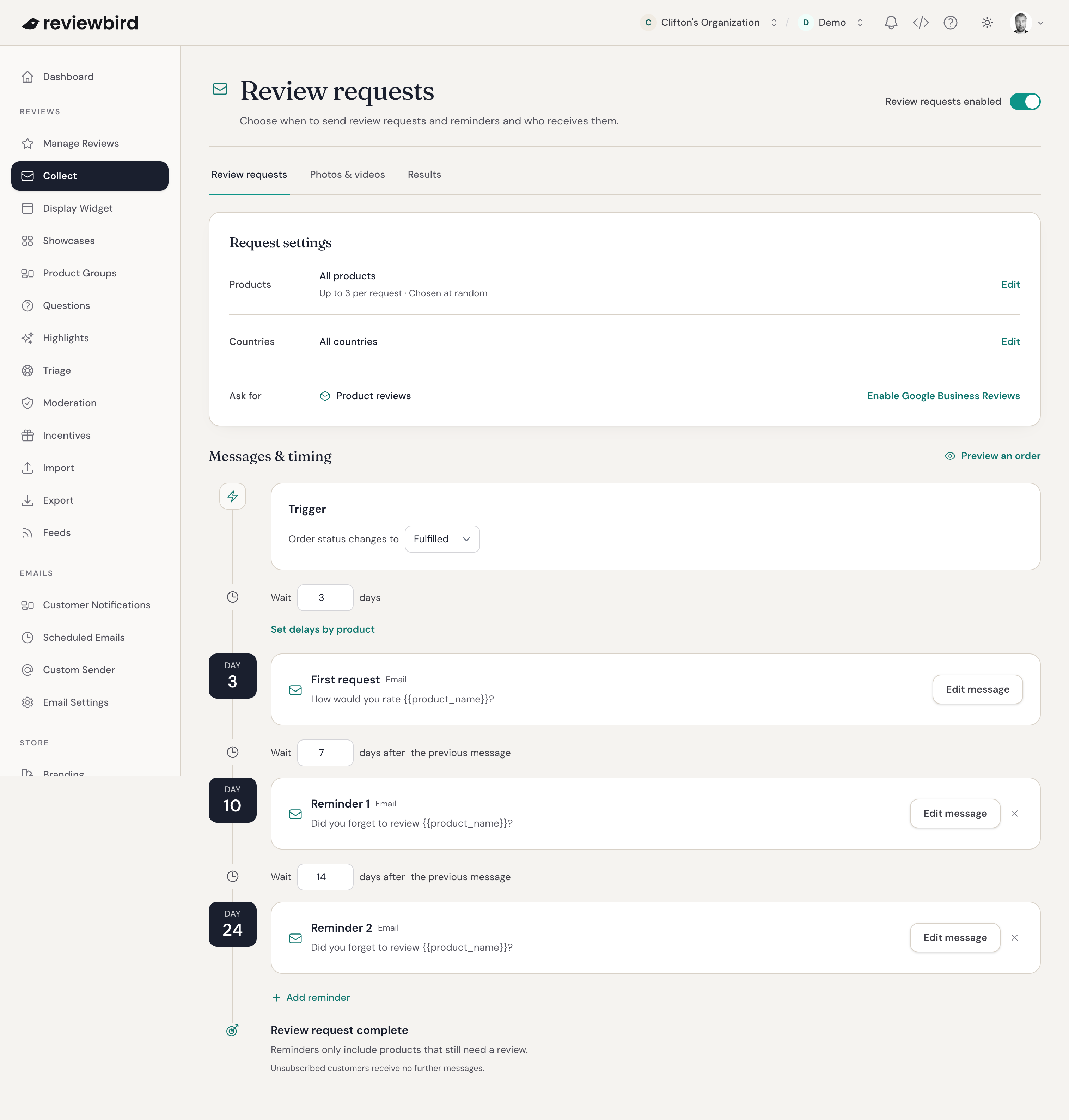
- Open your store in Reviewbird and select Collect > Review requests.
- Under Request settings, select Enable Google Business Reviews.
- Paste your Google Business Review link.
- Set the percentage under Ask for Google Business Reviews on.
- Select Enable & edit messages.
- Review the message, make any changes, and save it.
- Make sure Review requests are enabled at the top of the page.
For example, choose 20% to invite about 20 out of every 100 customers to leave a Google Business Review. The other customers receive product review requests. Reviewbird chooses at random, so the exact number can vary.
Do not offer a discount, gift, or other reward for a Google Business Review. Google prohibits these incentives.
Edit your messages and timing
Under Messages & timing, select Google Business Reviews to edit the first email and each reminder.
Google Business Review requests normally use the same schedule as product review requests. When the page says the timing is shared, a timing change affects both types. Each type has its own message text.
Set the first wait from order fulfillment. Set reminder waits from the previous email. Use Preview an order to check when a customer will receive each email.
For more help with the schedule, see Automatic review request emails and reminders.
Change the percentage or review link
Use the Ask for slider to adjust the split between Product reviews and Google Business Reviews, then select Save.
To update your review link, select Google Business Reviews settings, enter the new link, and select Save changes.
Check your results
Open Collect > Results. The Google Business Reviews row shows Requests sent and Google link clicks. Open your Google Business Profile to read the reviews customers leave.
FAQ
How is this different from Google Customer Reviews?
Google Customer Reviews invites customers to a survey that Google sends after delivery. Google Business Reviews asks them to write a public review on your Business Profile.
To send existing product reviews to Google Merchant Center, use the Google Product Ratings feed.
Do customers need a Google Account?
Yes. Customers need to sign in to a Google Account to post a review. Google explains how customers leave reviews.
Does a link click mean the customer left a review?
No. Reviewbird knows when the customer opens the Google review link, but cannot confirm whether they submit a review. It stops further reminders after that click.
Will changing the percentage affect emails already scheduled?
A change between 1% and 99% applies to new orders. If you set Google Business Reviews to 0%, customers still waiting in that schedule move to product review requests. They keep their place in the schedule. Setting Google Business Reviews to 100% moves waiting product review requests to Google Business Reviews instead.
How do I stop Google Business Review requests?
Open Google Business Reviews settings and select Disable Google Business Reviews. If requests are in progress, review the count and confirm the change.
Reviewbird cancels their unsent Google emails and reminders. New orders receive product review requests. Turning Google Business Reviews on again does not restart the canceled requests.
Use 0% instead if you want waiting customers to receive product review requests rather than cancel their requests.