

Connect Klaviyo to send product review requests, reminders, and photo and video requests. Reviewbird sends customer events and review links to Klaviyo. You set the messages, delays, and conditions that stop each sequence in Klaviyo.
You can also keep Reviewbird as your email sender and use Klaviyo events to respond to customer reviews.
What you need
- A Reviewbird plan that includes integrations: Plus, Everything, Multistore Plus, Multistore Everything, or Agency.
- Permission to change your store settings in Reviewbird.
- A Klaviyo account that you can authorize for the connection.
Connect your account
- Open your store in Reviewbird.
- Select Integrations > Klaviyo.
- Select Connect Klaviyo.
- Sign in to the correct Klaviyo account and select Allow.
- When you return to Reviewbird, use Choose which flows use Klaviyo to select Review requests and reminders, Photo and video requests, or both.
- Select Switch selected flows.
Both request types are selected at first. Clear a checkbox if you want Reviewbird to continue to send that request type. The selection applies to the existing flows of that type, including custom flows.
If your Klaviyo messages are not ready, select Later in Collect. This keeps the connection and your current sending settings. Connecting the account does not create Klaviyo messages or flows.
Test the connection
- Open Integrations > Klaviyo.
- Check the connected account name.
- Select Send test event.
- In Klaviyo, check the profile for the email address you use to sign in to Reviewbird.
The profile receives a Reviewbird Connection Test event. This tests the connection. It does not send a review request or provide sample product data.
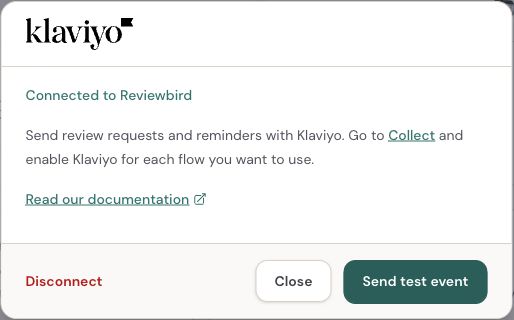
Choose which requests Klaviyo sends
You can change the sender later in Collect:
| Request type | Where to go | Switch |
|---|---|---|
| Product reviews | Collect > Review requests | Use Klaviyo to send review requests and reminders |
| Photos and videos | Collect > Photos & videos | Use Klaviyo to send photo and video requests |
Find the switch under Messages & timing. For a custom flow, open its editor, change the switch, and select Save flow.

Keep the sending switch for each request type on. The Klaviyo switch selects the sender; it does not enable a request type that is turned off.
For product reviews, Reviewbird still applies your order conditions, product selection, exclusions, and country settings. It sends the Review Requested event when the order qualifies. The selected Fulfilled or Delivered trigger still applies. Delivered requires delivery tracking on your plan.
Set all message delays in Klaviyo. Reviewbird does not apply its saved first-request delay, product delays, or reminder schedule to new Klaviyo requests. For example, to ask 14 days after fulfillment, add a 14-day delay to the Klaviyo flow.
Your Reviewbird messages and timing stay saved. Turn off the Klaviyo switch to use them for new requests again. Requests already in progress keep their current sequence. This change does not move them between services.
Google Business Review requests and Google Customer Reviews invitations continue to use Reviewbird.
Set up a product review flow
- In Klaviyo, create a flow with Review Requested as its metric trigger.
- If you connect more than one store to the same Klaviyo account, add a trigger filter for Store ID.
- Add the delay before your first request.
- Add an email with the product information and Review URL from the event.
- Add reminders and the conditions that stop them.
- Preview the email with an actual Review Requested event. Check each review link before you make the flow live.
The event contains a Products list. Each item has its own Product Name, Product URL, Product Image URL, and Review URL. Use this list when an email must show more than one product. The product fields at the top level contain only the first selected product.
Use Klaviyo's lookup syntax for field names that contain spaces. For a request that shows the first product, use these values:
Product name: {{ event|lookup:'Product Name' }}
Review button URL: {{ event|lookup:'Review URL' }}
Field names are case sensitive. See Klaviyo's message personalization reference for more examples.
Stop reminders after a response
Reviewbird sends Review Submitted when the customer submits a review. Klaviyo must use this event to stop reminders.
For a simple sequence, add a profile filter that requires Review Submitted to have occurred zero times since the customer started the flow. Klaviyo checks profile filters before each message. See Klaviyo's trigger and profile filter guide.
This simple filter stops the sequence after any review from that customer. It does not wait for reviews of every requested product. Check your conditions for customers with several products or orders. Review events include product and request identifiers when available.
Set up photo and video requests
- Enable photo and video requests in Collect > Photos & videos.
- Turn on Use Klaviyo to send photo and video requests for the applicable flow.
- In Klaviyo, create a flow with Review Published as its metric trigger.
- Add a trigger filter that requires Add Media URL to be set. Add a Store ID filter if needed.
- Add your delay and email. Use Add Media URL for the upload button.
- Set conditions to stop reminders after Photo Review Submitted or Video Review Submitted.
- Preview the email with an eligible Review Published event before you make the flow live.
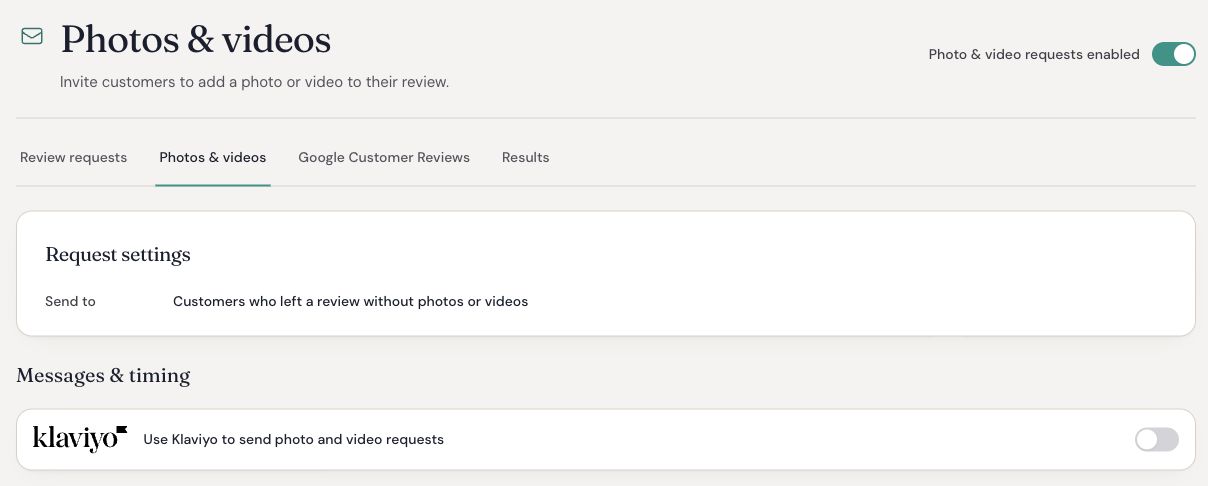
Use this value for the upload button:
{{ event|lookup:'Add Media URL' }}
Review Published can occur without an upload link. Reviewbird adds Add Media URL only when the review qualifies for a Klaviyo photo and video request. The review must be approved, have no completed photo or video uploads, and belong to a customer who can receive the request. Your photo and video flow conditions also apply.
The upload link expires 90 days after the review was created. Keep your delays and reminders within that period. The link can stop working earlier if the review or customer is no longer eligible.
For a simple stop rule, require both Photo Review Submitted and Video Review Submitted to have occurred zero times since the flow started. Either upload then stops later messages. As with review reminders, this rule applies to the customer, not only to one review.
Events available in Klaviyo
Reviewbird matches each event to a Klaviyo profile by email address. Review events can arrive while Reviewbird continues to send the request emails.
| Event | When Reviewbird sends it |
|---|---|
| Review Requested | An eligible product review request is assigned to Klaviyo. One event starts the request and reminder sequence. |
| Review Submitted | A customer submits a review, including a review that still needs moderation. |
| Positive Review Submitted | The submitted review has 4 or 5 stars. |
| Negative Review Submitted | The submitted review has 1, 2, or 3 stars. |
| Review Published | A review is first approved. An eligible Klaviyo photo and video request also includes Add Media URL. |
| Photo Review Submitted | A photo upload is complete and its URL is available. |
| Video Review Submitted | A video upload is complete and its URL is available. |
| Review Reminder Sent | Reviewbird's email provider accepts a product review reminder sent by Reviewbird. This event does not report reminders sent by Klaviyo. |
| Reviewbird Connection Test | You select Send test event. The event uses your Reviewbird sign-in email address. |
Review events apply to reviews submitted through the widget or a review request form. Imported reviews and reviews copied from another store do not start these events. Connecting Klaviyo does not send a history of old reviews.
Event fields
| Event type | Useful fields |
|---|---|
| Product review request | Store ID, Order ID, Order Number, Request ID, Collection ID, Flow ID, Language, Sequence Owner, and Products. Sequence Owner is Klaviyo. |
| Each requested product | Product ID, Reviewbird Product ID, Product Name, Product URL, Product Image URL, and Review URL. |
| Review submitted, published, or updated with media | Review ID, Store ID, product details, Rating, Review Title, Review Content, Verified Purchase, Has Photo, Has Video, Photo URLs, and Video URL when available. Order and request identifiers are included when available. |
| Eligible photo and video request | The Review Published fields, plus Add Media URL and Media Flow ID. |
| Reviewbird reminder | Store ID, Order ID, Order Number, Request ID, Reminder Number, and Products. Only products included in the reminder appear in the list. |
In Review Requested and Review Reminder Sent, Review URL opens the review form. In review submission and publication events, it points to the review on the product page. Use Add Media URL to request an upload.
Check results and connection errors
Open Emails > Scheduled Emails to check Klaviyo request events:
| Status | Meaning |
|---|---|
| Event scheduled | Reviewbird is waiting to send the event. |
| Event accepted by Klaviyo | Klaviyo accepted the event. This does not confirm that an email was sent or delivered. |
| Paused · Connect Klaviyo | The request cannot continue until the connection is restored. |
| Event failed | Klaviyo did not accept the event. Check the connection error. |
Use Klaviyo to check message delivery, opens, clicks, and skipped messages. Klaviyo request events do not use your Reviewbird email allowance.
If a request is paused or failed, open Integrations > Klaviyo and read the error. Reconnect the original Klaviyo account if access was removed. Events already assigned to one account are not sent to a different account.
Disconnect or return to Reviewbird
To use Reviewbird for new requests, turn off the Klaviyo switch in each applicable Collect flow. Your saved Reviewbird messages and timing return.
To remove the connection, open Integrations > Klaviyo and select Disconnect. Klaviyo requests pause. Reviewbird does not automatically send those requests by email instead. If Retry disconnect appears, select it to finish removing access.
Disconnecting does not cancel messages already scheduled inside Klaviyo. Pause those flows in Klaviyo if you want to stop them too.
FAQ
Why is the Klaviyo switch missing or unavailable?
Check your plan, store permissions, and connection under Integrations > Klaviyo. The switch is available for product review requests and photo and video requests. Save or cancel any message or timing edits before you change it.
If Reviewbird shows Klaviyo connection is not available yet, contact support.
Why did the connection test work but no customer email arrived?
The test sends only Reviewbird Connection Test. Check that your customer flow uses Review Requested or Review Published, that sending is enabled in Collect, and that the Klaviyo flow is live. Then check its filters, delays, and recipient status.
Why is an event missing from the trigger list?
Check after the first matching customer action. The connection test does not create sample request, review, or media events. For photo requests, confirm that the Review Published event contains Add Media URL.
Can I keep Reviewbird as the sender and still use review events?
Yes. Connect Klaviyo and select Later in Collect. Leave the Klaviyo sending switches off. You can use review submission, publication, media, and Reviewbird reminder events in Klaviyo while Reviewbird sends your emails.