
Custom review form questions collect structured feedback during a review. This feature is available on the Plus and Everything plans.
Open the Questions page
- In the left menu, find Reviews.
- Select Questions.
- Select New question.
You can start with a blank question. You can also use one of eight templates. The templates cover fit, age, height, body type, skin type, skin results, satisfaction, and product use.
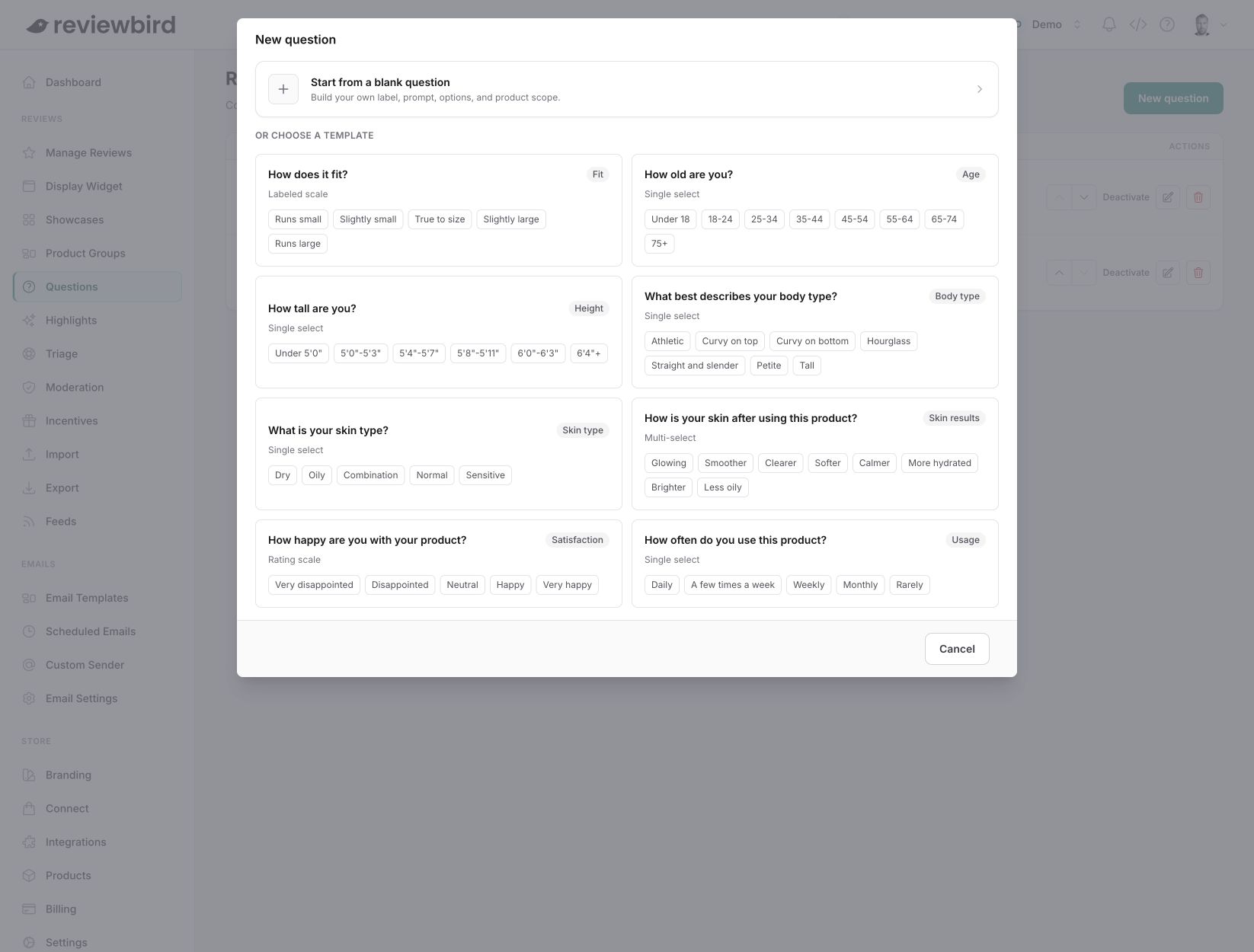
Set the question content
- Label: Enter the short name that appears with the answer. The maximum length is 100 characters.
- Question: Enter the text that the customer sees. The maximum length is 255 characters.
- Type: Select Single select, Multi-select, Rating scale, or Labeled scale.
- Options or Scale labels: Enter a label for each choice. Each label can contain up to 100 characters.
Use the arrow buttons to change the option order. The preview changes when you change the question.
Question types and limits
- Single select: The customer selects one option. You must add from 2 to 8 options.
- Multi-select: The customer selects one or more options. You must add from 2 to 8 options.
- Rating scale: The customer selects a number from 1 to 5. You must enter exactly five labels.
- Labeled scale: The customer selects one of five labeled points. You must enter exactly five labels.
Reviewbird selects the middle point of a labeled scale when the form opens. After Reviewbird collects an answer to a question, you cannot change the question type. You can still change its other settings.
Set answer rules and public display
- Require an answer: The customer must answer the question before the customer can continue.
- Hide answers from public display: Reviewbird collects the answer but does not show it to shoppers.
- Add to survey summary: Reviewbird can show a summary after Reviewbird collects answers from at least 10 approved reviews.
- Add to review filters: Shoppers can filter reviews by the selected answer.
- Collect answers for this question: Turn this off to remove the question from new review forms.
If you hide answers from public display, Reviewbird turns off the survey summary and review filter settings. You must also select Show Survey Summary in the Display Widget settings.
Set the product scope
Use Applies to to control which product review forms contain the question.
- All products: The question applies to all products in the store.
- Specific products: Search by product name, SKU, or ID. A search shows up to 30 results.
- Tags or categories: The question applies when a WooCommerce product has any selected tag or category.
- Product groups: The question applies to products in the selected Reviewbird product groups.
- Select at least one product, term, or product group when you use a limited scope.
- Select Create question.
Control the question order
Reviewbird shows active questions one at a time. It uses the order on the Questions page.
- Drag a question to a new position.
- Use Move up or Move down to move a question by one position.
- Select multiple questions to activate, deactivate, or delete them.
- Use Edit to change a question and its scope.
Reviewbird does not limit the total number of questions. Reviewbird shows a warning when more than three questions are active. To help customers complete the form, use three or fewer active questions.
Deactivate or delete a question
Deactivate a question if you want to use it again. Delete a question if you will not use it again. After either action, Reviewbird does not collect new answers. Reviewbird keeps previous answers with their reviews.