

Open your store and select Integrations to connect Klaviyo, Google Customer Reviews, or WooCommerce Marketplace.
Integrations are included with Plus and Everything. Multistore Plus, Multistore Everything, and Agency plans include them too.
Klaviyo
Use Klaviyo to send product review requests, reminders, and photo and video requests. Reviewbird sends events and review links. You set messages, delays, and stop conditions in Klaviyo.
- Select Klaviyo, then Connect Klaviyo.
- Sign in to Klaviyo and select Allow.
- Choose the request types and select Switch selected flows, or select Later in Collect to keep your current sending settings.
Follow the Klaviyo setup guide to test the connection, build flows, and use review events. You can change the sender for each supported flow in Collect. Requests already in progress keep their current sequence.
Google Customer Reviews
Invite customers to tell Google about their shopping experience. You can show an invitation on your WooCommerce thank you page and send invitations by email.
You need a Google Merchant Center account, a connected WooCommerce store, and the Reviewbird WordPress plugin version 1.2.0 or later.
- Select Google Customer Reviews.
- Select Enable Google Customer Reviews.
- Enter your Merchant ID and Estimated days to deliver orders.
- Select Save.
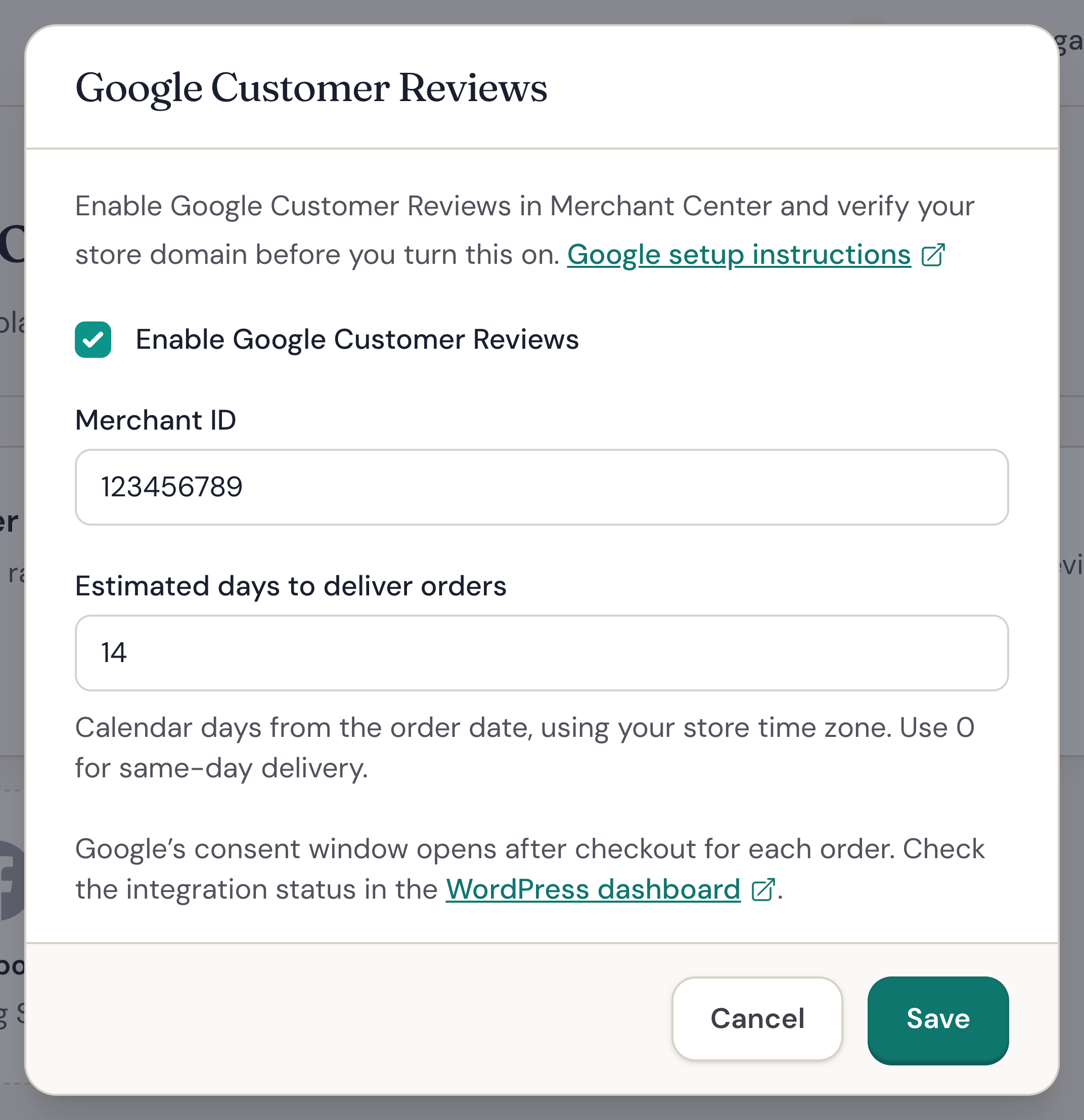
Google's consent window opens automatically after checkout. Follow the Google Customer Reviews guide to check the connection and set up optional email invitations.
WooCommerce Marketplace
If you sell extensions on WooCommerce.com, use this integration to bring their reviews into Reviewbird.
First, open Products and add the WC.com ID for each extension. Reviewbird uses this ID to match a WooCommerce.com listing to a product in your store.
Connect the integration
- On Integrations, select WooCommerce Marketplace.
- Under Connect WooCommerce Marketplace, choose Once per day or Once per week for Sync Frequency.
- Select Connect.
Reviewbird will check for reviews on that schedule. Select Sync Now when you want to check sooner.
Change the schedule
Open WooCommerce Marketplace, choose a new Sync Frequency, and select Save Settings.
To pause automatic imports, turn off Sync enabled and save. Turn it on again when you want to resume.
FAQ
Which Google feature should I use?
| What you want to do | Feature | Where to find it |
|---|---|---|
| Invite customers to a Google survey about their purchase. | Google Customer Reviews | Integrations, then Collect. |
| Ask for public reviews on your Google Business Profile. | Google Business Reviews | Collect > Review requests. |
| Send existing product reviews to Google Merchant Center. | Google Product Ratings feed | Feeds. |
Why can I not open an integration?
Open Billing to check your plan. Integrations require Plus or Everything, or a Multistore Plus, Multistore Everything, or Agency plan. If your store uses Starter, you can upgrade from Billing.
For Google Customer Reviews, also check that your WooCommerce store is connected and that your subscription or trial is active.
Why are my WooCommerce Marketplace reviews missing?
Open Products and check the WC.com ID for the extension. Then open the integration and select Sync Now. The import can take a few minutes.
Check Sync History for errors. Reviewbird can pause imports after repeated failures. Correct the reported problem, turn on Sync enabled, and save your settings.
What happens if I remove the WooCommerce Marketplace connection?
Remove Connection stops future imports. Reviews you already imported stay in your store.