
A product group lets related products share reviews. When a customer opens one product in the group, the customer can see approved reviews from all products in the group. An automatic rule adds or removes products when the product catalog changes.
For a group with manually selected products, see Sharing reviews between products with product groups.
Access and plan requirements
- Product groups are available on the Starter, Plus, and Everything plans.
- The organization owner, an Administrator, or a Manager can create and change product groups.
- A Moderator or Viewer cannot create or change product groups.
Create an automatic product group
- Select the applicable store.
- Open Product Groups.
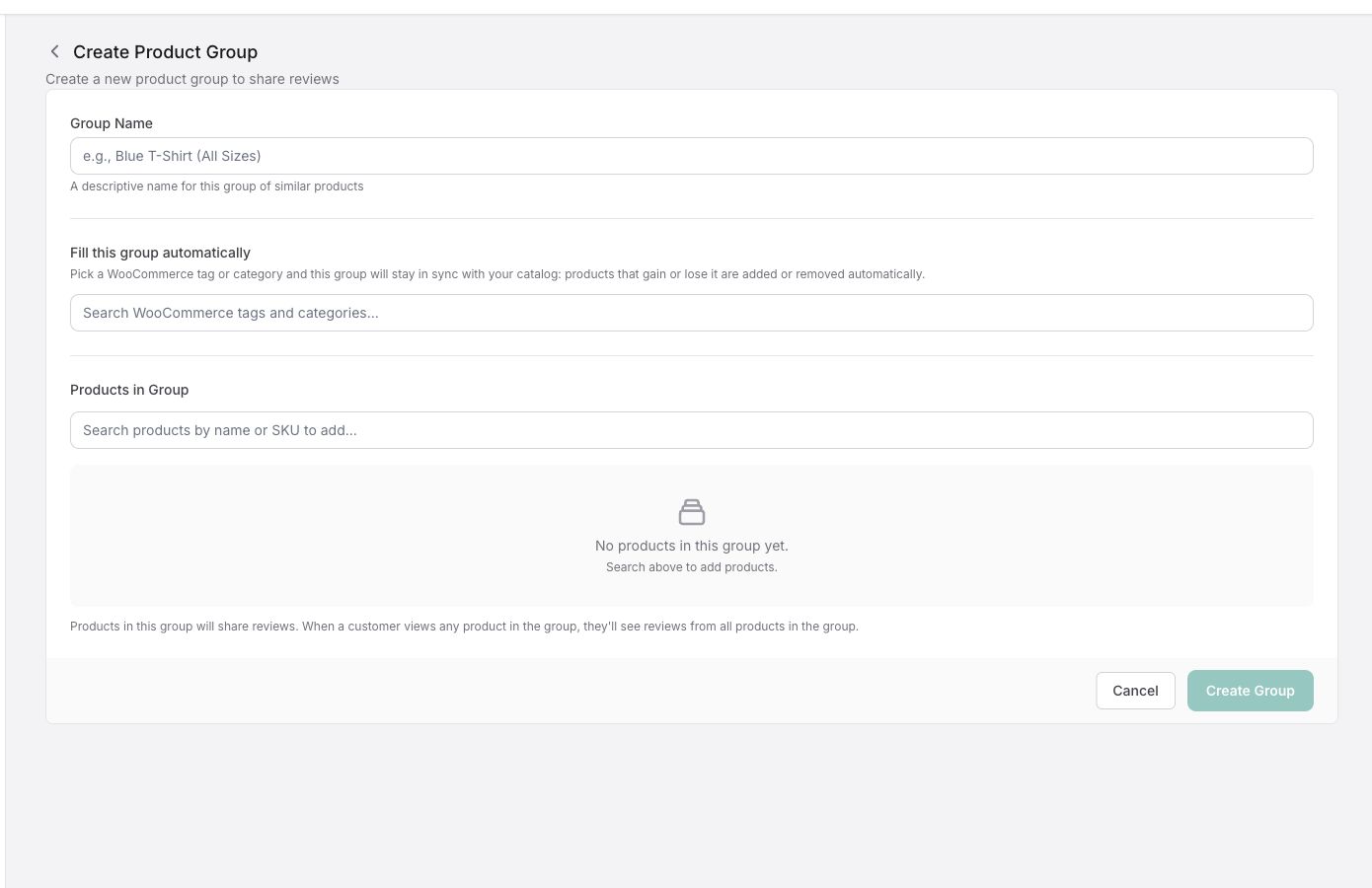
- Select Create Product Group.
- Enter a group name.
- In Fill this group automatically, search for a catalog term.
- Select one WooCommerce product tag or category.
- Select Create Group.
Reviewbird adds products that have the selected term. Reviewbird removes products when they no longer have the term. Changes appear after the next catalog sync.
Automatic group rules and limits
- A group name is required. It can contain a maximum of 255 characters.
- Each group name must be unique in the store.
- An automatic group can use only one tag or category.
- A group can have an automatic rule or manually selected products. It cannot have both.
- A product can be in only one product group.
- You cannot manually add or remove products in an automatic group.
- The edit page shows a maximum of 50 products for an automatic group. This display limit does not limit the number of group members.
Important: Reviewbird does not move a product that is already in another group. When an ungrouped product matches more than one automatic group at the same time, the oldest automatic group adds it.
Reviewbird also prevents two groups from using the same catalog term. For WooCommerce categories, Reviewbird prevents the use of a related parent or child category in another automatic group. These rules make sure that two groups do not add the same products.
Change a manual group to an automatic group
- Open the manual group.
- Remove all manually selected products from the group.
- Select one catalog term in Fill this group automatically.
- Save the group.
If the manual group still has products, Reviewbird does not let you add an automatic rule.
Change an automatic group to a manual group
- Open the automatic group.
- Clear the selected catalog term.
- Save the group.
Reviewbird stops adding and removing products automatically. The products that are already in the group stay in the group. You can then add or remove products manually.