
AI Review Highlights marks the strongest passage in a positive review. Shoppers can find the main product benefit more quickly. This feature is available only on the Everything plan.
Enable AI Review Highlights
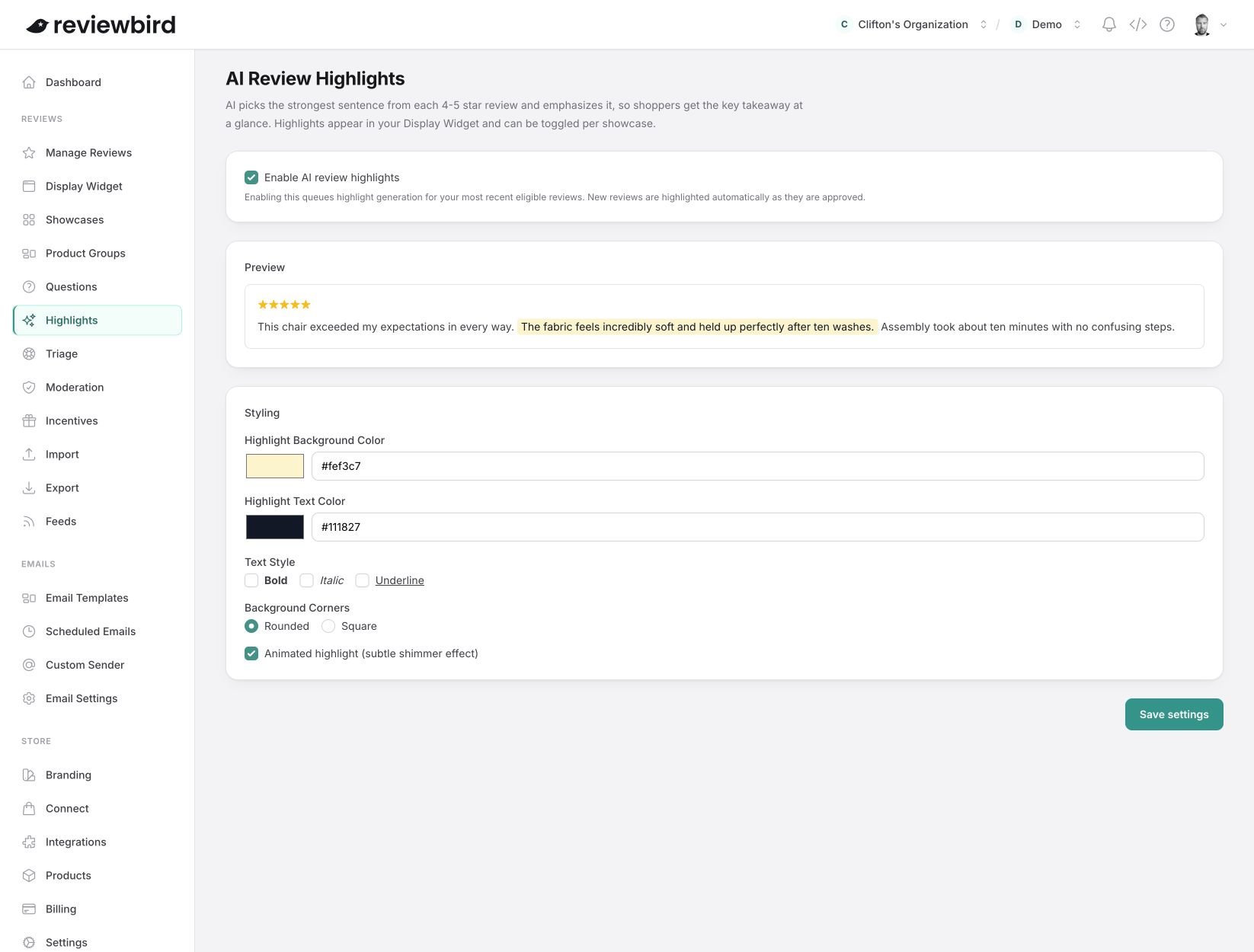
- In the left menu, find Reviews.
- Select Highlights.
- Select Enable AI review highlights.
- Set the highlight style.
- Check the preview.
- Select Save settings.
Reviews that can get a highlight
A review must meet all these conditions:
- The review is approved.
- The rating is 4 or 5 stars.
- The review text contains at least 150 characters.
When you first enable the feature, Reviewbird processes up to 50 of the newest eligible reviews for each product. This limit includes reviews of product variations. Reviewbird excludes reviews that already have a highlight result from the first run. Reviewbird does this work in the background.
After the first run, Reviewbird processes each new eligible review when it is approved. Reviewbird does not limit the number of new highlights each month.
How Reviewbird selects the text
- AI usually selects one strong sentence about quality, fit, results, durability, or value.
- AI can select two adjacent sentences if the two sentences give a clearer product benefit.
- The selected passage is an exact copy of the public review text.
- Reviewbird does not correct, rewrite, or combine separate parts of the review.
- If the review has no suitable passage, Reviewbird does not show a highlight.
You cannot manually select or edit the highlighted passage. If the review text contains an error, ask the customer to use the review edit link. Reviewbird makes a new highlight after the edited review is approved.
For translated review text, Reviewbird uses the matching passage from the translated text. If Reviewbird cannot find the corresponding passage, it does not show a highlight in that language.
Set the highlight style
- Highlight Background Color: Set the color behind the selected passage. The default value is #fef3c7.
- Highlight Text Color: Set the passage text color. The default value is #111827.
- Text Style: Select Bold, Italic, Underline, or a combination. These options are off by default.
- Background Corners: Select Rounded or Square. Rounded is the default.
- Animated highlight: Add a small shimmer effect. This setting is off by default.
If you type a color value, use a number sign and six hexadecimal characters. For example, use #111827. The preview changes before you save the settings.
The animation does not run when a shopper uses the reduced-motion setting on the device.
Show highlights in a WooCommerce showcase
- Go to Reviews > Showcases.
- Create a showcase, or edit an existing showcase.
- Find the review display settings.
- Select Show AI review highlights.
- Save the showcase.
The Show AI review highlights control is on by default. It works only when Enable AI review highlights is also on. You can turn highlights off for one showcase without turning them off in the Display Widget.
When highlights change or stop
- If an approved review text changes, Reviewbird makes a new highlight.
- If the changed review is no longer eligible, Reviewbird removes its old highlight.
- If you turn off the main setting, Reviewbird hides highlights from public displays and does not make new highlights.
- If you turn the main setting on again, saved highlights can appear again.
Reviewbird uses this style in the Display Widget, in showcases that show highlights, and on the Manage Reviews page.