

Open Reviewbird in Shopify admin and select Social. Use Social Studio to make images from published reviews. You can download an image or post it to Facebook, Instagram, and X.
| Feature | Required plan |
|---|---|
| Design images, save templates, and download PNG or JPG files | Starter or higher |
| Connect accounts, use Share now, and set up Automatic sharing | Plus or Everything |
| Select a quote with AI Review Highlights | Everything |
If Social is missing, contact support to check feature access for your store. If the page shows an upgrade message, check Plans and billing.
Create a review image
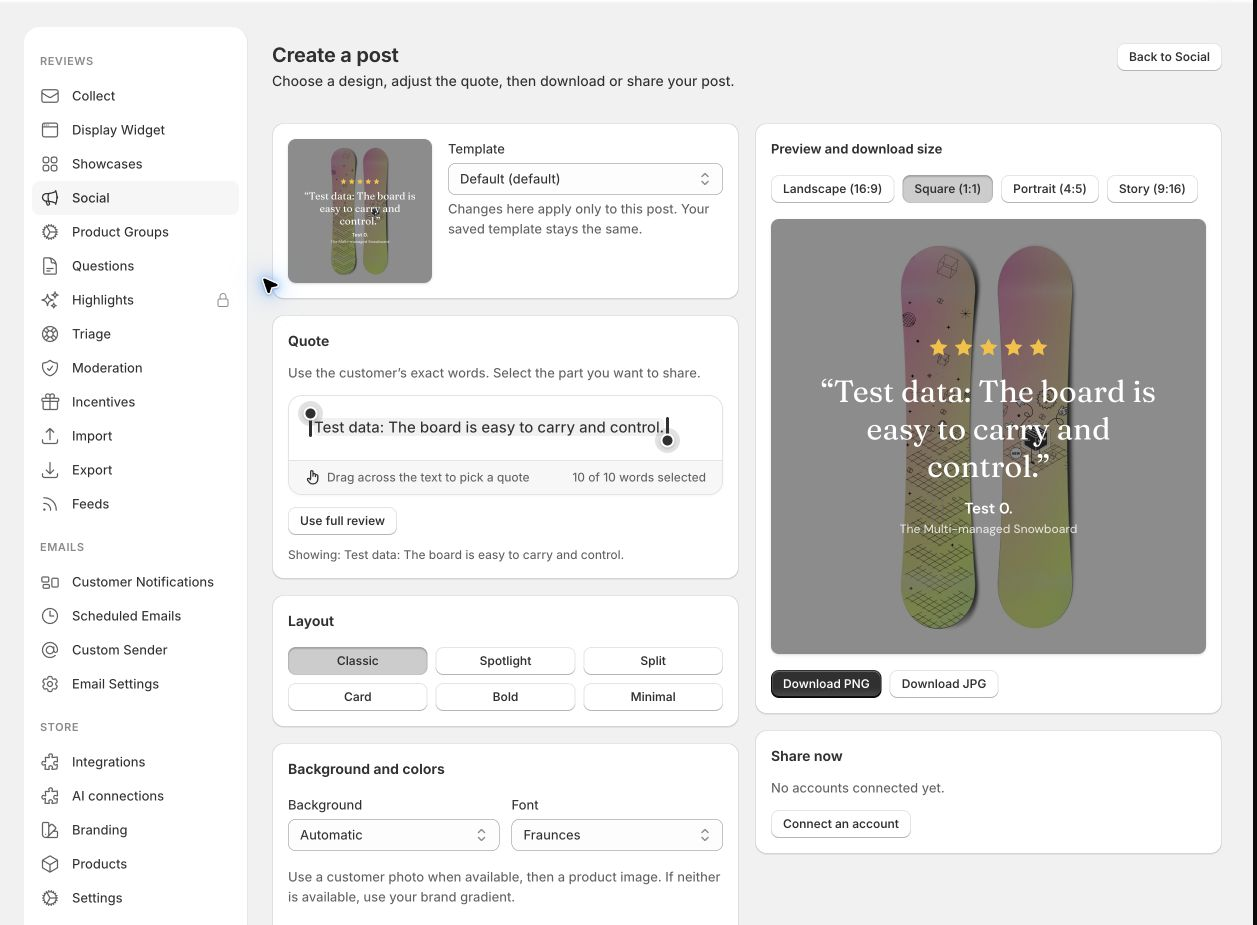
- Open Social > Create a post.
- Find a published review. The initial filters show verified 5-star reviews. Change Rating, Media, Verified, or Featured if necessary.
- Select Design on the review. You can also select Share on a published review in Reviews.
- Select a Template.
- In Quote, select the customer's exact words. Select Use full review to include all the review text.
- Adjust the layout, background, colors, font, and image controls. Check the preview after each change.
Changes in a review post apply to that post only. They do not change the saved template.
On Everything, eligible reviews can show Find the AI Highlight or Use AI Highlight. Check the selected words before you share them.
If the app warns that a customer did not grant a content license for a photo, get the customer's permission before you post it.
Download an image
Select an image size in the preview, then select Download PNG or Download JPG.
| Size | Dimensions |
|---|---|
| Landscape | 1200 × 675 pixels |
| Square | 1080 × 1080 pixels |
| Portrait | 1080 × 1350 pixels |
| Story | 1080 × 1920 pixels |
Story is for download only. To publish a Story, download the image and use the social platform's own controls.
Save a template
- Open Social > Templates.
- Select New template, or select Edit on an existing template.
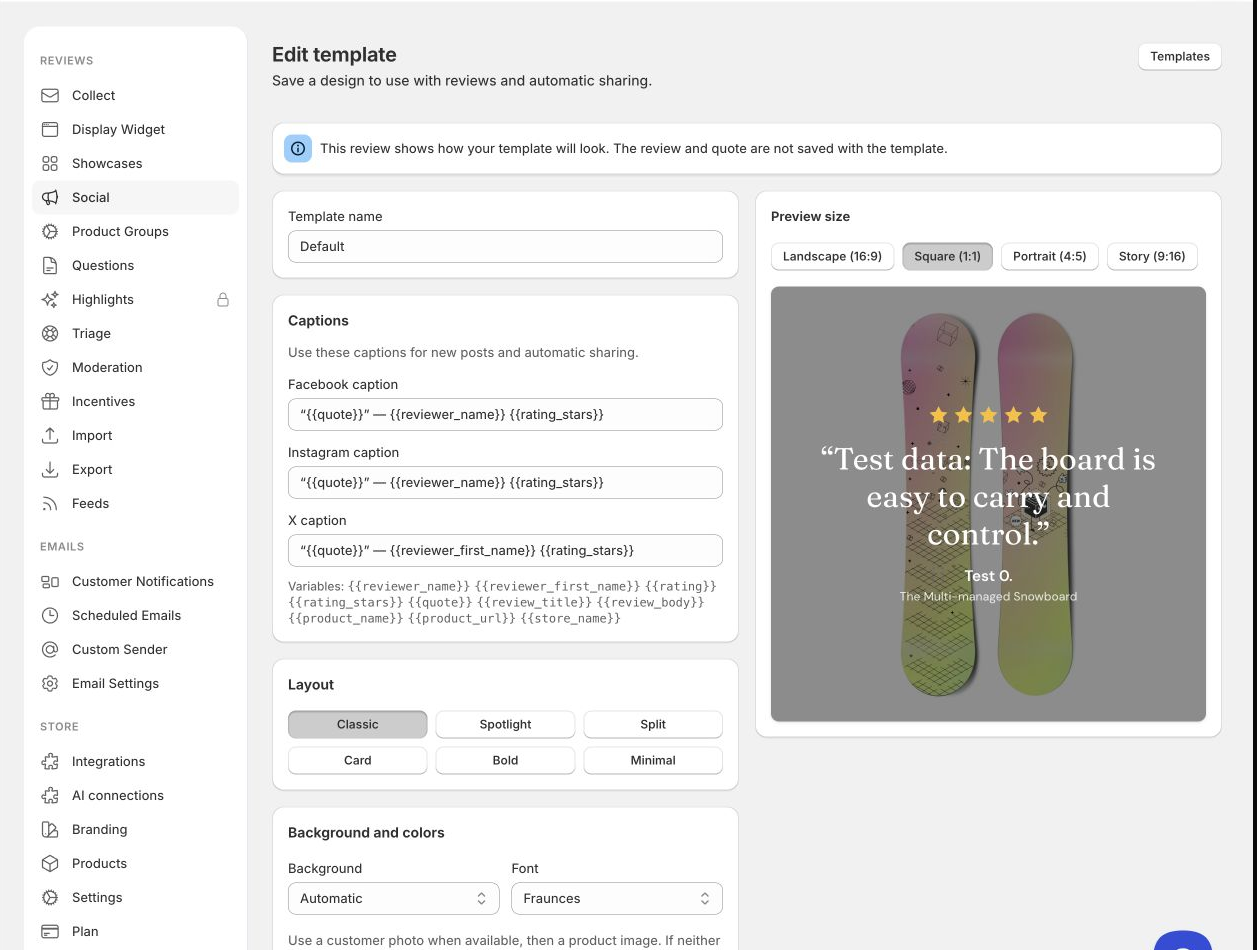
- Enter a Template name and adjust the design.
- Enter a caption for each platform.
- Select Save template in the Shopify save bar. If the save bar is unavailable, use the page's Save template button.
The example review and quote are not saved with the template. The design and captions are saved.
Use Duplicate to make a copy. Use Make default to select the template for new posts. Use Delete to remove a template you no longer need. Keep at least one template.
Captions can include variables such as {{reviewer_first_name}}, {{rating_stars}}, {{quote}}, {{product_name}}, {{product_url}}, and {{store_name}}. Reviewbird replaces these variables with the selected review's data. Check the caption before you post it.
Connect social accounts
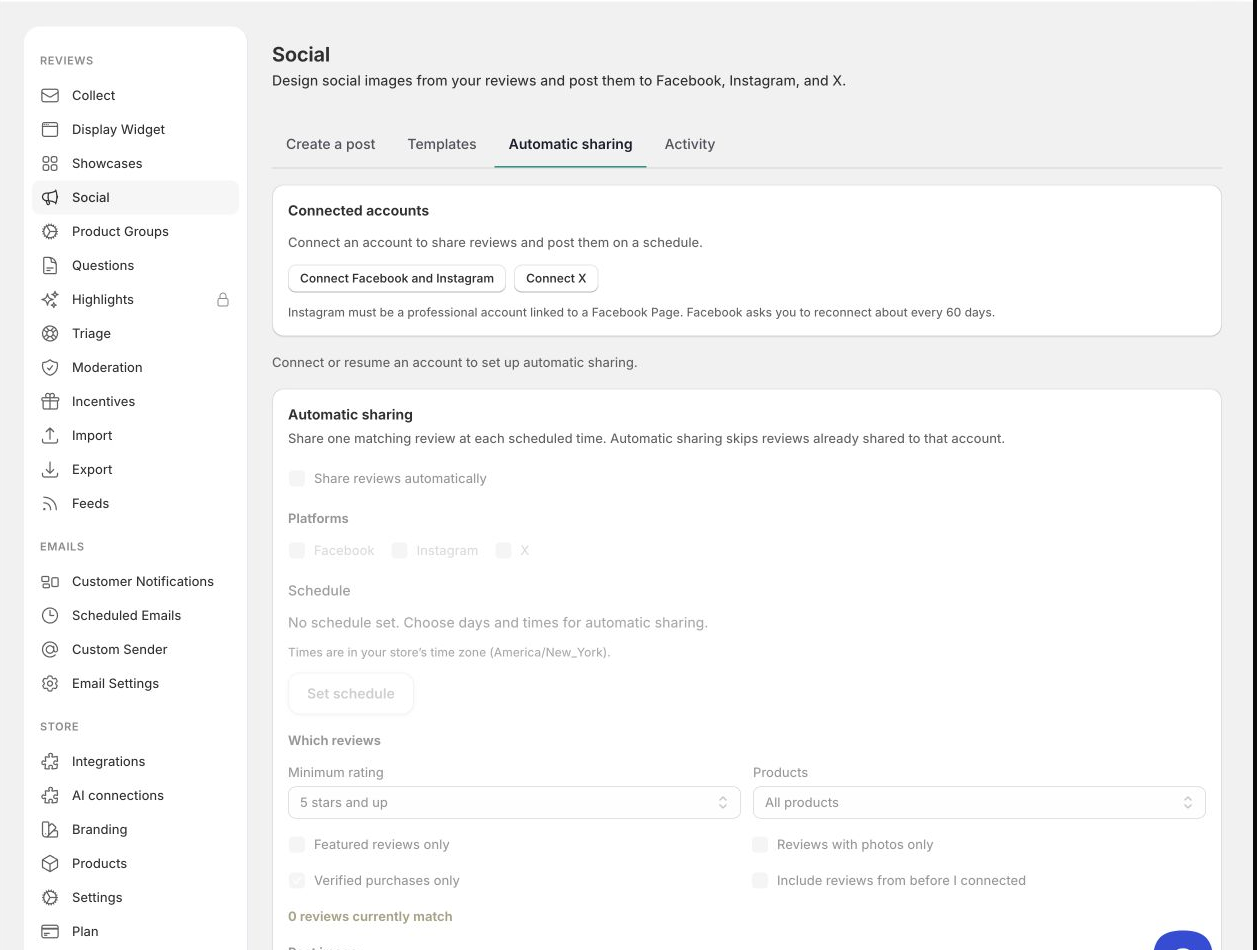
- Open Social > Automatic sharing.
- Select Connect Facebook and Instagram or Connect X.
- Complete the platform's sign-in and permission steps.
- On Choose accounts to connect, select the accounts you want Reviewbird to use.
- Select Connect selected.
- Check that each account shows Connected.
Instagram must be a professional account linked to a Facebook Page. Reviewbird posts only to the accounts you select. If a connection button is unavailable, check the page message or contact support.
Use Reconnect when an account shows Reconnect needed. Use Resume for a paused account after you correct its error. Use Disconnect to remove a connection.
Share a post now
- Create a review image and find Share now in Social Studio.
- Select the destination accounts.
- Select the review card or an available photo in Image.
- Check the image preview and caption for each platform.
- Select Share now.
- Open Activity to check the result.
Share now queues the post. The post is complete when Activity shows Posted. Each account has a separate result.
Direct posts use the saved image size for each platform under Automatic sharing > Image size. The current download preview size does not change those saved sizes. Select a platform beside Sharing uses these sizes to preview its output.
Set up automatic sharing
Connect or resume at least one account before you set up automatic sharing.
- Open Social > Automatic sharing.
- Enable Share reviews automatically.
- Select the Platforms.
- Set the minimum rating and product filters. You can limit posts to featured reviews, reviews with photos, or verified purchases.
- Enable Include reviews from before I connected if you want to use older reviews.
- Select a Template and Image content. Photo-only choices use the review card when no suitable photo is available.
- Set the image size for each platform. The app recommends square for Facebook, portrait for Instagram, and landscape for X.
- Check the Captions. Changes here apply only to automatic sharing. Select Use template caption to remove an override.
- Select Set schedule or Edit schedule. Select the days and times, then select Save schedule.
- Select Save settings to save the other automatic sharing controls.
The schedule uses the store time zone shown in the editor. You can set up to 12 times per day. Save schedule and Save settings save different parts of the setup. Complete both steps after you change both parts.
At each scheduled time, Reviewbird selects one matching review at random for each selected active account. It uses published reviews with written text. It skips reviews that are already shared or queued for that account. If no review matches, it does not post.
The matching-review count helps you check the filters. It can include reviews that an account has already used. It is not a count of posts waiting to be sent.
To stop automatic sharing, turn off Share reviews automatically and select Save settings.
Check post results
Open Social > Activity. Each row shows the review, account, Manual or Automatic origin, status, and time.
| Status | Meaning |
|---|---|
| Waiting to post | The post is queued. |
| Waiting to retry | Reviewbird will try again at the time shown. |
| Creating image | Reviewbird is preparing the image. |
| Posting | Reviewbird is sending the post. |
| Posted | The platform accepted the post. Use View post, when available, to open it. |
| Failed | Read the error and correct the problem. Use Retry when available. |
If a post was interrupted, check the destination account before you select Retry. The platform can have the post even if Reviewbird did not receive its result.
If automatic sharing does not post, check the account status, selected platforms, saved schedule, store time zone, and review filters. A review with no written text cannot be selected automatically. A review already shared to an account will not be selected again for that account.