

Product groups let related products share approved reviews. When a customer opens one product in a group, the customer can see approved reviews from all products in that group.
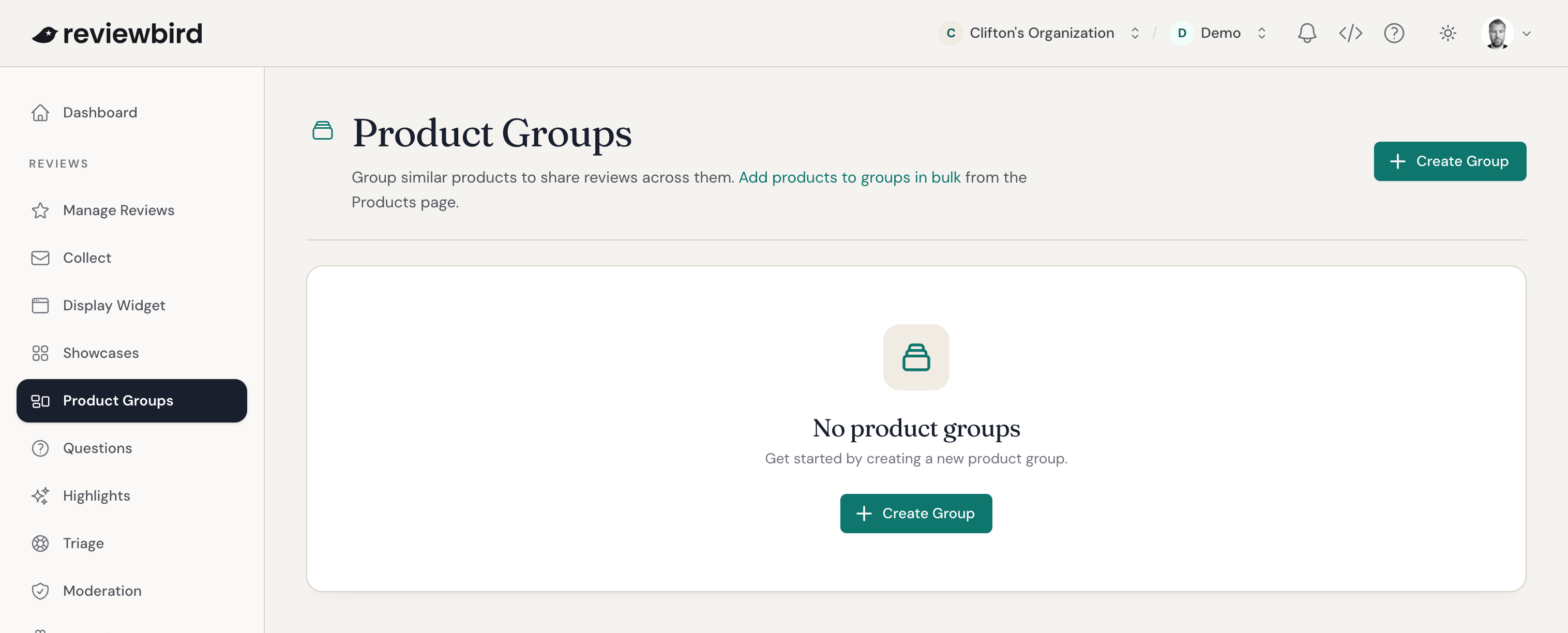
Open Product Groups
- Open the applicable store.
- Select Reviews.
- Select Product Groups.
The page shows each group name, its product count, and its creation date.
Create a manual product group
- Select Create Group.
- Enter a group name.
- Search for products by name or SKU.
- Select the products that you want to add.
- Select Create Group.
Use a name that identifies the related products. For example, use Blue T-Shirt - All Sizes for separate products that show the same item in different sizes.
A product can be in only one product group. Search results do not show products that are already in another group.
Create a group from the Products page
- Select Products.
- Select two or more products.
- Select Group Products.
- Enter a group name.
- Select Create Group.
You cannot select a product that is already in a group.
Create an automatic product group
An automatic group uses one WooCommerce product tag or category. Reviewbird adds and removes matching products after a catalog sync. This option is useful when the catalog changes frequently.
See Create automatic product groups for the complete procedure, rules, and conflict behavior.
How product groups share reviews
For each group member, Reviewbird shows approved reviews from all products in the group. It recalculates product ratings and review counts after a product is added or removed.
A group contains parent products. It does not contain individual variations. Reviewbird also includes reviews from the variations of each grouped product.
Edit a product group
- Open Product Groups.
- Select Edit for the group.
- Change the group name, add products, or remove products.
- Select Save Changes.
Reviewbird recalculates ratings for the products that the change affects.
Remove a product from a group
- Open the product group.
- Find the product in Products in Group.
- Select the remove control for that product.
- Save the group.
The product stops sharing reviews with the group. Reviewbird recalculates its rating and review count.
Delete a product group
- Open Product Groups.
- Select Delete for the group.
- Confirm the deletion.
Deleting a group does not delete its products or reviews. The products stop sharing reviews. You cannot undo the deletion, but you can create a new group with the same products.