

Use a store group to share approved product reviews between stores in one organization. In this document, sync means that Reviewbird copies a review to another store. The source review is the original review in the source store. A destination store receives a copy. Reviewbird does not move the source review.
Requirements
- You must be a member of the organization.
- The organization must have at least two stores that meet these requirements.
- Each store must have the Plus plan or a higher plan.
- All stores in the group must be in the same organization.
- A store can be in only one store group.
- The group name must have 255 characters or fewer.
Data-sharing warning
A synced review can include the customer name and email address. It can also include the rating, review text, date, location, language, and media. Add only stores that must receive this data.
Create a store group
- Open your organization.
- Select Store Groups.
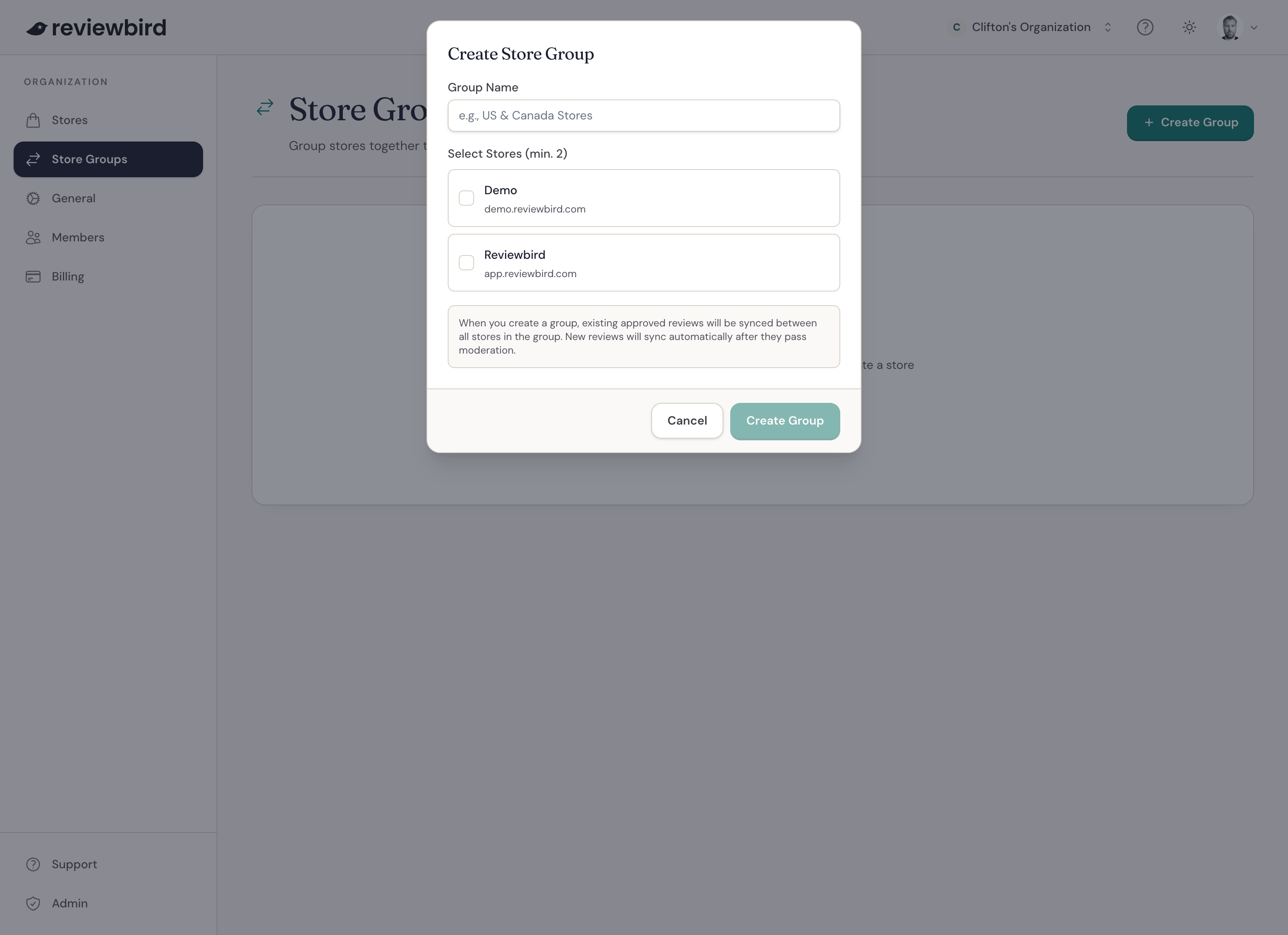
- Select Create Group.
- Enter a group name.
- Select two or more stores.
- Select Create Group.
Reviewbird starts the sync in the background. It processes the existing approved reviews in the group.
How review sync works
- Reviewbird syncs only approved source reviews. It does not sync pending, flagged, or rejected reviews. It also does not sync reviews before the customer confirms them.
- Reviewbird syncs new reviews after approval. This rule applies to reviews from forms, imports, integrations, and the Store API.
- Reviewbird first tries to match a product by its external product ID. If it cannot find a match, it tries to match the SKU.
- If a destination store has no matching product, Reviewbird does not copy the review to that store. Other stores with a matching product can still receive the review.
- Reviewbird makes one approved review record in each destination store. A repeated sync does not make duplicate review records.
- Reviewbird shares the media files between stores. It does not make a second copy of each cloud file.
- Reviewbird copies available review translations.
- A synced review does not start another group sync. It also does not create another discount coupon or low-rating notification.
Changes after a sync
Each synced review is a separate review record. A change to a synced copy in one store does not change the copies in other stores. Reviewbird does not copy a public reply.
If Reviewbird processes the approved source review again, it updates the copies of that source review. Reviewbird can update the title, review text, rating, customer name, customer email, language, media, and translations.
If the source review is no longer approved or is deleted, Reviewbird does not automatically remove the existing copies from other stores. Delete each copy in its store if you want to remove it.
Edit a store group
- Open Store Groups.
- Select Edit for the group.
- Change the name, add stores, or remove stores.
- Select Save Changes.
When you add a store, Reviewbird starts to sync existing reviews for all stores in the group. Reviewbird can copy approved source reviews in both directions.
When you remove a store, future reviews do not sync between that store and the group. Reviews that synced before the change remain in their stores.
A group must always have at least two stores. If you select fewer than two stores, Reviewbird asks if you want to delete the group.
Delete a store group
- Open Store Groups.
- Select Delete for the group.
- Read the warning.
- Select Delete Group.
Reviewbird removes the group. Each store is no longer in the group and can then join a different group. Previously synced reviews remain in their stores. New reviews do not sync between stores that were in the group.
Resolve common problems
A store is not available
Make sure that the store is in the current organization. Make sure that it has the Plus plan or a higher plan. Also, make sure that it is not in another store group.
A review does not appear in another store
- Make sure that the source review is approved.
- Compare the external product IDs in the two stores.
- If the external product IDs are different, compare the SKUs.
- Wait for the background sync to finish.
If Reviewbird cannot match the product by external product ID or SKU, it skips the review for that destination store.