

Open Products to find products imported from your WooCommerce store, choose which products receive review requests, and group related products.
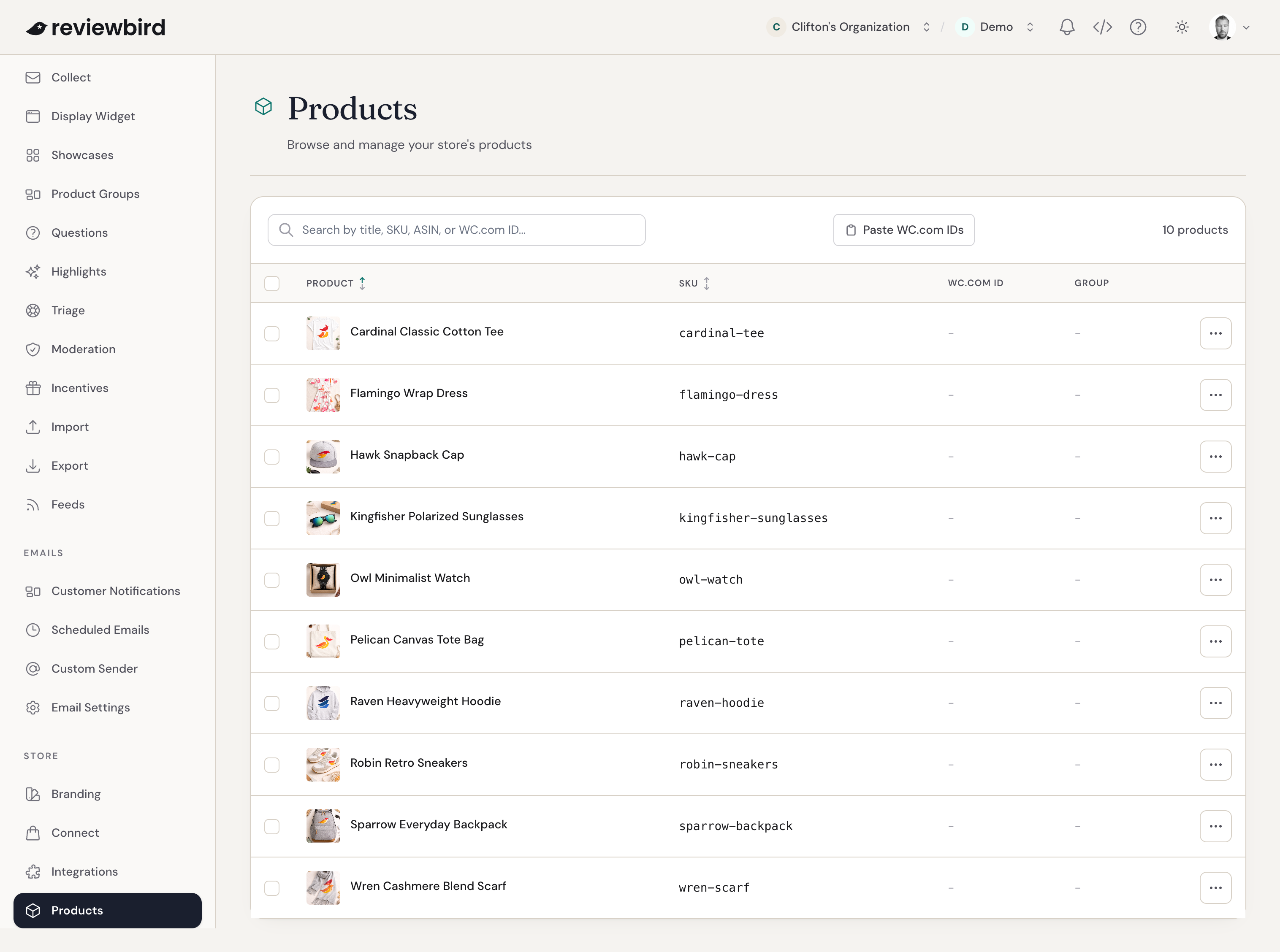
Viewing products
The list shows each product's image, title, and SKU. Products with variations appear as one row, with the variation count under the title.
Use the search field to find a product by title or SKU. Select the Product or SKU column heading to sort the list. Select it again to reverse the order.
The actions menu at the end of each row lets you open the product in your store or change whether it receives review requests.
Excluding products from review request emails
You may not want to ask for reviews of gift cards, warranties, or services. To exclude a product, open its actions menu and select Exclude from email requests.
The product now shows a No emails badge. Reviewbird leaves it out of review requests and reminders. If an order contains only excluded products, Reviewbird does not send a product review request for that order.
To include the product again, select Include in email requests.
You can also manage product exclusions, including entire categories or tags, in Collect > Review requests > Products > Edit.
For products that customers need more time to use, set a longer delay in Collect with Set delays by product. The delay applies to the whole order. See Automatic review request emails and reminders.
Managing product groups
Product Groups are included with Starter, Plus, and Everything. Select the check boxes beside the products, then select Group Products.
A product can belong to one group. For a product that is already grouped, select the name in the Group column to open that group.
Editing WC.com IDs
If you sell on the WooCommerce Marketplace, use the WC.com ID column to match your products to their marketplace listings. This option is included with Plus and Everything.
Select the existing ID, or the dash in an empty cell, and enter the numeric WC.com product ID. Use the check icon to save, the cancel icon to discard the change, or the clear icon to remove the ID.
To update several products, select Paste WC.com IDs. Enter one SKU and WC.com product ID or URL per line, separated by a space or tab:
SKU-001 12345
SKU-002 https://woocommerce.com/products/my-extension/
Select Update WC.com IDs. The dialog shows any entries that need correction. You can then use the search field to find products by WC.com ID.
Frequently asked questions
Why is a product still excluded after I select Include in email requests?
A category or tag rule may still exclude it. Open Collect > Review requests > Products > Edit and check those rules.
Why is the product list empty?
First, clear the search field. If no products appear, check that your WooCommerce store is connected and allow time for the first product import to finish.