

You can copy settings between stores in the same Reviewbird organization. Choose the parts you want to reuse, such as your email design or widget layout.
How to copy settings from another store
The copy replaces the settings you select. You cannot undo it, so check the store names and categories before you confirm.
- Open the store you want to update.
- Go to Store > Settings and select Copy Settings from Another Store.
- In Copy from, choose the store with the settings you want.
- Under Categories to copy, select the settings to reuse.
- Select Copy Settings.
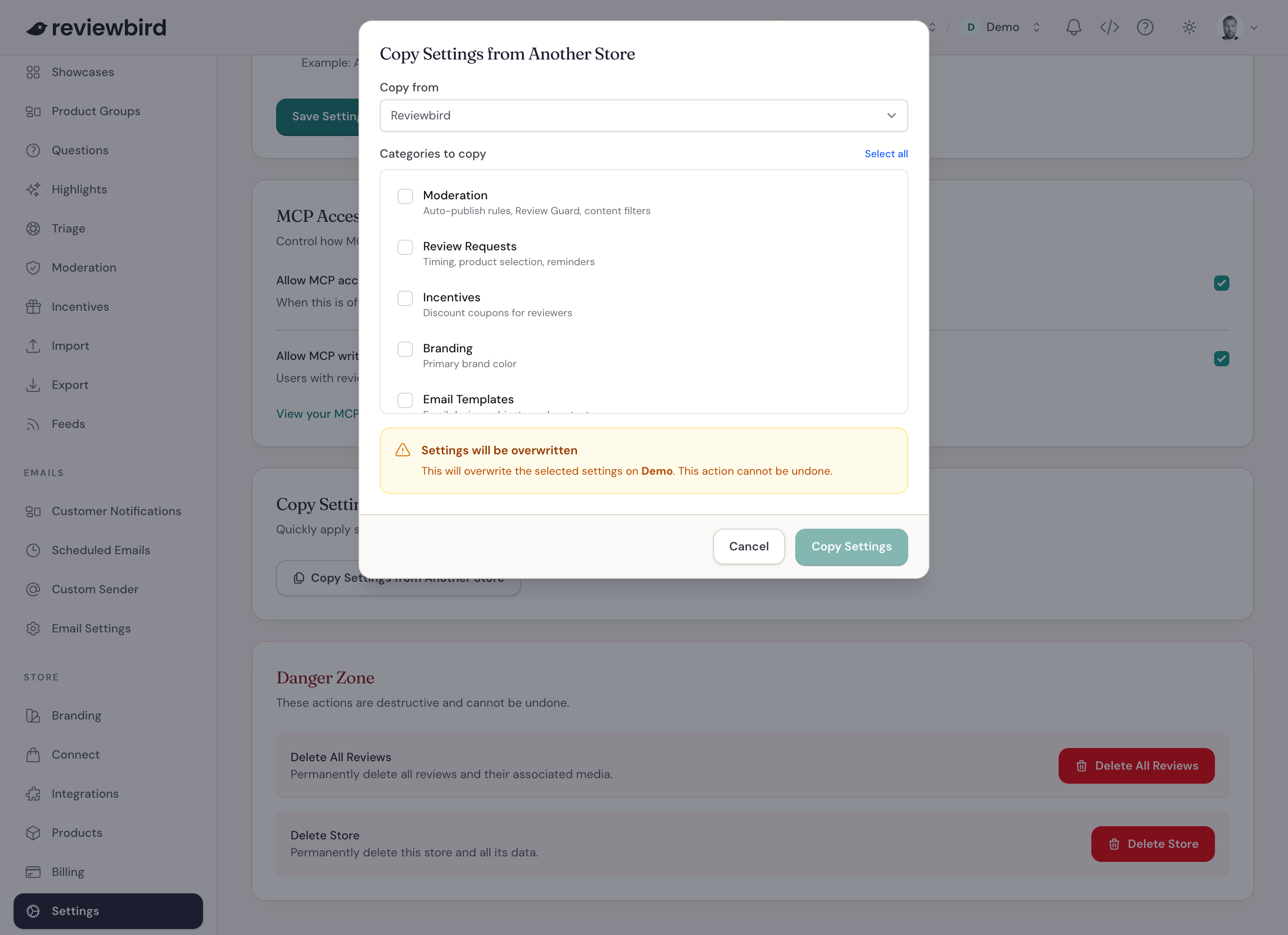
Selecting categories to copy
- Moderation: Auto-publish rules, Review Guard, and content filters.
- Review Requests: Standard request timing, product selection, country rules, reminders, and whether requests are enabled.
- Incentives: Discount coupons for reviewers.
- Branding: Primary brand color.
- Email Templates: Email design, subjects, and messages, including the standard Collect schedules.
- Widget: Layout, text, and display options.
- Languages: Default language, enabled languages, and translations.
- Privacy: How reviewer names appear.
- Product Feeds: Google Product Ratings feed settings.
- Admin Notifications: Low rating alerts and their recipients.
- Review Triage: Support options for customers who leave low ratings.
- Custom Sender: Your custom email address and its verification settings.
Use Select all to copy every category, or Deselect all to clear your choices.
Copying Collect settings
Select both Review Requests and Email Templates to copy your standard product review request schedule and its messages.
To copy the timing but keep your messages, select only Review Requests. To copy the messages but keep your timing, select only Email Templates.
Checking copied settings
Open the areas you copied and check them for this store. For Collect, check whether requests are enabled, when they send, and what each message says. See Automatic review request emails and reminders.
If you copied Custom Sender, check the sender address and send a test email before you use it for customers.
Frequently asked questions
Will later changes apply to both stores?
No. This is a one-time copy. Afterward, each store keeps its own settings.
Which Collect settings stay with each store?
The copy keeps each store's product delays, excluded products, categories, tags, custom schedules, and custom schedule messages. It also keeps the Google Business Review link, request percentage, and message text.
When Google Business Reviews uses the standard product request schedule, copying that schedule also changes when Google Business Review requests and reminders send.
What happens to photo and video requests?
Email Templates copies their standard messages and the wait before the first message. The store you copy to keeps its existing reminder intervals.
Can I copy Google Customer Reviews settings?
Yes, if Google Customer Reviews is already enabled in the store you copy to. Select Review Requests to copy the schedule and reminders. Select Email Templates to copy the messages.
Does this copy reviews or change my plan?
No. Customers, reviews, and request history stay in their original store. Copying settings does not change either store's subscription or unlock additional features.
Why is Copy Settings from Another Store missing?
You need at least two stores in the same organization before you can copy settings between them.
Using Store Groups
To share approved reviews between stores that sell the same products, use Organization > Store Groups. See Store Groups. Store Groups share reviews; they do not copy settings.