

A review confirmation email asks a customer to confirm that they wrote a review before it appears in your store. You can use it for reviews that customers submit directly on a product page.
Reviewbird sends these emails to verified purchasers: the email address on the review must match a purchase of that product. Customers who arrive through a review request email do not need this extra step.
Confirmation emails are off by default.
Turn on review confirmation emails
- Open your store dashboard.
- Go to Emails > Customer Notifications.
- Select the Confirmation tab.
- Turn on Enabled under Review Confirmation Email.
- Select Save notifications.
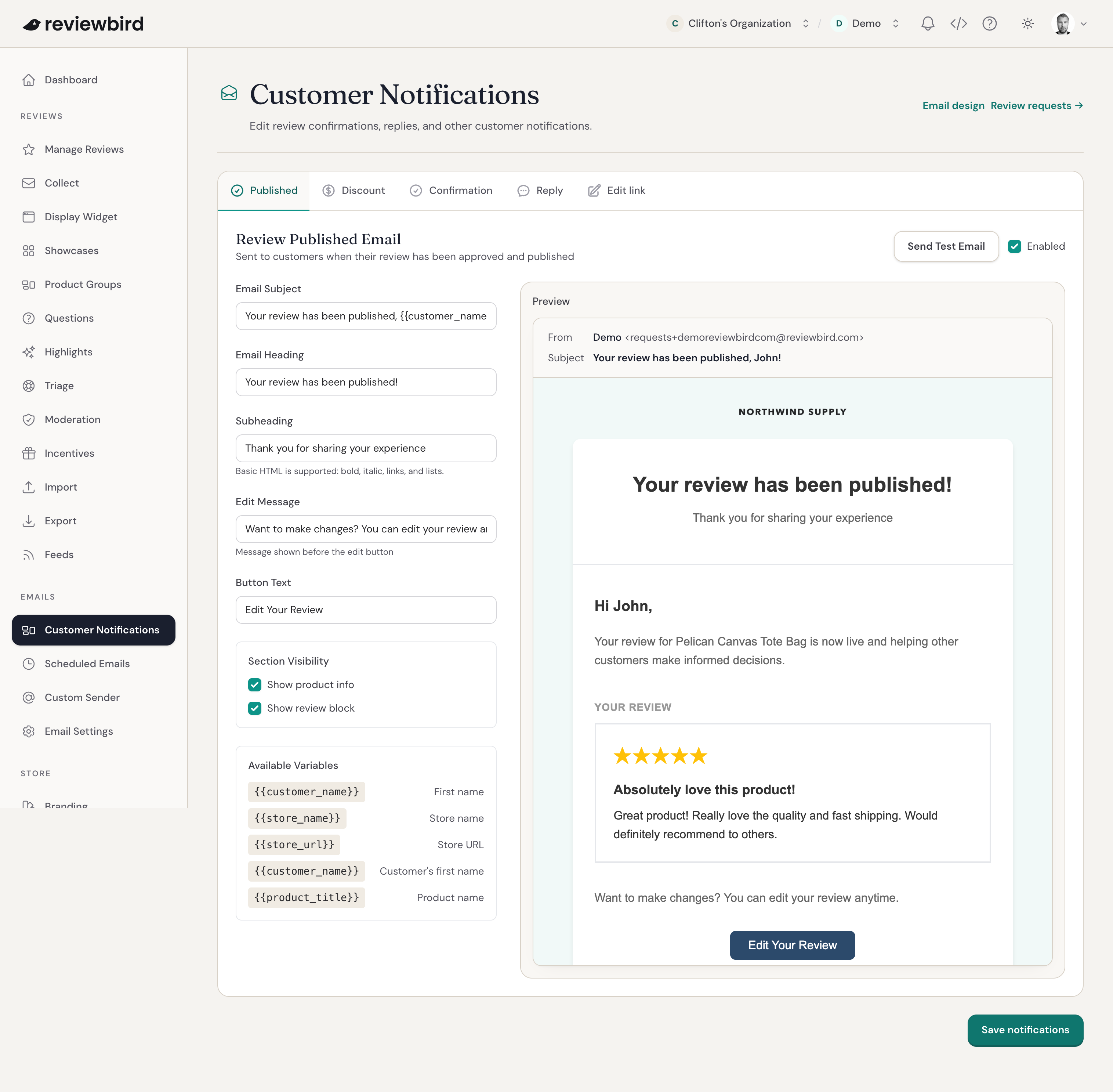
Edit the email
In the Confirmation tab, edit the text you want customers to receive:
- Subject Line: the subject shown in the inbox.
- Preheader Text: the preview text that many inboxes show beside the subject.
- Email Heading: the heading inside the email.
- Email Content: the main message. You can use basic HTML for bold or italic text, links, and lists.
- Button Text: the text on the confirmation button.
Under Email Sections, choose whether to show the product image, review text, and star rating. All three are on by default.
To change the logo, colors, or font, select Email design to open the Branding page.
Add customer and review details
Use the codes under Available Variables to include details in the message. Reviewbird replaces each code with the customer's information when it sends the email.
{{customer_name}}: the customer's first name.{{product_title}}: the product name.{{product_url}}: a link to the product.{{review_rating}}: the star rating.{{review_text}}: the review text.{{confirm_url}}: the confirmation link.
For example, the default subject is {{customer_name}}, confirm the review you left for {{product_title}}.
Test and save the email
Select Send Test Email to check the message in your inbox. When you are happy with it, select Save notifications.
Frequently asked questions
When does the customer receive a confirmation email?
Reviewbird sends the email when a review from a verified purchaser is ready for approval. The review must come from the widget on a product page, rather than a review request email. Reviewbird sends one confirmation email per review.
Why is a review marked Pending Confirmation?
Reviewbird is waiting for the customer to click the confirmation link. The review stays unpublished until they confirm it. It then becomes approved and can appear on the product page and in showcases.
Can I turn confirmation emails off?
Yes. Open Emails > Customer Notifications > Confirmation, clear Enabled, and select Save notifications.