

Bring your existing reviews into Reviewbird from WooCommerce or another review app. You can import them during setup or from Import in your store dashboard.
Select an import source
- Open your store in the Reviewbird dashboard.
- Select Import.
- Select Import beside the source of your reviews.
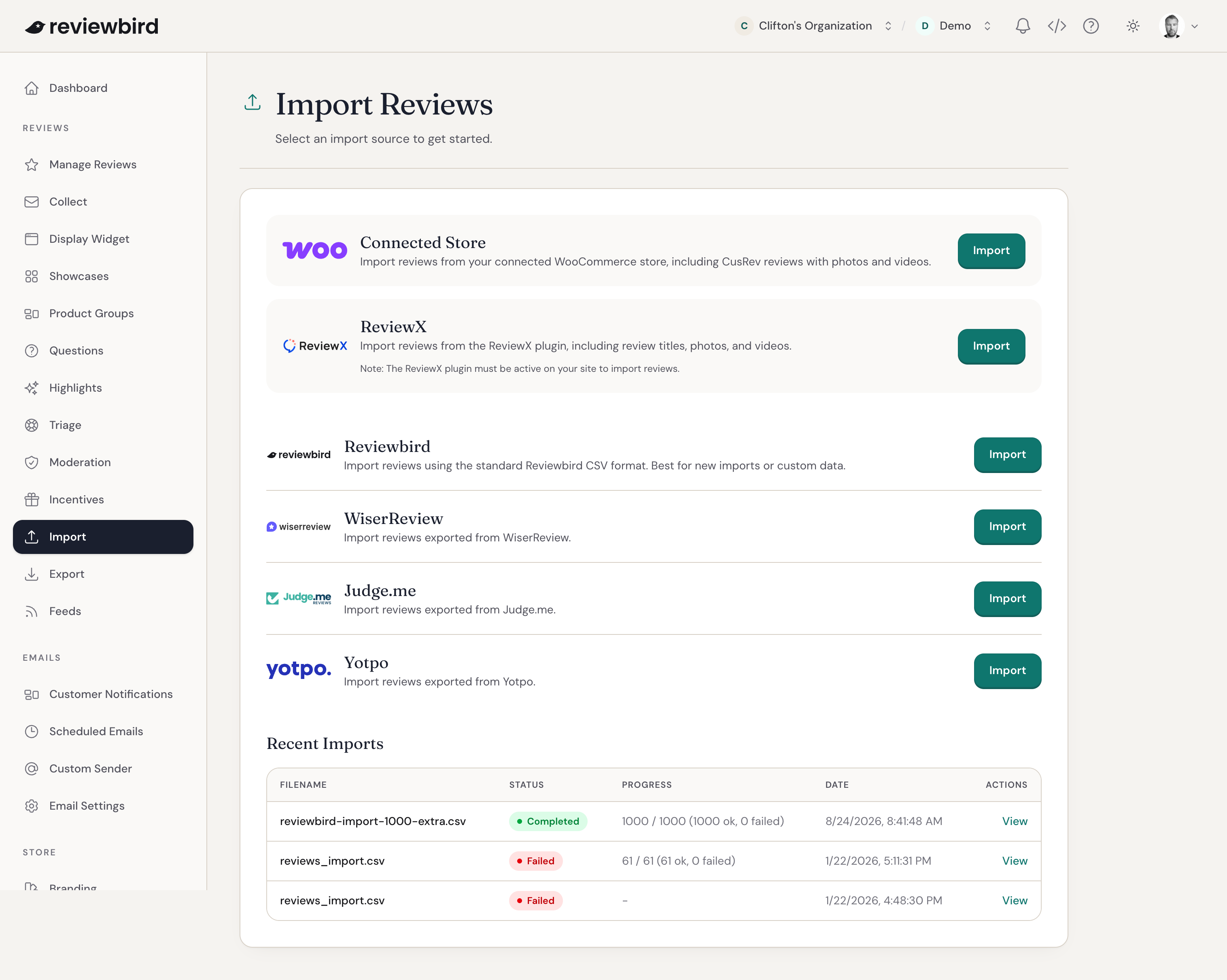
| Source | What to use |
|---|---|
| Connected Store | Your WooCommerce reviews, including CusRev reviews with photos and videos. You do not need an export file. |
| ReviewX | Reviews from your connected WooCommerce store. Keep the ReviewX plugin active until the import finishes. |
| Reviewbird | A Reviewbird export, or a file you prepare with the columns listed below. |
| WiserReview | A review export from WiserReview. |
| Judge.me | A review export from Judge.me. |
| Yotpo | A review export from Yotpo. |
Connect WooCommerce and finish the product import first. Reviewbird needs your products to put each review in the correct place.
Import during setup
On the Import step, select Import WooCommerce reviews or choose an app under Import more reviews?.
For a file import, check the source format, choose a CSV or XLSX file of 10 MB or less, and select Import reviews. You can continue setup while Reviewbird imports the reviews.
Upload from the dashboard
- Select the app your file came from. For a file you prepared yourself, select Reviewbird.
- Check the required and optional columns.
- Select Click to upload and choose a CSV file of 10 MB or less. You can also drag it into the upload area.
- Select Upload & Validate.
If your export is an Excel file, save a CSV copy before you upload it here. The setup import step also accepts XLSX files.
The Import Status page shows progress. You can leave the page; Reviewbird will email you when the file import finishes.
Check the import results
Open Recent Imports and select your import. The results show how many reviews were created or updated, and whether any rows failed.
If some reviews or photos are missing, download the Failure Report. It explains which rows need attention. Save a copy within seven days, before the report expires.
Prepare a Reviewbird file
Use these exact column names in the first row of your file. All five columns must be present.
| Required column | What to enter |
|---|---|
product_external_id | The WooCommerce product ID. See the FAQ below for reviews without a product. |
author_name | The customer's name. |
rating | A rating from 1 to 5. |
body | The review text. |
created_at | The review date, such as 2026-09-01 or 2026-09-01 14:30:00. |
Add any of these optional columns that you need:
| Optional column | What to enter |
|---|---|
id | The Reviewbird review ID, to update an existing review. |
author_email | The customer's email address. |
title | The review title. |
status | approved, pending, or rejected, to change an existing review. New imported reviews are approved. |
public_reply | Your public reply to the review. |
verified_purchase | true for a verified purchase, or false. |
location | The customer's country. |
external_id | The review ID from your previous app. This helps prevent duplicate imports. |
photos | Links to the review photos, separated by commas. |
video | A link to one review video. |
ip_address | The original IP address, if your export includes it. |
ip_hash | The SHA-256 hash of the original IP address, if your export includes it. |
Import verified purchases and media
Set verified_purchase to true only for reviews from verified purchases. Without this value, new Reviewbird-format reviews are not marked as verified. Yotpo reviews marked Verified Buyer keep that status.
Use photo and video links that open without a login. Each photo can be up to 10 MB, and each video can be up to 100 MB.
Starter imports one photo per review. Plus and Everything support multiple photos and one video per review. Existing Free plans do not include photo or video imports.
In a Yotpo file, separate photo links with semicolons. If a review has more than one video link, Reviewbird imports the first one.
FAQ
Why did a review fail to match a product?
Check that its product ID matches a product in your connected WooCommerce store, and that the product has finished importing. IDs from another store will not necessarily match.
For files with a product_id or Product ID column, you can also use the product SKU. Reviews for product variations appear on the parent product.
Can I import a review without a product?
Yes. In the Reviewbird format, include the product_external_id column but leave the value blank. Reviewbird adds the review to a general product rather than a WooCommerce product.
Can I update reviews that are already in Reviewbird?
Yes. Use the Reviewbird file format and include each review's Reviewbird id. The import updates that review instead of creating another one. For these updates, you can leave the product ID and review date values blank to keep the existing values.
The import says Completed. Why are some reviews or photos missing?
Completed means Reviewbird finished the import, but individual rows or media can still fail. Open the results and download the Failure Report to see what needs to change.
For missing photos or videos, check that the links work without a login and that the files meet the size and plan limits above.
Can I cancel an import?
While its status is Pending or Validating, open the import and select Cancel Import. You cannot cancel it after processing starts.
Can I undo an import?
To remove reviews created by a completed or canceled import, open it and select Undo Import, then Yes, Undo Import. This option appears when the import created reviews.
Undo permanently deletes the reviews created by that import. It does not restore reviews that the import updated.