

Thank customers for their reviews with a discount on their next purchase. Reviewbird creates the discount code and sends it to the customer after you approve the review.
Discount incentives are included with Plus and Everything plans.
Turn on discount incentives
- Open your store dashboard.
- Go to Reviews > Incentives.
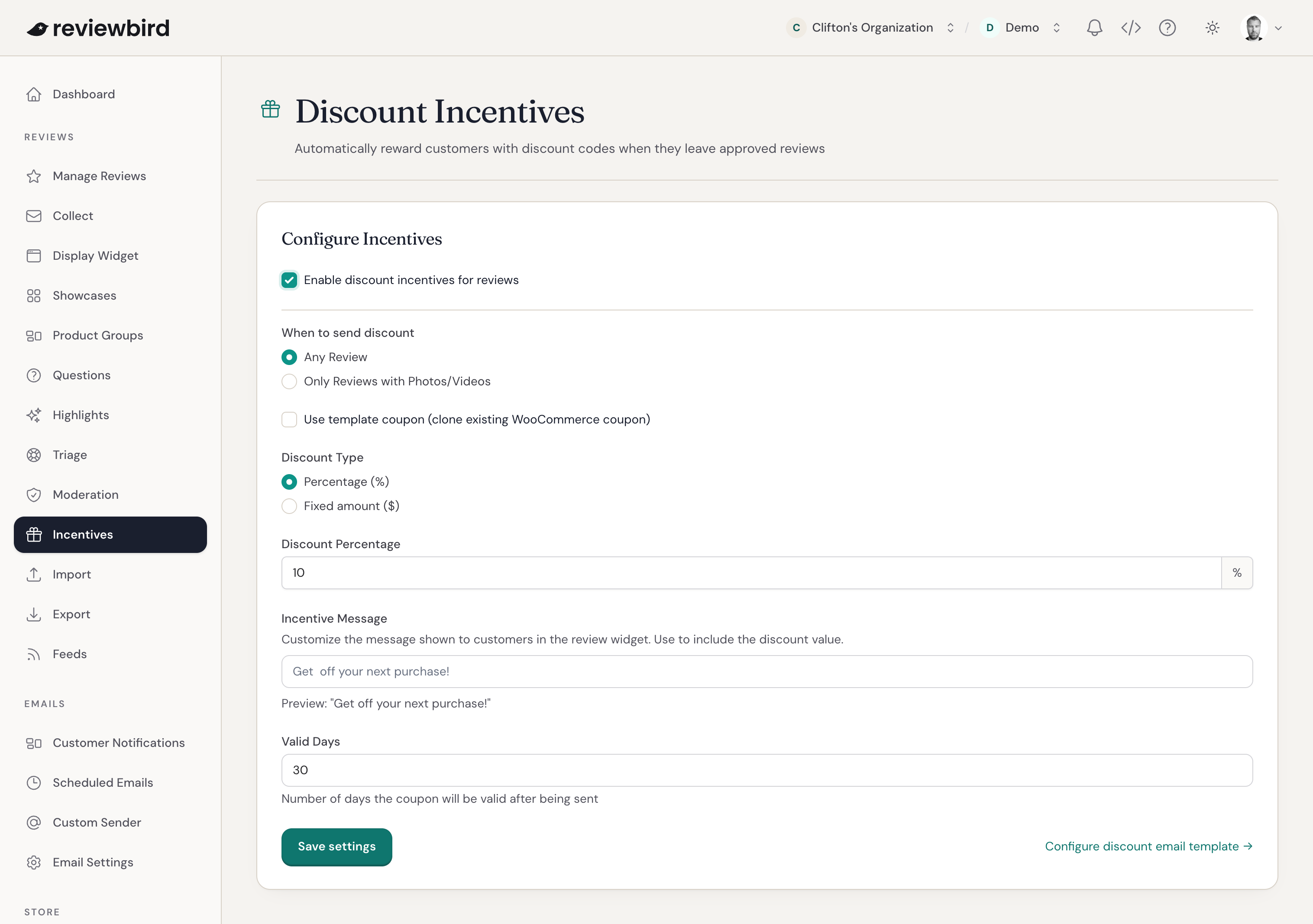
- Turn on Enable discount incentives for reviews.
Choose which reviews receive a discount
Under When to send discount, select:
- Any Review to send a discount after any approved review.
- Only Reviews with Photos/Videos to send a discount after an approved review includes a photo or video.
Customers can add a photo or video after you approve their review and still receive the discount. Imported reviews do not receive discounts.
Set the discount
Choose a percentage or fixed amount under Discount Type, then enter the amount. The default is 10% off.
Set Valid Days to choose how long the customer can use the code after it is sent. You can choose 1 to 365 days. The default is 30 days.
Use an existing WooCommerce coupon as a template
If you need a discount with extra rules, such as a discount for one category, you can use a coupon you already created in WooCommerce.
- Turn on Use template coupon (clone existing WooCommerce coupon).
- Enter the existing code under Template Coupon Code.
- Enter a description under Discount Display Amount, such as "$10 off purchases of $100 or more".
Reviewbird copies the coupon settings when it creates each customer's code. The display amount describes the offer in the email; it does not change the coupon's rules.
Edit the widget message
Incentive Message is the message customers see in the review widget. Use {amount} where you want the discount value to appear. The default message is:
Get {amount} off your next purchase!
Check the preview to see the message with your discount amount. Select Reset to default to restore the original message.
Save the incentive settings
Select Save settings. Reviewbird will use these settings for future reviews that qualify.
Edit the discount email
Select Configure discount email template, or go to Emails > Customer Notifications > Discount.
Edit the message that customers receive with their code. The product image, coupon banner, and expiry information are on by default. Select Save notifications when you finish.
Frequently asked questions
When does the customer receive the discount?
Reviewbird creates the code and schedules the email after the review is approved. If you require a photo or video, Reviewbird waits until the upload is complete. A customer can add it before or after approval.
Will a settings change affect codes I already sent?
No. Changes apply to future reviews. Reviewbird does not change coupons or emails it has already created.
Can I submit reviews with discounts to Google Product Ratings?
Select Support in your dashboard before you submit these reviews. Google permits incentives only when the reward does not depend on the customer's opinion, and the feed must disclose the incentive. Reviewbird's feed does not currently include that disclosure.
This requirement also applies to discounts for photos or videos.
See Google Product Ratings policies for Google's requirements.