
To get more WooCommerce product reviews, ask every eligible customer after they have had time to use the product. Keep the request short, link directly to the correct review form, and send one reminder only when the customer has not replied. Better timing and less work usually matter more than sending more messages.
Many stores treat review collection as an email copy problem. It is usually a workflow problem.
The customer received the request too early. The link opened the wrong page. The form required a login. The order contained six products. The reminder arrived after the review was already complete.
Fix the workflow first. Then improve the copy. Reviewbird automatic review requests connect the timing, email, review form, reminder, and stop rules to each WooCommerce order.
Why customers do not leave product reviews
Most customers do not return to a product page by themselves. They finish the purchase, use the product, and continue with their day.
When a store gets few reviews, one of these problems is usually present:
- The store does not ask.
- The request arrives before the product.
- The request arrives long after the customer stopped thinking about the product.
- The email looks like another promotion.
- The link opens a general page instead of the correct form.
- The form asks for too much information.
- The customer must create or recover an account.
- A large order creates too many review requests.
- Reminders continue after the customer responds.
The solution is not to send the same request more often. The solution is to remove each point of friction.
1. Decide which orders should receive a request
Start with a clear eligibility rule.
A normal eligible order is:
- Paid.
- Fulfilled or delivered.
- Not cancelled or fully refunded.
- Connected to at least one product that accepts reviews.
- Linked to a usable customer email address.
You can also exclude:
- Gift cards.
- Samples.
- Replacement orders.
- Internal test orders.
- Products that the customer cannot evaluate yet.
- Countries where delivery times are too uncertain for the current schedule.
This prevents irrelevant requests before they reach the customer.
2. Use fulfillment, not purchase, as the starting event
The order date is easy to measure, but it does not show when the customer received the product.
Use the order status that best represents fulfillment in your store. For many stores, this is Completed. A store with a fulfillment or delivery integration can use a more accurate custom status.
This detail matters when:
- A product is backordered.
- International shipping takes longer.
- A made-to-order item needs production time.
- A download is available immediately.
- A local delivery arrives the same day.
Your first question should be, “When can this customer form a useful opinion?” Work backward from that point.
3. Set the delay by product type
There is no correct delay for every product.
A customer can review a digital template after one use. Skin care needs repeated use. A gift should not receive a request before the recipient opens it.
Use this table as a starting point:
| Product type | Starting delay after delivery or access | Why |
|---|---|---|
| Digital download | 1–3 days | The customer can use it immediately |
| Food, flowers, or immediate-use product | 3–7 days | The experience is fresh and time-sensitive |
| Clothing, accessories, or simple equipment | 7–14 days | The customer needs time to check fit and basic use |
| Home goods or durable products | 14–30 days | Setup and repeated use can affect the opinion |
| Skin care, supplements, or repeat-use products | 21–45 days | Useful results need more time |
| Seasonal gift | After the likely use date | Delivery does not equal use |
These delays are test values. Review your own completion data by product category.
If you sell several product types, one store-wide delay will be wrong for some of them. Use product exclusions or separate rules where possible.
4. Ask for an honest review
Use direct language.
Good request language:
How is [product name] working for you? Share an honest review. Your experience can help another shopper decide if it is right for them.
Avoid language such as:
- “Tell us how much you love it.”
- “Leave a five-star review.”
- “Help us protect our perfect rating.”
- “Happy customers, review us here.”
These phrases pressure the customer toward a positive result. They can also reduce trust.
The FTC’s review guidance says businesses should not ask only people who are likely to leave positive reviews. It also says businesses should not discourage negative reviews.
Ask all eligible customers under the same rules.
5. Keep the request email short
A review request has one job. Do not make it compete with a sale, newsletter, referral program, and product launch.
Use:
- A recognizable sender name.
- The store name.
- The product name and image.
- One short reason to respond.
- One clear review action.
- A way to stop future requests.
Do not put the review link below several product promotions. Customers should understand the message within a few seconds.
A simple request template
Subject: How is [product name] working for you?
Heading: Share your experience
Hi [first name],
You have had some time with [product name]. Would you take a minute to leave an honest review?
Your experience can help another shopper make a better choice.
Button: Review [product name]
Thank you,
[Store name]
6. Open the correct review form
Do not make the customer search for the product they bought.
The review link should:
- Open the correct product.
- Move to or open the review form.
- Preserve the verified purchase connection.
- Work on mobile devices.
- Avoid an account login when the workflow can verify the order another way.
If the customer clicks a star in the email, carry that rating into the form when possible. Let the customer change it before submission.
A direct path reduces mistakes and makes the request feel connected to the purchase.
7. Limit the number of products in one request
A large order can create a bad review experience.
If a customer bought eight products, eight equal requests can feel like work. Use a selection rule.
You can select:
- The most expensive product.
- The product with the fewest reviews.
- One to three products from the order.
- Products that are not excluded from review requests.
You can also let the customer select what they want to review from an order page.
The correct method depends on your catalog. A store with many low-cost consumables needs a different rule from a store that sells one durable product per order.
8. Send one reminder
One reminder is a useful starting point.
Send it only when:
- The first request was sent.
- The customer has not completed a review for the selected product.
- The customer is not blocked from future requests.
- The order is still eligible.
Wait several days after the first request. Keep the reminder shorter than the first message.
A simple reminder
Subject: Still have a minute to review [product name]?
Hi [first name],
If you have used [product name], we would still value your honest review.
Button: Leave a review
Thank you,
[Store name]
Stop the sequence as soon as the customer reviews the product. Do not make them tell you twice.
9. Ask for useful detail
“Great product” does not help the next shopper very much.
Use one or two optional prompts that fit the product:
- How did it fit?
- What did you use it for?
- How easy was setup?
- What size did you choose?
- How long have you used it?
- What should another buyer know?
Do not turn the review form into a survey. Ask only for details that improve the buying decision.
Custom questions work best when the answers can help both the shopper and the merchant.
10. Make photos and videos optional
Customer media can make a review more useful, but it also adds effort.
Ask for it after the main rating and text, or make it an optional part of a simple step-by-step form.
Explain what would help:
Add a photo if you want to show the fit, color, setup, or how you use the product.
The upload must work on a phone. Reviewbird can resize files, check unsafe content, and preserve the review record for export.
Do not block a valid text review because the customer does not add a photo.
11. Use incentives with care
An incentive can increase participation, but it must not buy a positive opinion.
The FTC Consumer Reviews and Testimonials Rule Q&A says a business can give an incentive for a review when the reward does not depend on positive or negative sentiment. The incentive must not imply that the customer should leave a positive review.
If you use an incentive:
- Give the same reward for a two-star or five-star review.
- Explain the reward before the customer reviews.
- Disclose the incentive as required.
- Check the rules for every platform where the review will appear.
- Keep records of the offer and review.
Google Product Ratings also requires incentivized reviews to be identified correctly in the review feed.
This is general information, not legal advice. Check the rules that apply to your business and location.
12. Help unhappy customers without review gating
A poor experience needs fast support. It does not justify blocking a negative review.
Give every customer an easy way to contact support. If a customer reports a problem during the review process, offer help with the order, replacement, refund, or product use.
Keep the review path available. Do not send only satisfied customers to the public form.
This approach gives the merchant a chance to solve the problem while keeping the review process honest.
13. Protect delivery and sender trust
A good request cannot work if it goes to spam.
Use:
- A sender name customers recognize.
- A verified sending address.
- Email authentication for your domain.
- Consistent volume.
- Clear opt-out controls.
- A process for bounces and complaints.
Google’s current email sender guidelines require all senders to use SPF or DKIM. Google requires senders that send more than 5,000 messages per day to personal Gmail accounts to use SPF, DKIM, and DMARC, with other delivery and unsubscribe requirements.
If your store uses its web host to send mail, check whether it provides the required authentication and delivery controls.
(If you’re using Reviewbird, we handle this for you)
How to automate the workflow with Reviewbird
Reviewbird automatic review requests connect each request to a real WooCommerce order.
You can:
- Choose the order status that represents fulfillment.
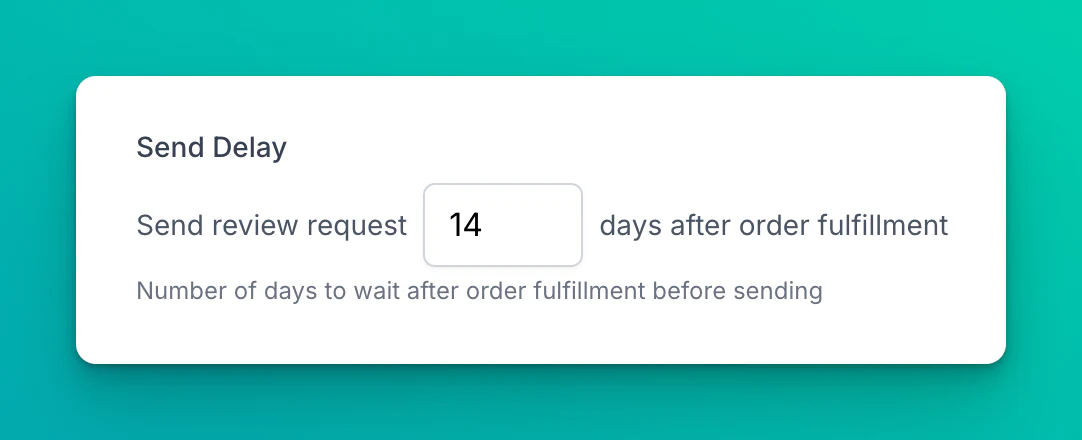
- Set the first request delay from 0 to 60 days.
- Exclude products and countries (if you want)
- Select how many products appear in an email (we recommend 1-3)
- Choose products by price, review count, or random selection.
- Set how many reminders you want to send
Review requests stay disabled until you turn them on. The default Reviewbird delay is 14 days after fulfillment. Reminders are also disabled by default.
Start with one product group, test the email and form on a phone, and then enable the workflow for the rest of the catalog.
Start a 30-day Reviewbird trial when you are ready to turn completed orders into a steady review workflow.
Frequently asked questions
How do I get customers to leave reviews on WooCommerce?
Send a short request after the customer receives and uses the product. Link directly to the correct review form, keep the form easy, and send one reminder only if the customer has not replied.
How long should I wait before asking for a product review?
The delay depends on the product. Immediate-use products can need only a few days. Durable or repeat-use products can need several weeks. Start with a category-based delay and adjust it with your completion data.
How many review reminders should I send?
Start with one. Stop the sequence when the customer submits a review. Add another reminder only when your data shows a clear benefit and low complaint rate.
Can I give customers a coupon for a review?
An incentive must not depend on a positive rating. Explain and disclose the incentive, check applicable laws and platform rules, and identify incentivized reviews correctly in any external feed.
Should only verified buyers leave reviews?
Verified-buyer restrictions can reduce anonymous spam and add trust. They can also exclude gift recipients or customers from another sales channel. Choose and explain the rule that fits your store.
Does WooCommerce send product review requests?
WooCommerce 10.8 added an optional, feature-gated review-request email. Reviewbird adds reminders, product selection, media, advanced form design, hosted delivery, and controls that stop requests after a response.
Sources
- WooCommerce Product Reviews documentation
- WooCommerce 10.8 release notes
- FTC guidance for online review platforms
- FTC Consumer Reviews and Testimonials Rule Q&A
- Google email sender guidelines
- Google Product Ratings policies
- Reviewbird automatic review request documentation
- Reviewbird custom sender documentation

Clif Griffin
WooCommerce is my patronus. Husband of Jennifer. Father of three. Believer.