

Review Topics lets shoppers filter product reviews by subjects such as fit, battery life, or assembly. It is included with Everything and is off by default.
Enable topics
- Open Widgets > Topics.
- Turn on Enable Review Topics.
- Allow a few minutes for the background work.
- Open Display Widget settings.
- Enable Show topic filters and save.
Both settings are needed: one creates and manages topics; the other shows their filters in the Display Widget.
When topics appear
A product needs at least 10 published reviews with text before Reviewbird can find its topics. A review needs at least 40 characters of public review text to be matched to a topic.
A topic needs at least three matching published reviews to appear as a filter. The widget needs at least two eligible topics and shows up to seven at a time, with the most discussed subjects first.
These rules mean that a product with ten reviews might not show filters immediately. The reviews must discuss enough common subjects. New reviews and topic changes are processed in the background.
When topics are recalculated
Reviewbird checks for new topics when review content changes. There is no fixed daily or weekly scan.
- First scan: Enabling Review Topics queues a check for products that already have reviews. A product must have at least ten published reviews with text for its first scan. Products that reach this minimum later are checked after the review change.
- Later checks: Publishing, editing, unpublishing, deleting, or restoring a review queues a check for its product. Reviewbird waits five minutes after the last relevant change to group changes together. Background processing can take longer.
- Recalculation threshold: After the first scan, the total amount of published review body text must increase or decrease by at least 30% since the last scan. This measures text size, not the number of reviews. Edits that leave the total text size unchanged do not trigger a new discovery scan.
For example, if the last scan used 10,000 characters of plain English review text, another scan becomes due at 13,000 or more, or 7,000 or fewer. Smaller changes accumulate until the threshold is reached.
A scan keeps existing topics, custom names, and hidden choices. Once a product has topics, a later scan can add up to three more. The product can have up to 12 topics, including hidden topics. A scan can add none if the reviews do not support another subject.
Matching reviews to existing topics is a separate step. New or edited published reviews with enough text are matched in the background without waiting for the 30% threshold. When a scan adds a topic, Reviewbird checks up to the 200 newest published reviews with text against it. The filter display rules above still apply.
Turning Review Topics off and on again queues checks and catches up on reviews without topic matches. It does not reset the scan history or bypass the 30% threshold.
Change a topic name
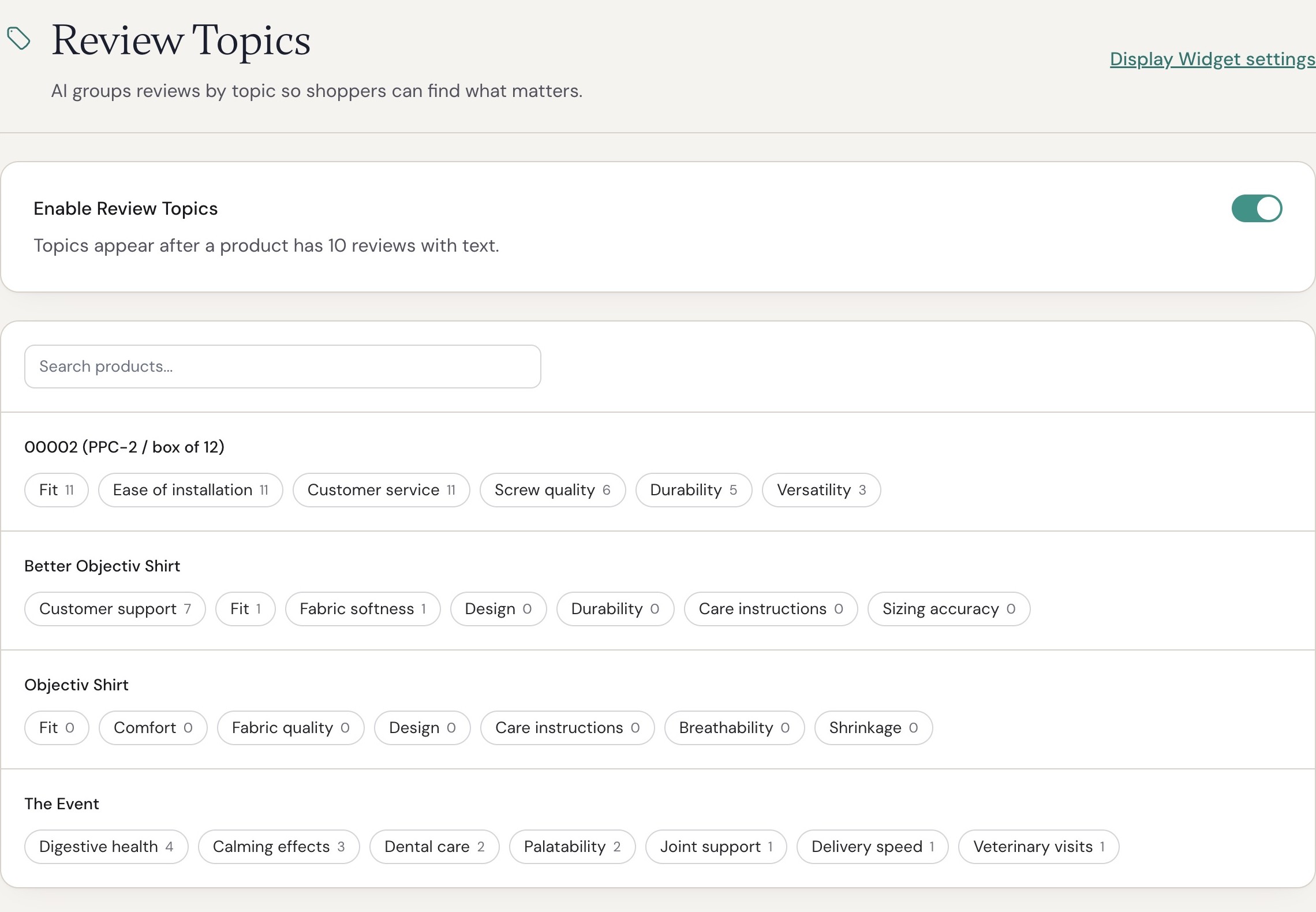
WooCommerce dashboard shown with local test data. The topic controls are also available in Shopify.
- Search for the product on Review Topics.
- Select a topic.
- Edit Name shoppers see.
- Select Save name.
The label can contain up to 60 characters. Clear the field to restore the original name. Changing the label changes what shoppers see; it does not change the subject used to match reviews.
Hide or show a topic
Open the topic and select Hide on this product or Hide on all products. The second action applies to topics with the same original name across the store.
Use Show on this product or Show on all products to reverse the change. Hidden topics stay in the management list. Hiding a topic does not hide its reviews.
Languages and product variations
Topic labels can be translated for enabled store languages. The original label appears while a current translation is unavailable. Product variations use the parent product for topic discovery and matching.
If no topic filters appear
Check the Everything plan, both topic settings, review status, and the number of matching reviews. Also check whether you have hidden the topics. A background job must finish before new topics and tags appear.
Turning off Review Topics removes the filters from public use. Your saved labels and hidden choices remain available when you enable the feature again.