

Store reviews describe the buying experience, such as delivery, packaging, and support. They are separate from product reviews and from reviews on a Google Business Profile.
Turn on store review requests
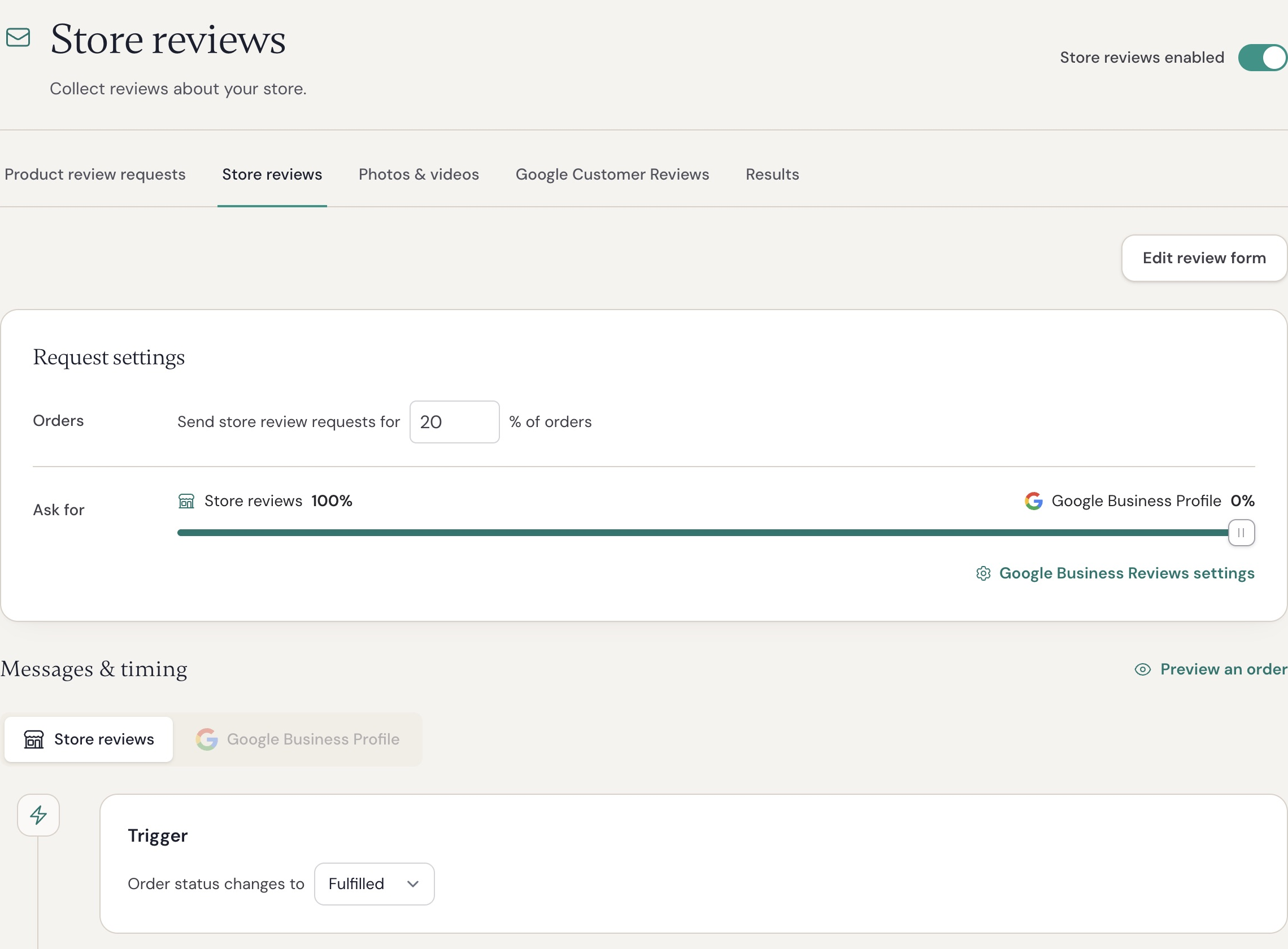
WooCommerce dashboard shown. Shopify has the same request routing controls.
- Open Collect > Store reviews.
- Turn on Store reviews. New stores start with this option off.
- Set Send store review requests for to a percentage from 1 to 99.
- Under Ask for, set the split between Store reviews and Google Business Reviews.
- Save your changes. In Shopify, use the save bar when it appears.
- Check that sending is also on in Product review requests.
The first percentage selects orders for store or Google requests. The remaining orders receive product review requests. The second percentage splits those selected orders between Reviewbird store reviews and Google Business Reviews.
For example, select 20% of orders, then split that group equally. About 10% of all orders receive a store review request, 10% receive a Google request, and 80% receive a product review request. Selection is random, so actual counts can differ.
Google requests need your Google Business Review link. Select the Google settings control to enter it. Store reviews stay in Reviewbird; Google reviews stay on Google.
Edit messages and timing
Under Messages & timing, choose Store reviews or Google Business Profile. Each destination has its own email text. Edit and test the first message and reminders before you send them.
Store and Google requests share timing, separate from product review timing. Each destination has its own email messages. Use Preview an order to check the result without sending an email.
Reviewbird keeps each order on the same review destination through its reminders. It does not send all three types of review request for that order.
Edit the store review form
Select Edit review form on the Store reviews tab. You can change the heading, help text, rating label, review title label, review text label, and thank-you message.
Use the live preview and Show thank you message to check both states. Select Save. Form text applies to all store review requests and is translated for your enabled languages. The buttons use your brand primary color.
A customer can submit one store review through the request form. Further requests do not create another store review for the same customer. This limit does not prevent importing distinct historical reviews from the same customer.
Manage and display store reviews
Open Manage Reviews (called Reviews in Shopify) and select the store review type filter. Store reviews have no product. Use the normal review status controls to publish or hide them.
Open Widgets > Trust Badge > Configure to choose the rating source: product reviews, store reviews, or both. Check the preview, then copy and install the generated code. In Shopify, you can also choose the source in the Trust Badge theme block. The badge uses published reviews from the selected source. Custom widgets also have a Store reviews source.
The old General product is no longer used for store feedback. Reviews attached to that product have been moved to store reviews. Do not create a new General product for this purpose.
Import store reviews
In a review import file, leave both the product external ID and product SKU empty for a store review. If you supply an identifier that does not match a product, the row is invalid; it does not become a store review.
Check results or stop requests
Open Collect > Results to see store review requests and submitted store reviews. Google results count link clicks, not confirmed reviews.
To stop both store and Google requests, turn off Store reviews and read the confirmation. Pending store and Google requests are canceled, and new orders receive product review requests. Turning the option on later does not restart canceled emails.
Turning off the main product review sending switch pauses the order review system, including store and Google requests.