

Use Social Studio to make an image from a published review. Open Social to create a post, download an image, or set a schedule for automatic sharing.
Access and plan requirements
- Starter, Plus, and Everything include image design, downloads, and saved templates.
- Plus and Everything include account connections, Share now, and automatic sharing.
- AI quote selection requires Everything and an eligible review.
- The organization owner, an Administrator, or a Manager can use Social. A Moderator or Viewer cannot change store settings.
If Social is missing, contact support to check feature access for your store.
Create a review image
- Select your store. In the left menu, select Social.
- Open Create a post.
- Find a review. The first view shows verified reviews with 5 stars. Change the rating, product, media, or other filters if necessary.
- Select the review to open the editor. You can also select Share on a published review in Manage Reviews.
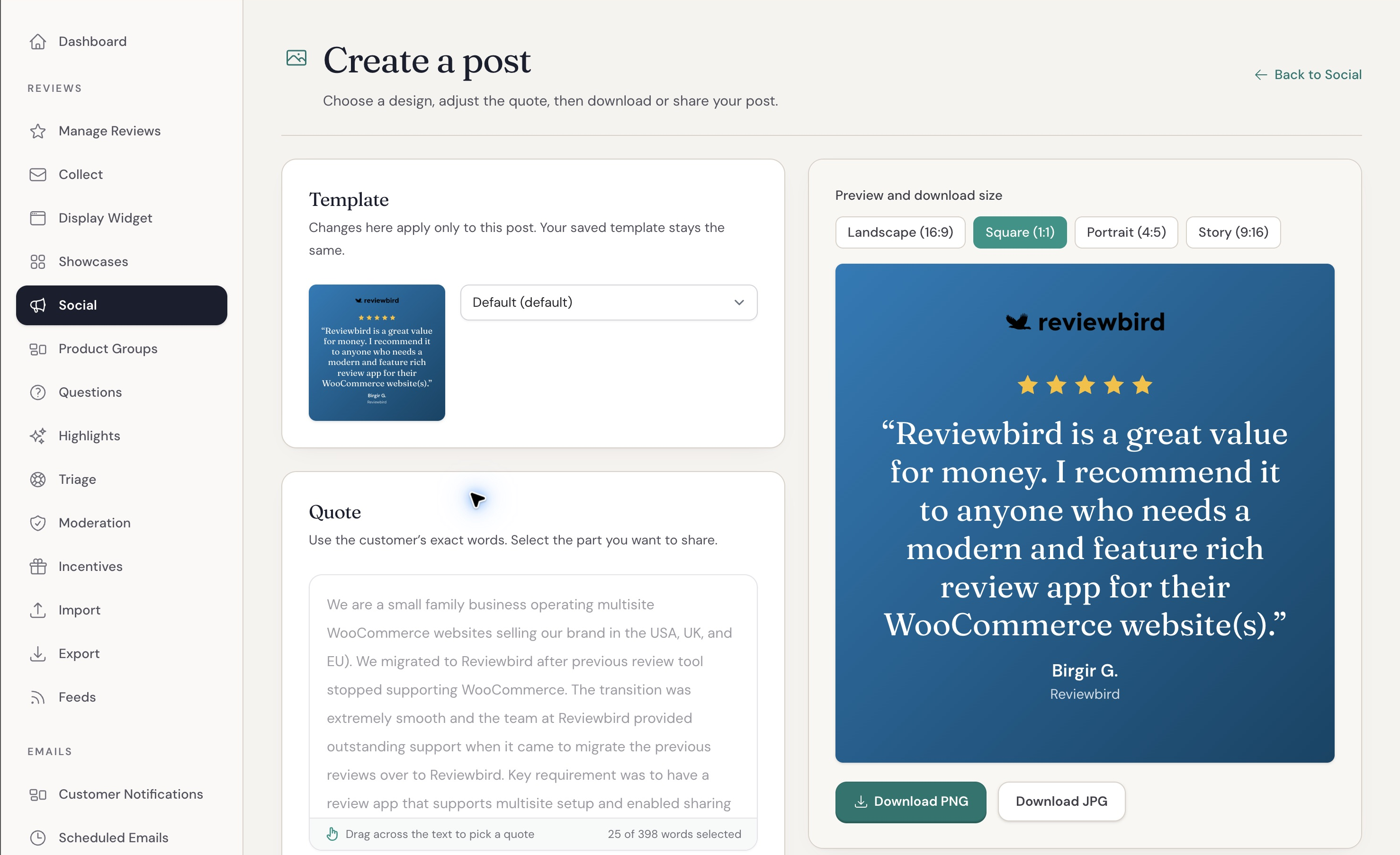
- Select a template.
- In Quote, select the part of the review that you want to use. Select Use full review to restore all the text.
- Set the layout, background, font, colors, and visible information. Check the preview.
The quote must use the customer's exact words. On Everything, select Find the AI Highlight or Use AI Highlight when available. AI selects text from the review. It does not write a new quote.
An automatic background uses a customer photo first, then a product image, then your brand gradient. You can also select a background or upload a JPEG, PNG, or WebP image. Use the photo controls to select a customer photo and adjust its position.
If Reviewbird shows a content license warning, get the customer's permission before you post the photo.
Download an image
- Select a size in Preview and download size.
- Select Download PNG or Download JPG.
- Wait for Reviewbird to create the image.
| Size | Dimensions | Use |
|---|---|---|
| Square (1:1) | 1080 × 1080 pixels | Recommended for Facebook. |
| Portrait (4:5) | 1080 × 1350 pixels | Recommended for Instagram. |
| Landscape (16:9) | 1200 × 675 pixels | Recommended for X. |
| Story (9:16) | 1080 × 1920 pixels | Download and upload it yourself. |
Reviewbird can post square, portrait, and landscape images to connected accounts. It cannot post the Story size directly.
Save and use templates
- Open Social > Templates.
- Select New template, or select Edit on an existing template.
- Enter a name. Set the design and captions for each platform.
- Select Save template.
The sample review shows the design. Reviewbird does not save that review or quote with the template. New posts use your default template. Select Make default to change it.
You can also duplicate or delete a template. Keep at least one template. Design and caption changes in a single post apply only to that post. To change future posts, edit the saved template.
Connect social accounts
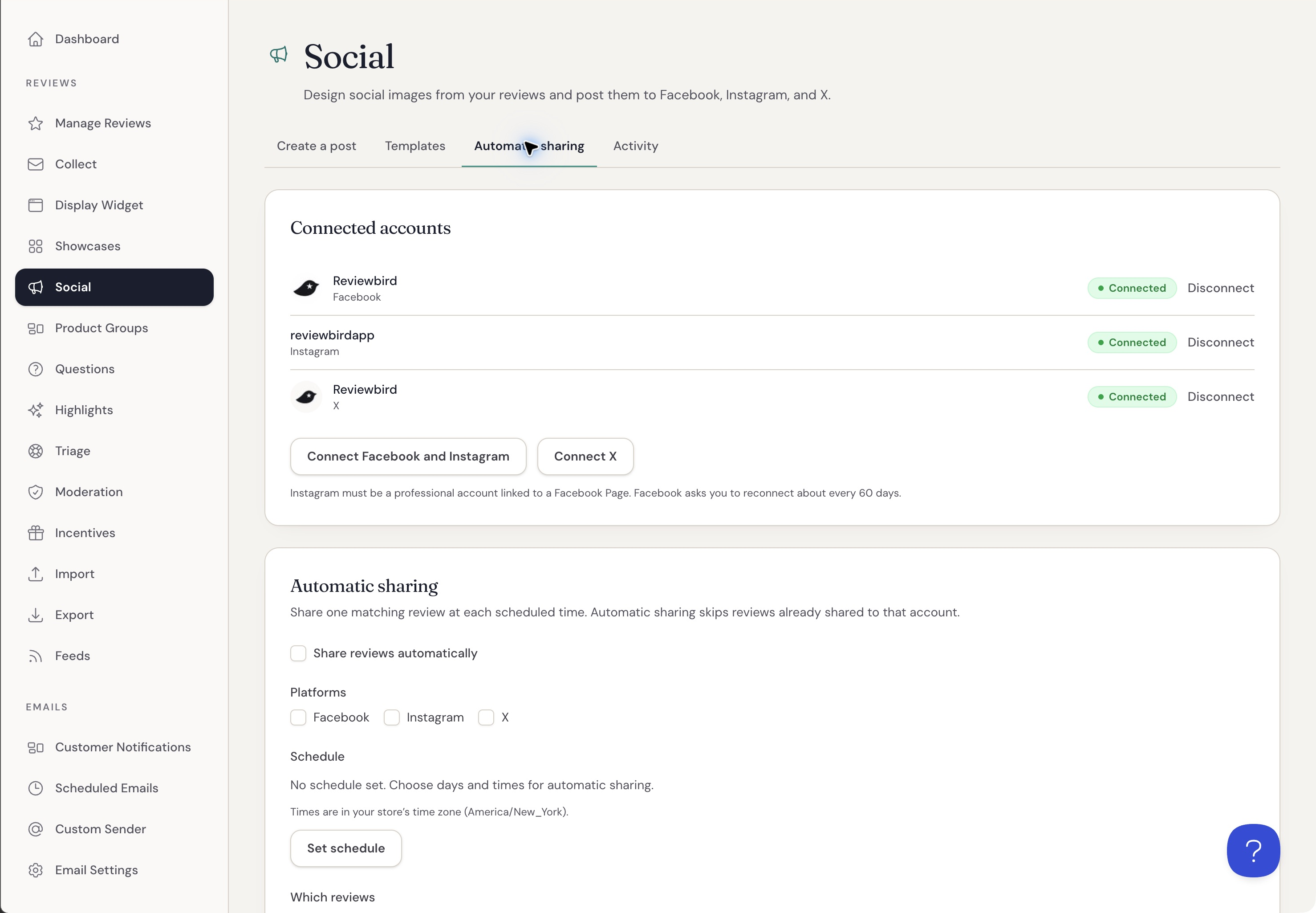
- Open Social > Automatic sharing.
- In Connected accounts, select Connect Facebook and Instagram or Connect X.
- Sign in to the platform and allow access.
- When you return to Reviewbird, select the accounts that you want to connect.
- Select Connect selected.
Facebook connections use Pages. Instagram must be a professional account linked to a Facebook Page. Reviewbird posts only to the accounts that you select.
If an account shows Reconnect needed, select Reconnect and allow access again. If it shows Paused, check the error and select Resume after you correct the problem. Select Disconnect to remove the connection.
Share a review now
- Open a review in the editor.
- In Share now, select the connected accounts.
- Select the template card, customer photo, or product image.
- Check the caption for each selected platform.
- Select a platform beside the sharing sizes to check its preview.
- Select Share now.
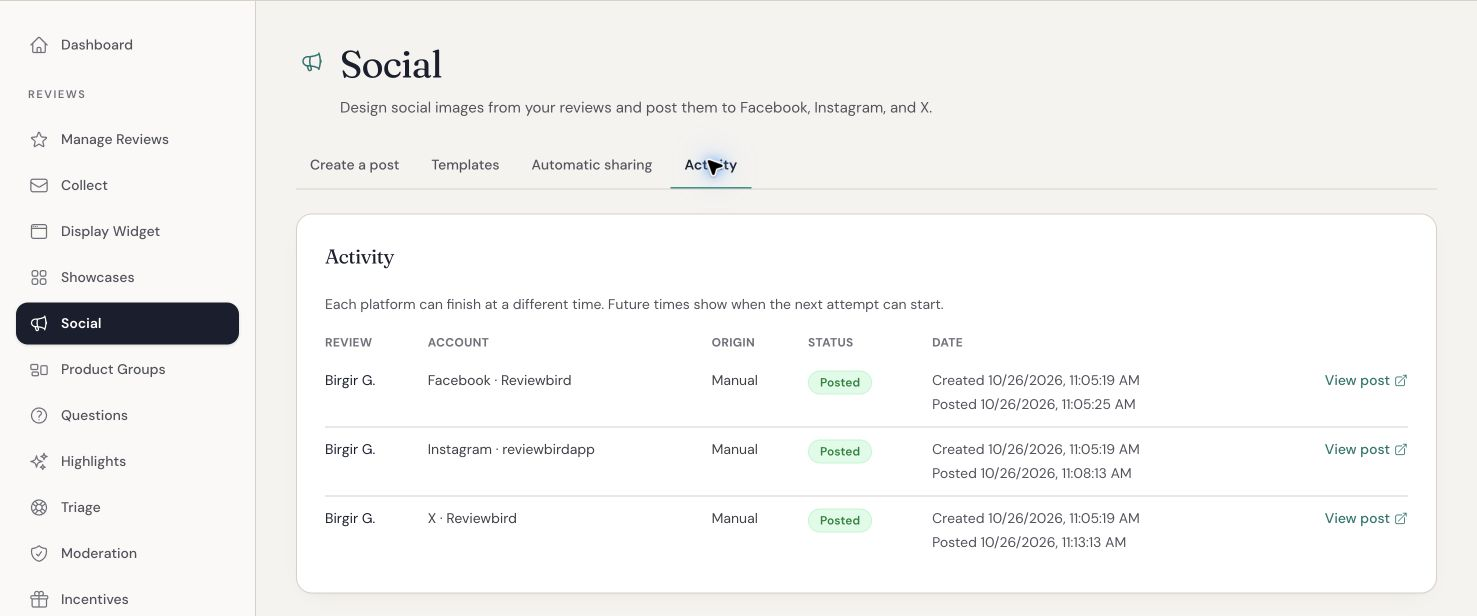
- Open Activity to check the result.
Direct sharing uses the image size saved for each platform under Automatic sharing > Image size. The download preview size does not change those settings.
Set up automatic sharing
- Open Social > Automatic sharing. Connect or resume at least one account.
- Select Share reviews automatically.
- Select the platforms.
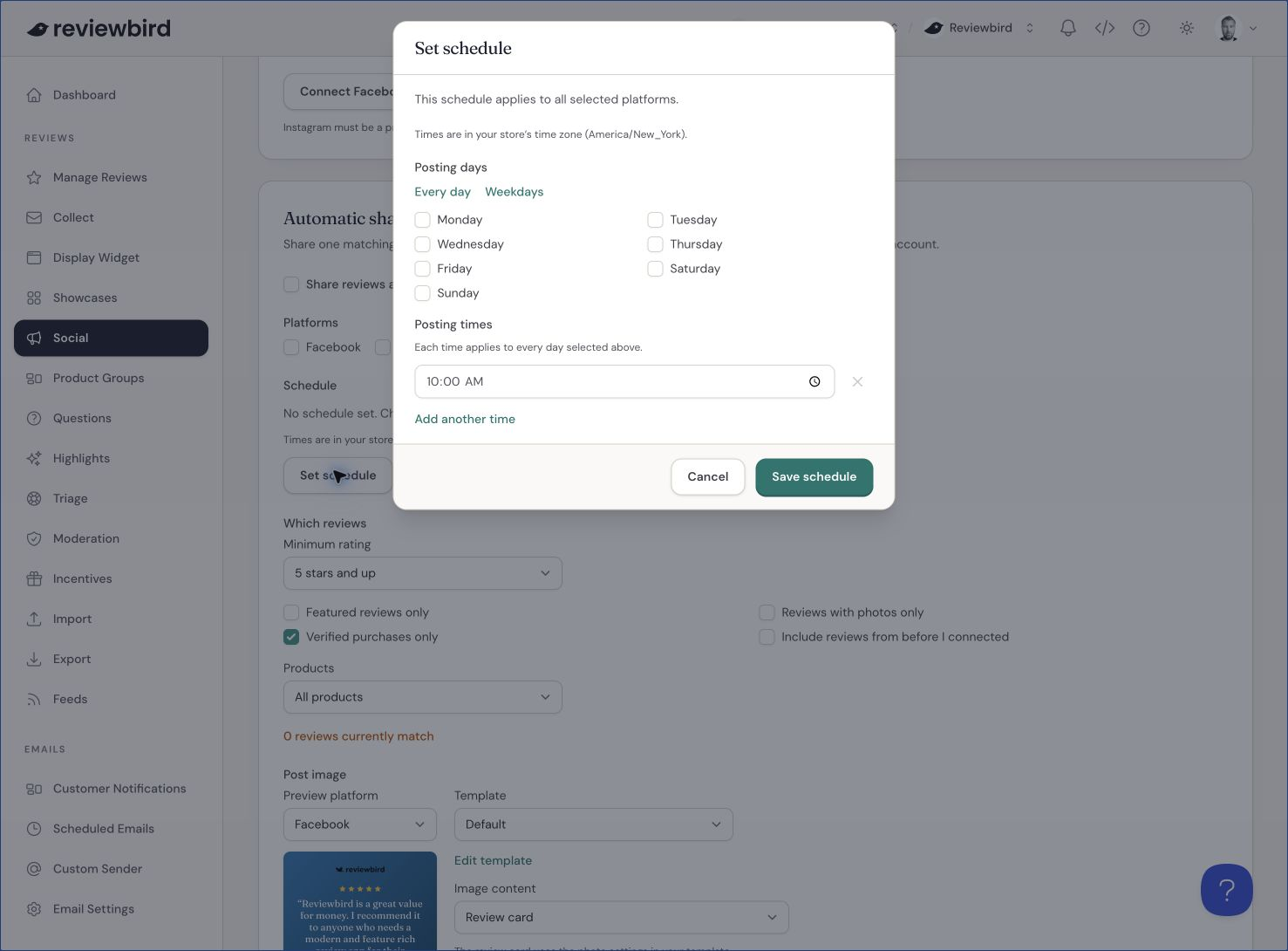
- Select Set schedule or Edit schedule. Choose the days and times, then select Save schedule.
- Set Minimum rating and the review filters. You can require featured reviews, photos, or verified purchases.
- Choose all products, only selected products, or all except selected products. A selected product includes its variants.
- Select Include reviews from before I connected if you want to use older reviews.
- Select the template, image content, platform sizes, and captions.
- Select Save settings.
Times use the store time zone shown beside the schedule. You can set up to 12 times per day. Save schedule saves the schedule separately. Use Save settings for the other changes.
At each scheduled time, Reviewbird selects one random matching review for each selected active account. The review must be published and contain written text. Reviewbird skips reviews already shared or queued to that account. If no review qualifies, Reviewbird does not make a post.
The matching count shows reviews that meet the filters. An account can have fewer available reviews because of previous posts and the date of connection.
For Image content, choose a review card or a photo without text. Customer or product photo only uses a customer photo first, then a product photo. If the selected photo is not available, Reviewbird uses the review card.
To stop automatic sharing, clear Share reviews automatically and select Save settings.
Use caption variables
A caption can contain text and variables. For example, {{quote}} — {{reviewer_name}} {{rating_stars}} inserts the selected quote, the public reviewer name, and the star rating.
Available variables are {{reviewer_name}}, {{reviewer_first_name}}, {{rating}}, {{rating_stars}}, {{quote}}, {{review_title}}, {{review_body}}, {{product_name}}, {{product_url}}, and {{store_name}}.
Template captions apply to new posts and automatic sharing. Changes in Share now apply only to that post. Changes under Automatic sharing > Captions apply only to automatic sharing. Select Use template caption to remove an automatic caption override.
Check activity and correct problems
Open Social > Activity. Each account has a separate result. One platform can finish before another.
- Waiting to post or Waiting to retry: The post is queued. A future time shows when the next attempt can start.
- Creating image or Posting: Reviewbird is processing the post.
- Posted: Select View post when available.
- Failed: Read the error. Correct the account problem, then select Retry when available. If posting was interrupted, check the social account before you retry.
If the review list is empty, clear the filters and check that the review is published. If automatic sharing does not make a post, check the account status, selected platforms, schedule, saved settings, and available reviews. If a connection button is unavailable, contact support.