

You can use Reviewbird on a test copy of your store or another domain for the same store. Add the address in Settings > Additional URLs, then choose whether customers can submit reviews there.
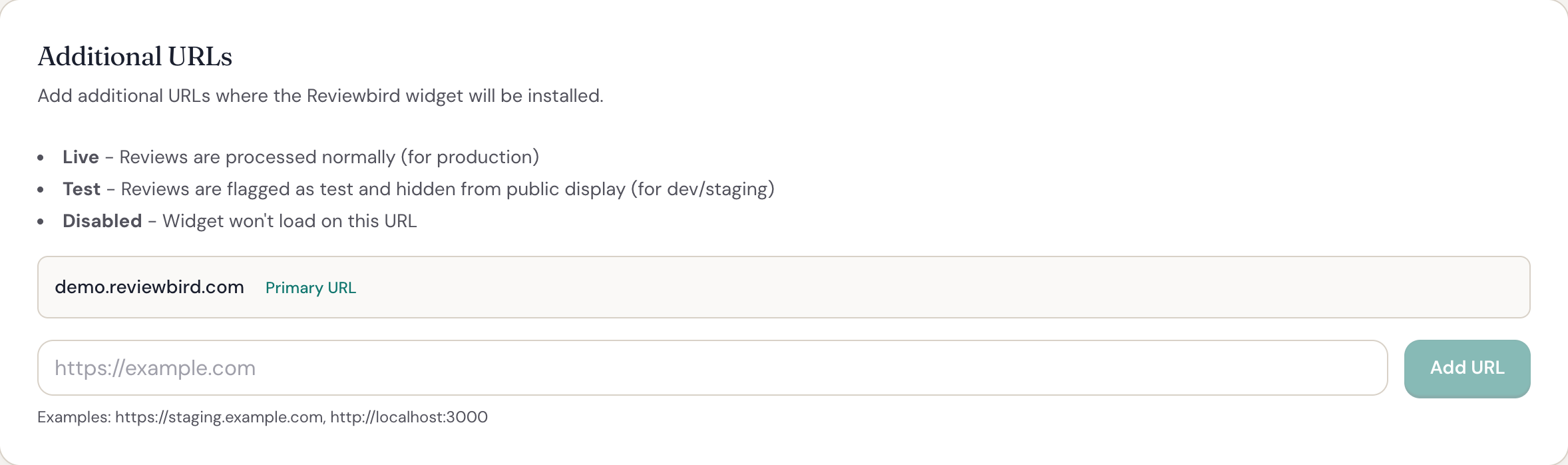
Add a URL
- Select your store and open Settings.
- Find Additional URLs.
- Enter the store address, such as
https://staging.example.com. Do not include a page or product path. - Select Add URL.
New addresses start in Test mode. You can check the widget without adding test reviews to your store.
Select a URL mode
Choose a mode beside each additional address. The change saves immediately.
| Mode | When to use it | What happens |
|---|---|---|
| Live | A store that customers use. | The widget shows reviews and accepts new reviews. Your moderation settings apply. |
| Test | A development or staging copy of your store. | The widget shows your existing reviews. You can try the review form, but Reviewbird does not save the test reviews. |
| Disabled | An address where you no longer want the widget. | The widget cannot show or accept reviews. |
Your primary store address always uses Live mode.
Remove an additional URL
- Find the address in Additional URLs.
- Select Remove and confirm.
The widget will no longer work at that address.
Change the primary URL
Use this when your store moves to a new domain. You will need to reconnect WooCommerce after the change.
- Add the new address to Additional URLs.
- Select Make Primary beside it. You can also select Change beside the current primary address and choose the new one.
- Select Change & Reconnect.
- Follow the connection steps to reconnect WooCommerce.
The new primary address uses Live mode. Reviewbird keeps the previous primary address in Additional URLs so you can still manage it.
Correct an address during initial setup
Before you connect WooCommerce for the first time, select Edit store address on the Connect step. Enter the correct address and select Save address.
For a store you have already connected, use the primary URL steps above.
FAQ
Who can change store addresses?
The organization owner, an Administrator, or a Manager can make these changes. If your role is Moderator or Viewer, ask one of them to help.
Can I add more than one test address?
Yes. There is no limit on the number of additional addresses. You cannot add the same address twice or add your primary address again.
Can I use a local development address?
Yes. You can enter an address with a port, such as http://localhost:3000. Enter only the host name and port, with no page path.
Why did my test review show a success message but not appear?
In Test mode, the form shows what a successful submission looks like but does not save the review. To collect real reviews at that address, change its mode to Live.
Why has new store data stopped appearing after a domain change?
Changing the primary address disconnects WooCommerce. Open Connect and reconnect your store so Reviewbird can receive new store data.