

Open Manage Reviews to read customer feedback, publish or hide reviews, and write public replies.
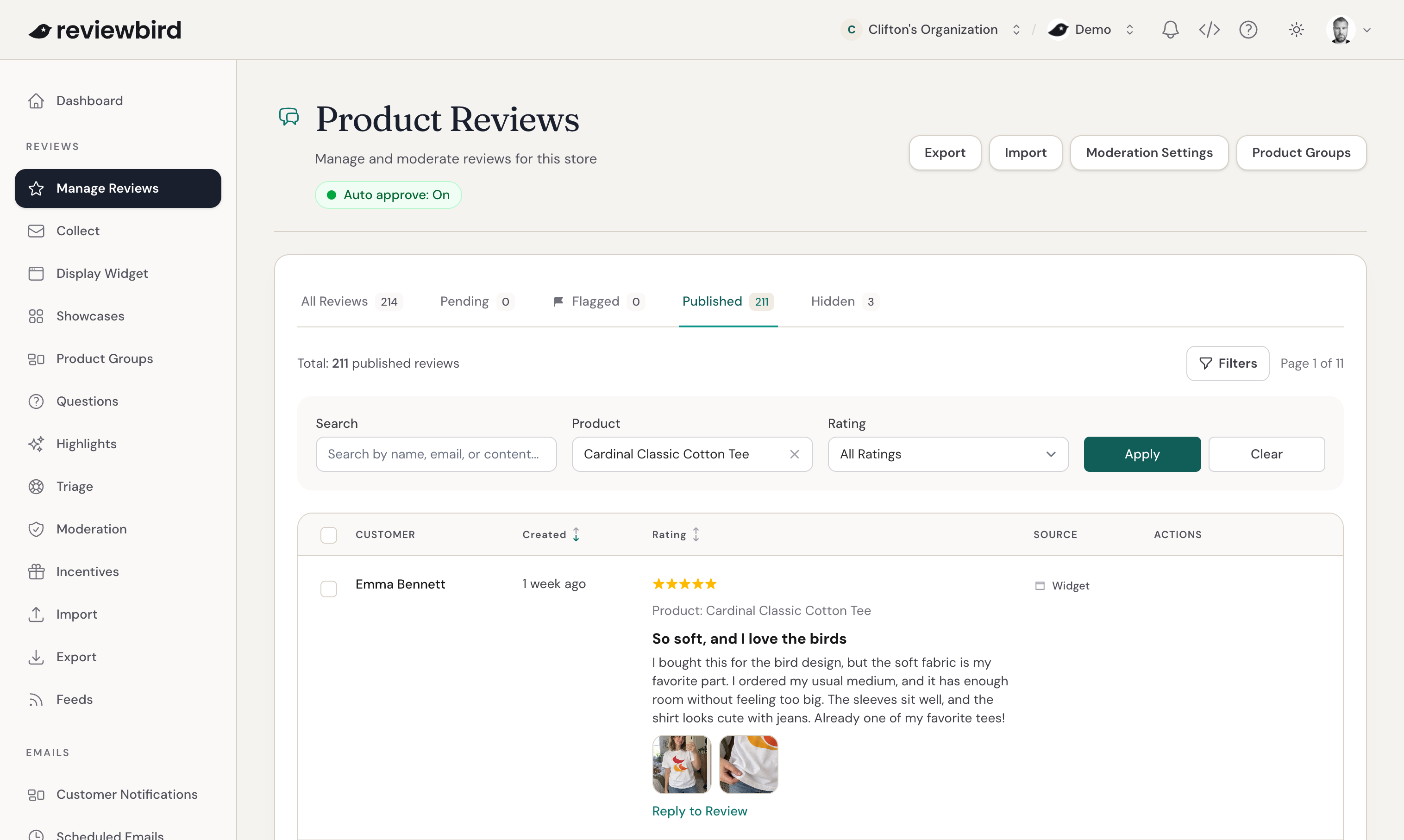
Find a review
Select a tab to choose which reviews to show:
- All Reviews includes every status.
- Pending includes reviews awaiting moderation, a decision from you, or email confirmation from the customer.
- Flagged includes reviews that need your attention after a moderation check.
- Published includes reviews that shoppers can see.
- Hidden includes reviews that shoppers cannot see.
The number on each tab shows how many reviews match that status.
To narrow the list, select Filters. Search by customer name, email address, or review text. You can also choose a product or star rating. Select Apply to show the results, or Clear to remove the filters.
Publish or hide one review
- Open the Pending or Flagged tab.
- Read the review and check any moderation flags.
- Select Publish to show the review to shoppers, or Hide to keep it private.
- Confirm your choice.
Publish or hide multiple reviews
- Select the check box beside each review. The check box in the table header selects every review on the current page.
- Select Publish Selected or Hide Selected.
- Confirm your choice.
Select Clear Selection to start over.
Reply to a published review
Public replies are included with Plus and Everything.
- Open the Published tab and find the review.
- Select Reply to Review.
- Write your reply. It must contain 10 to 1,000 characters.
- Select Add Reply.
Your reply appears with the review. Address the customer's feedback and leave out private information, such as an email address or order details.
To email the customer when you reply, enable the notification in Customer Notifications > Reply. Reviewbird sends this email when you add the first reply.
Edit or delete a reply
Select the edit icon beside the reply, change the text, and select Update Reply.
To remove a reply, select its delete icon and confirm.
Frequently asked questions
Why can I not publish a review?
A review that needs email confirmation must wait for the customer to confirm it. You can hide it while you wait.
You also need permission to manage reviews. Ask your organization administrator to check your permissions if the Publish and Hide buttons are missing.
Why can I not reply to a review?
The review must be published, your store must use Plus or Everything, and your account must have permission to moderate reviews.