

The Reviewbird widget shows reviews on your WooCommerce product pages and lets customers write new ones. First, install and activate the Reviewbird WordPress plugin and connect your store.
Enable the review widget
- In WordPress, open Reviewbird > Settings.
- Check the connection status. If the store is not connected, select Connect store and follow the connection steps.
- Turn on Reviewbird Widget. The change saves immediately.
- Open a product page and check the reviews.
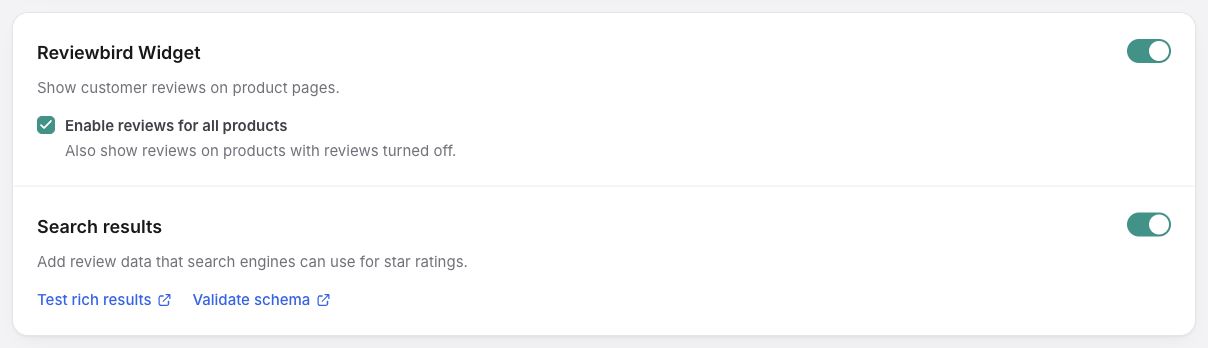
Reviewbird adds the review widget and rating stars to the usual WooCommerce positions in your theme. To change the widget's layout or colors, open Display Widget in Reviewbird.
Turn on Search results to add review data that search engines can use for product stars. See Enable schema markup for instructions.
Available shortcodes
Use a shortcode to place a widget in a different position or add a showcase to a page. Paste the shortcode into a WordPress Shortcode block or your page builder's shortcode element.
| Widget | Shortcode | What it shows |
|---|---|---|
| Review Display | [reviewbird_widget] | Reviews and the review form for the current product. |
| Rating Stars | [reviewbird_stars] | The rating and review count for the current product. |
| Review Showcase | [reviewbird_showcase id="123"] | The showcase you select. Replace 123 with your showcase ID. |
To show a specific product outside its product page, add product_id="123" to the review widget or stars shortcode. Replace 123 with the WooCommerce product ID.
Move the review display widget
The widget normally appears after the product tabs. You can use a shortcode to put it in your page content, or a code snippet to change its position in the theme.
Use a shortcode
Add a Shortcode block or page builder shortcode element where you want the widget, such as in the product description. Enter:
[reviewbird_widget]Keep Reviewbird Widget turned on in WordPress. When the shortcode displays the widget before its usual position, Reviewbird does not add a second widget there.
Change the automatic position
This option uses PHP. Add the following filter to a child theme or a code snippets plugin. Do not paste PHP into a page.
add_filter( 'reviewbird_product_widget_priority', function () {
    return 25;
} );
In a standard WooCommerce template, the number sets the widget's position on the woocommerce_after_single_product_summary hook. These are the usual positions:
| Priority | Section |
|---|---|
| 10 | Product tabs |
| 14 | Reviewbird review widget |
| 15 | Up-sells |
| 20 | Related products |
Use 9 to put the widget before the product tabs, or 25 to put it after related products. Custom templates can use different hooks or positions.
Move the rating stars
Reviewbird replaces the normal WooCommerce rating stars. How you move them depends on your theme.
Classic themes
The default rating position uses woocommerce_single_product_summary at priority 6, after the title. Add this filter to a child theme or a code snippets plugin to move the stars after the normal price position:
add_filter( 'reviewbird_single_rating_priority', function () {
    return 11;
} );
To use a different hook, remove the existing action after it is registered, then add it to the required hook:
add_action( 'wp', function () {
    remove_action( 'woocommerce_single_product_summary', 'reviewbird_display_single_rating', 6 );
    add_action( 'your_favorite_hook', 'reviewbird_display_single_rating', 25 );
} );
Replace your_favorite_hook with a hook in your theme. If you changed the original priority, use that priority in remove_action.
Block themes
- In WordPress, open Appearance > Editor > Templates > Single Product.
- Move the product rating block to the position you want.
- Save the template.
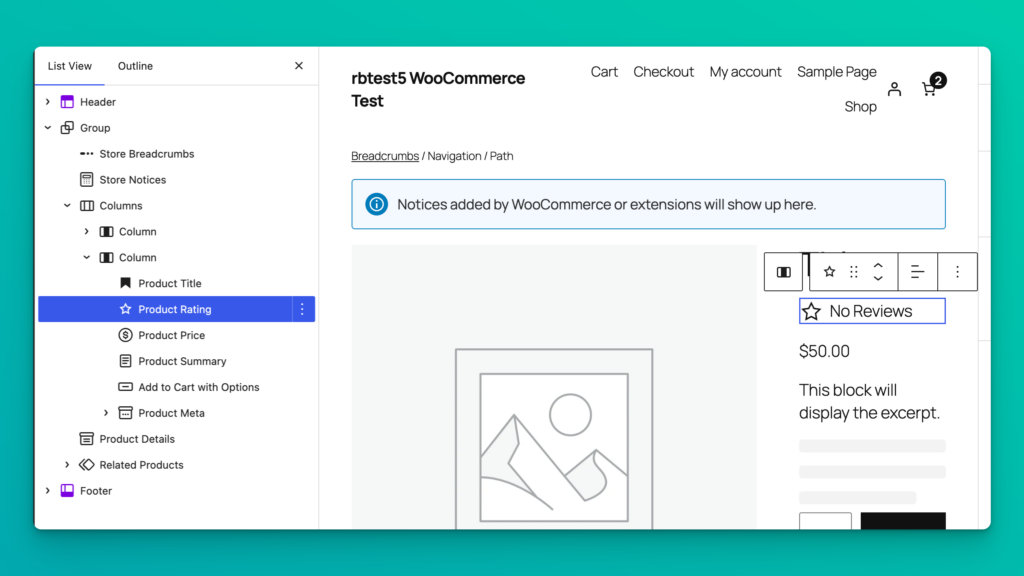
You can also use a Shortcode block for the review widget or rating stars.
Check the result
Clear your store's page cache after you move a widget. Open a product with approved reviews and check both the review widget and rating stars. During setup, you can also use the Widget step to check the page.
FAQ
Why is the widget missing from some products?
Reviewbird follows each product's WooCommerce review setting. To show the widget on all products, open WordPress > Reviewbird > Settings and turn on Enable reviews for all products.
Why are the rating stars missing?
A product needs an approved review before it has rating stars. If the product already has reviews, check that Reviewbird Widget is on and clear your store's page cache.
Why can I see the widget in setup but not on my store?
Setup lets you preview the widget before checkout. Finish setup and complete checkout to start your trial and show the widget to customers. Stores with an existing subscription or an existing Free plan can use their current access.