

Use Export to download your store’s approved reviews as a CSV file.
To export reviews, open your store dashboard and go to Reviews > Export.
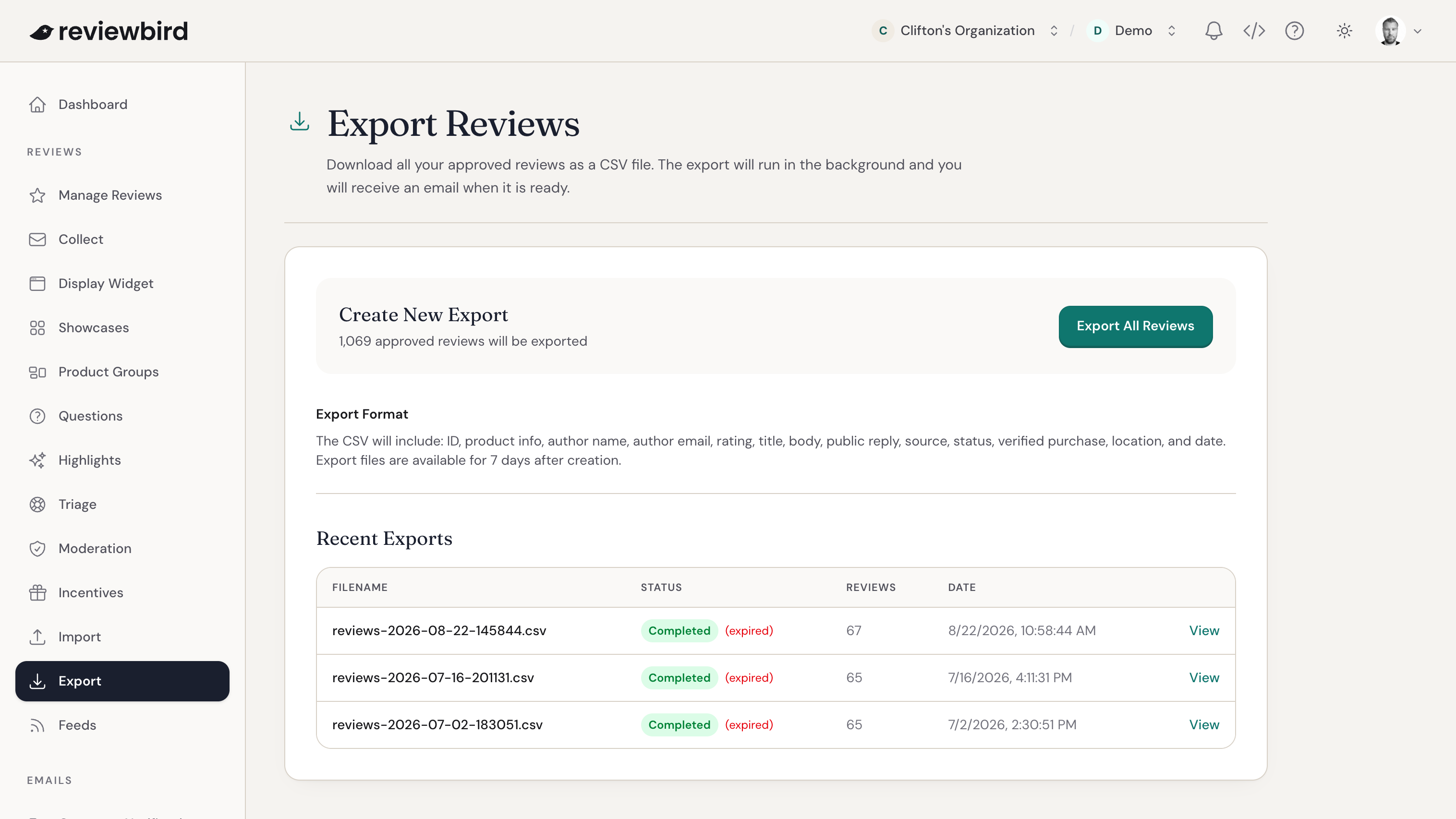
Creating an export
The Export Reviews page shows how many approved reviews will be included.
Click Export All Reviews to start the export.
The export runs in the background. After it starts, you will be taken to the Export Status page, where you can track progress. You will also receive an email when the export is ready.
Only one export can run at a time for a store. If an export is already pending or processing, wait for it to finish before starting another one.
What gets exported
Exports include all approved reviews for the store. Pending, rejected, flagged, moderating, and pending confirmation reviews are not included.
The CSV includes these fields:
- id
- product_id
- product_external_id
- product_name
- external_id
- author_name
- author_email
- rating
- title
- body
- public_reply
- public_reply_at
- source
- status
- verified_purchase
- location
- ip_hash
- created_at
Tracking export status
You'll get an email when your export is finished. The Export Status page shows the export filename, status, progress, and timeline.
An export can have one of these statuses:
- Pending: The export has been queued.
- Processing: Reviews are being added to the CSV.
- Completed: The CSV is ready to download.
- Failed: The export could not be completed.
While an export is pending or processing, the status page updates automatically.
Downloading the CSV
When the export is complete, click Download CSV from the Export Status page.
Export files are available for 7 days after they are created. After an export expires, create a new export to download a fresh CSV.
Recent Exports
The Recent Exports table shows your most recent exports for the store.
Each row includes the filename, status, number of reviews, date, and a View button. Use View to open the export status page or download a completed export.
Availability
If Export is locked, your current plan may not include review exports. Review export requires a Starter plan or higher.