
Suppose you manage a growing multi-brand WooCommerce footwear store with about 500 product reviews. Google Merchant Center accepts your Product Ratings data source, but shoppers still do not see stars beside your products.
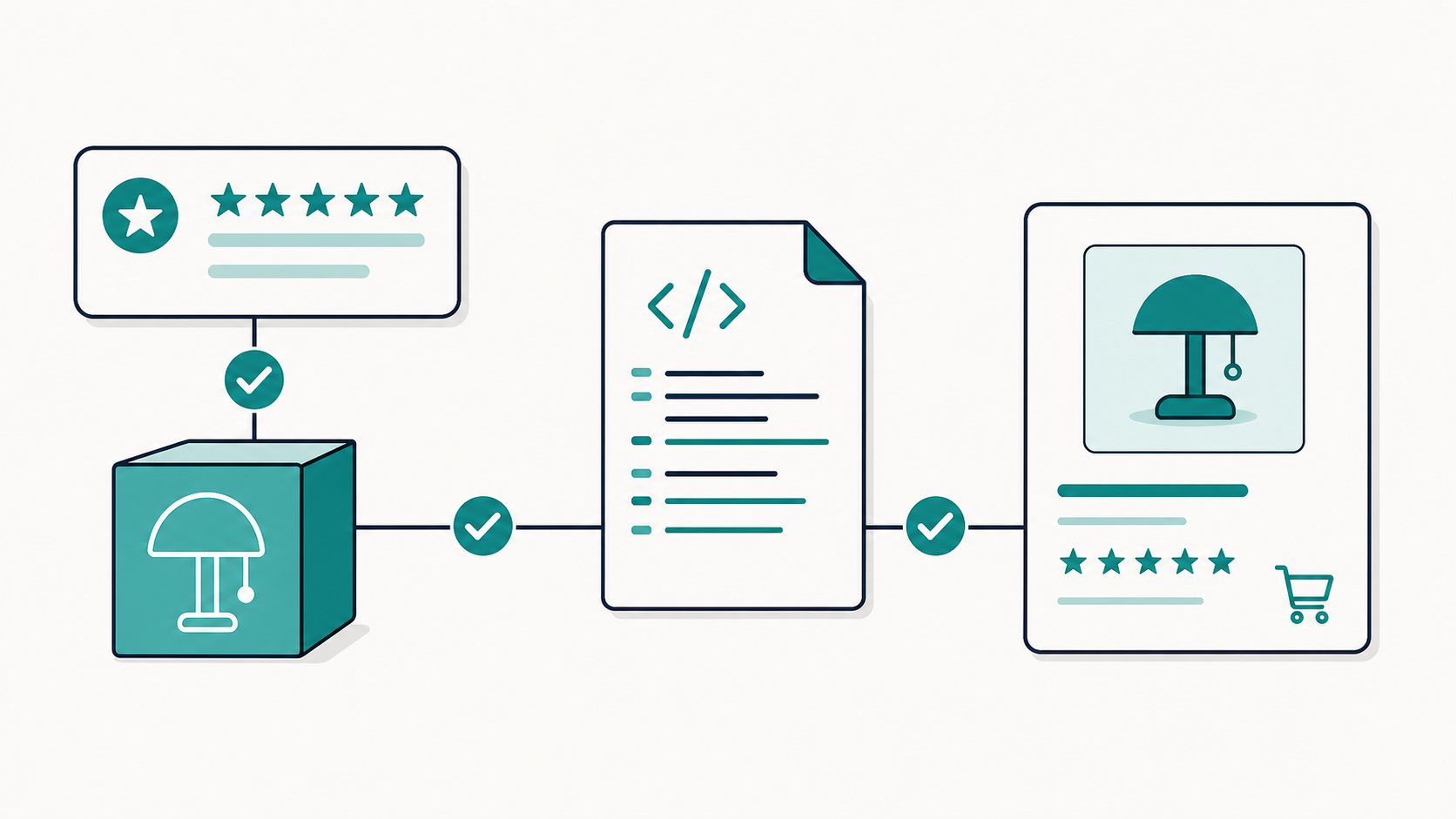
If Google Product Ratings are not showing, an accepted data source is only the first checkpoint. Google must also process each review, match it to the correct product, and decide that a rating is accurate and relevant enough to display. A file can pass its upload check while product identifiers inside that file still fail to match your Shopping offers.
Start with three questions: Is your account eligible? Did Google process the individual reviews? Do the product identifiers match across your product and review data? This order prevents you from changing valid WooCommerce reviews when the real problem is a GTIN, brand, MPN, or SKU mismatch.
Why can an accepted Product Ratings feed show no stars?
Google separates data intake from rating display. Its Product Ratings data source specifications state that providing a data source does not guarantee that Google will include the content. The Product Ratings basics also state that reviews and star ratings may not always show.
Treat an “accepted” or “ready” source as proof that Google received the file, not proof that every review matched a product. You still need to inspect item issues and compare the identifiers in two separate data sets:
- Your primary product data source, which contains the offers that can appear on Google.
- Your product reviews data source, which tells Google which review belongs to which product.
Check Product Ratings eligibility first
Your store’s 500 reviews exceed Google’s current minimum of 50 reviews across all products, but review count alone does not make ratings appear. Google’s Product Ratings eligibility guide also requires an active program setup, current review data, and product URLs that use the domain registered in Merchant Center.
In Merchant Center, go to Analytics > Reviews > Product reviews and confirm that onboarding is complete. Then check the latest data source update. If the account is inactive, the domain is wrong, or the data source is stale, fix that account-level issue before you inspect individual products.
Do not confuse Product Ratings with Store Ratings. Product Ratings describe a specific product. Store Ratings describe the buying experience with a business. A store can have one type of rating without the other.
Use Product Reviews Diagnostics, not only the source status
Next, open Product Reviews Diagnostics. Google says this view shows whether the upload succeeded, which reviews have errors or warnings, and whether strong product identifiers are present. The source-level status can look healthy while individual reviews still have problems.
Use the Product Reviews Diagnostics guide to check for these issues:
- Missing or invalid
review_idvalues. - Missing product identifiers or missing product identifier content.
- Missing or invalid product and review URLs.
- Disapproved, low-quality, or spam reviews.
Choose one product that should have a rating and trace one of its reviews. Record the review ID, the product identifiers in the review data, and the identifiers in the primary product data source. One complete example often shows whether the fault affects one product family, one brand, or the full catalog.
Match the same identifiers in both data sources
Google says GTIN is the strongest product-review matching signal. If a valid GTIN exists, send it in both the product data and the review data. When GTIN is unavailable, Google can try SKU, a brand and MPN pair, or the product URL, but Google warns that these alternatives usually produce a weaker match.
| Identifier | What to compare | Common multi-brand check |
|---|---|---|
| GTIN | The same valid value in both data sources | Confirm that it is a valid GTIN for that product, not an internal SKU formatted as a barcode |
| Brand and MPN | The same brand and manufacturer part number as a pair | Check brand naming after catalog imports or supplier updates |
| SKU | The review feed SKU and the offer ID or SKU used for the same WooCommerce product | Check for reused SKUs across brands, stores, or variants |
| Product URL | A working product page on the registered Merchant Center domain | Check redirects, retired URLs, and products moved between brand collections |
Variants need special care. A review can sit on a parent WooCommerce product while Merchant Center contains separate offers for sizes or colors. Check which GTIN, MPN, SKU, and URL the review feed sends. If one review applies to more than one product, Google’s schema allows one review to contain more than one product element.
Keep every review_id unique and stable
Google requires a review_id for every review. The ID must be permanent and unique in the publisher’s system. Google introduced this requirement in 2024, and a review without the ID does not process successfully.
Do not create a new ID each time you export the same review. Do not reuse an old review ID for a different review. In a multi-store or multi-brand setup, make sure that two stores cannot produce the same review ID by accident. The review ID requirement and the current Product Review Feeds schema both define the ID as permanent and unique.
Validate and upload the complete review data source
Validate the XML before you upload it. Google expects the elements in the schema’s required order, and an XML error can prevent reviews from being extracted. Then send the complete set of reviews, not only the newest records. Google’s schema documentation says reviews missing from the next full feed are deleted from its review data.
Google’s upload instructions recommend scheduled fetch for a hosted XML file. After an upload, use the Latest update view to inspect review totals and item issues. Keep the full feed current and submit it at least monthly to maintain program eligibility.
Do not remove honest low-star reviews to improve the average. Google’s Product Ratings policies require merchants to share all product reviews in regular full updates, including low-star reviews, unless Google gives different instructions. Fix format, matching, or policy problems without changing the customer’s honest opinion.
Where Reviewbird fits
Reviewbird’s Google Product Ratings feed can create a Google Product Ratings XML feed from WooCommerce review data. This removes the need to build the XML structure by hand. It does not control Merchant Center onboarding, Google’s product matching, or whether Google displays a rating.
If you use Reviewbird, first confirm that the WooCommerce products contain the identifiers you want to send. Then compare a sample of those identifiers with the primary product data in Merchant Center. Use Google’s Diagnostics results as the final record of which reviews processed and which need attention.
Run this matching check on one missing rating
- Confirm that Product Ratings is active and the review data source is current.
- Open Product Reviews Diagnostics and select one affected review.
- Confirm that the review has one permanent, unique
review_id. - Compare its GTIN first. If no GTIN exists, compare brand and MPN, then SKU and product URL.
- Correct the source of the wrong value in WooCommerce, the product data process, or the review data process.
- Validate and submit the full review data source again, then monitor Diagnostics for the corrected item.
If the review processes and the identifiers match, you have removed the data problem you can control. Google can still choose not to show the rating. Start with one missing product, prove the full path, and then apply the same correction to the affected brand or catalog group.
Sources
- Google Merchant Center: Product Ratings basics
- Google Merchant Center: Product Ratings eligibility
- Google Merchant Center: Product Reviews Diagnostics
- Google Merchant Center: Product Ratings data source specifications
- Google Merchant Center: Upload a product reviews data source
- Google Merchant Center: Review ID requirement
- Google Merchant Center: Product Ratings policies
- Google for Developers: Product Review Feeds XML schema

Clif Griffin
WooCommerce is my patronus. Husband of Jennifer. Father of three. Believer.