
Product reviews contain answers to some of the most important questions about your store. The problem is that finding those answers often means reading reviews one at a time, building a spreadsheet, or copying feedback into another tool.
You might want to know which products attract the most complaints, whether customers mention a problem more often this month, or which reviews still need a reply. The information is already there. Turning it into useful work is the slow part.
Today we released a new feature to help with that. Reviewbird MCP closes the gap between the tools you’re already using and your product reviews. It gives your AI client controlled access to your Reviewbird data, so you can ask questions in plain language, compare review trends, find recurring product problems, and draft replies without exporting a CSV file.
Your AI client can also help moderate reviews or reply to customers.
Ready to get started? Connect your AI client to Reviewbird
What is Reviewbird MCP?
Model Context Protocol (MCP) is an open standard that lets AI applications connect to external data and tools.
Reviewbird MCP connects an MCP-compatible AI client to the stores that you can access in Reviewbird. The connection gives the client specific tools for review metrics, product searches, review content, moderation, and public replies.
You can use Reviewbird MCP with ChatGPT, Codex, Claude, Claude Code, Cursor, and any other AI clients that support remote MCP connections.
Reviewbird MCP requires a paid plan.
Ask questions in the same words you use with your team
You do not need to learn a query language. Ask a direct question and give the AI client enough detail to identify the store, product, date range, or type of review.
| Goal | Example prompt |
|---|---|
| Find product problems | Which products have the most one-star and two-star reviews? |
| Compare periods | Compare this month’s reviews with last month’s reviews. What changed? |
| Analyze sentiment | Give me a sentiment analysis of our product reviews. |
| Check a specific issue | How often do reviewers mention color fading? Which products do they mention? |
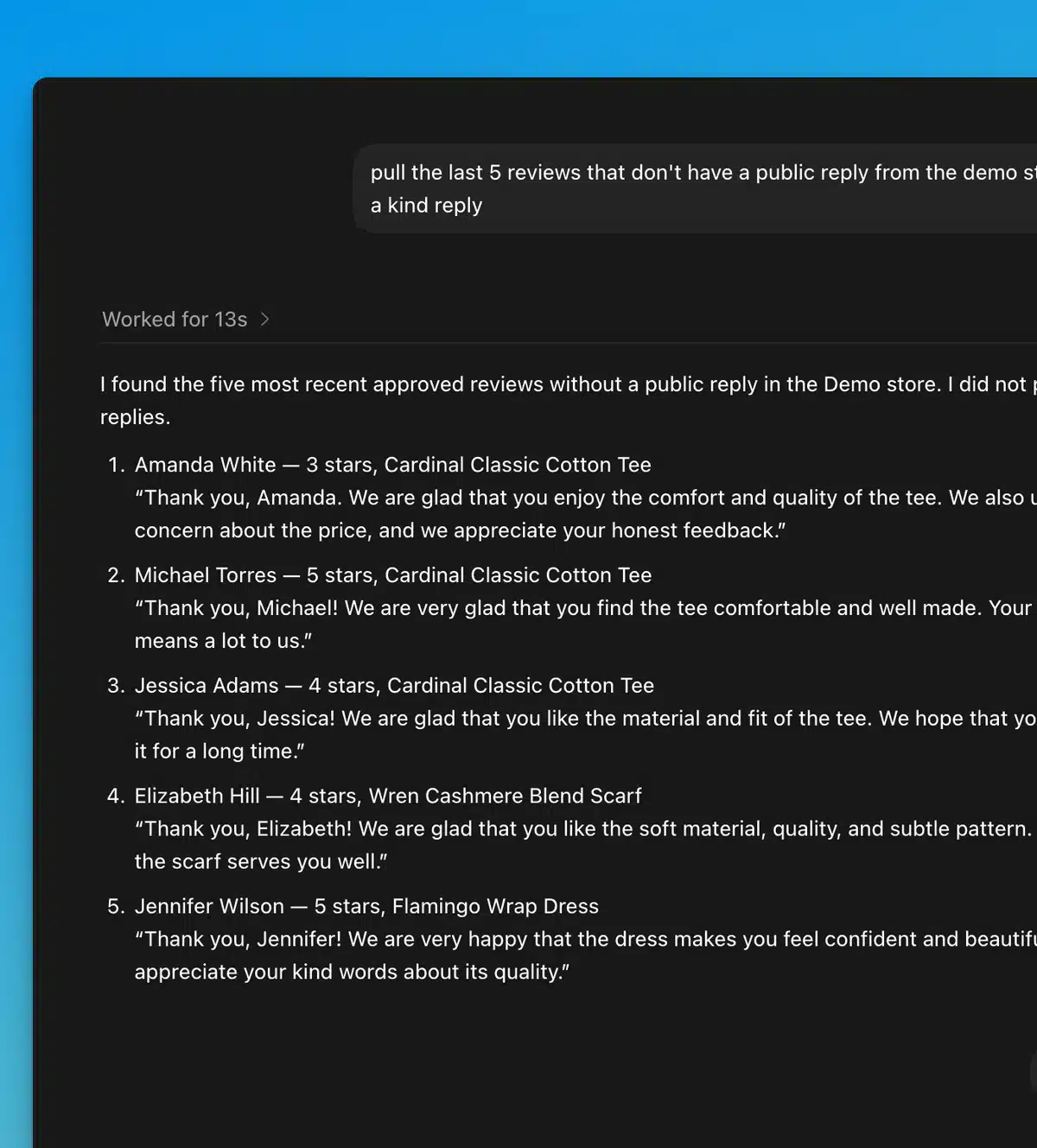
| Plan customer follow-up | Find recent approved reviews without a public reply and draft a reply for each one. Do not publish them. |
| Review the moderation queue | Show me pending and flagged reviews that need a decision. |
The AI client can combine several Reviewbird tools to answer one question. For example, it can compare review counts and ratings, find the products behind a change, and then read selected reviews to explain the result.
Turn review data into useful work
Reviewbird MCP can help you:
- Compare review counts, average ratings, reply rates, and verified-purchase rates across two or more periods.
- Find the products with the most reviews or the lowest ratings.
- Search by product, rating, review state, reply state, verified-purchase status, or date.
- Read selected review text and identify recurring themes.
- Find recent reviews that do not have a public reply.
- Draft clear, specific replies for your team to review.
Reviewbird provides the review data and tools. Your AI client does the analysis and writing.
Publish replies and moderate reviews when you are ready
Read access and write access are separate. To let an AI client change review data, go to Store > Settings > MCP Connections and enable write actions for that store.
When write actions are on, an authorized AI client can:
- Approve and publish a pending or flagged review.
- Reject a pending or flagged review.
- Publish a public reply.
Use a review-first workflow for customer-facing actions. Ask the AI client to draft the work, check the result, and then give a clear instruction to publish it.

You stay in control
The connection uses your Reviewbird account and store permissions. The AI client can only use stores and actions that your account can access.
Write actions also need:
- The correct Reviewbird user permission.
- Write access for the connection.
- Write actions enabled by the store owner.
Reviewbird marks customer-written review content as untrusted data. This helps the AI client distinguish a customer’s words from instructions that it should follow.
You can leave write actions off and use Reviewbird MCP only for research, analysis, searches, and drafts.
How to connect Reviewbird MCP
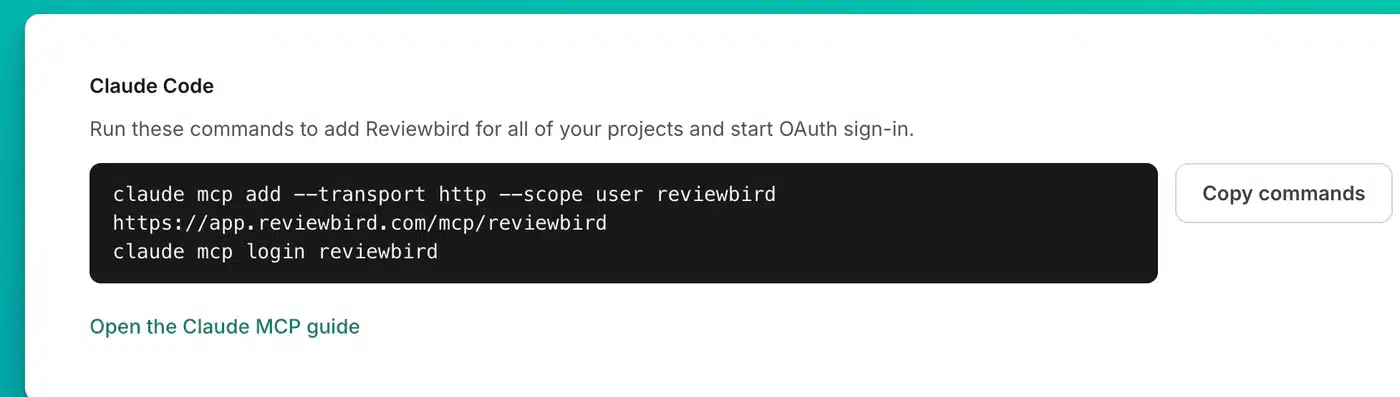
Setup takes about two minutes:
- Sign in to Reviewbird.
- Open Profile > MCP Connections from the menu at the top right.
- Choose your AI client.
- Copy the supplied commands or configuration.
- Complete the Reviewbird sign-in.
- Start a new chat and ask a question about your reviews.
- Optional: Open Store > Settings > MCP Connections and enable write actions for the store.
Reviewbird includes client-specific instructions, so you do not have to translate a general MCP guide into the correct setup.
Try these prompts first
- Compare the last 30 days with the previous 30 days. Show changes in review count, average rating, and reply rate.
- Which three products have the most complaints? Summarize the main issue for each product.
- How often do reviewers mention color fading? Split the results by product and rating.
- Find the five most recent approved reviews without a public reply. Draft a warm and specific reply for each one. Do not publish anything.
- Show pending reviews from verified buyers and explain which ones need a manual decision.
- Draft a reply to the most recent three-star review. Acknowledge the concern without making a promise that we cannot keep.
- Which negative-review topics increased this month?
- What questions should we ask our product team based on the last 90 days of reviews?
These are starting points. You can combine products, dates, ratings, reply status, review status, and verified-purchase status in the same request.
Start a conversation with your reviews
Reviewbird MCP lets you talk to your reviews and ask them questions. Use it to find problems sooner, understand customers better, clear reply backlogs, and turn review feedback into action.
Read the Reviewbird MCP setup guide
Join the Reviewbird club
Not using Reviewbird yet? Well what are you waiting for – setup takes about 10 minutes and we do the hard stuff for you.

Clif Griffin
WooCommerce is my patronus. Husband of Jennifer. Father of three. Believer.