
Your growing specialty-food store processes about 700 orders each week. After a hosting move or plugin change, order confirmations arrive 20 to 60 minutes late. Customers repeat checkout. The warehouse team cannot tell which orders are ready. Support starts answering “Did my order go through?”
The fastest fix is not to install another mail plugin at random. First, find where the delay starts. Compare the order time, the WooCommerce email-attempt time, any scheduled-action time, and the mail provider’s event time. These four timestamps separate a WooCommerce generation delay from a mail delivery delay.
Find the delayed stage before you change anything
A late message does not prove that WordPress cron caused the delay. WooCommerce can generate an email on time while the web host or mail service holds it. An order-status problem can also prevent the correct email from starting.
| Stage | Evidence to record | What a long gap suggests |
|---|---|---|
| Order event | Order creation, payment, and status-change times | Payment gateway or order-status problem |
| WooCommerce generation | transactional-emails log and private order note | Email setting, conflict, or PHP error |
| Background job | Scheduled time, completion time, and action log | Action Scheduler or WP-Cron problem |
| Mail delivery | Provider acceptance, deferral, bounce, and delivery events | SMTP, authentication, reputation, or recipient-server problem |
Do not assume that every WooCommerce email uses a background queue. The path depends on the email type and your extensions. Test the path that your store uses.
Start with one controlled order
Choose a quiet ten-minute test window and tell the warehouse team. Use a unique recipient address that you can identify in your mail provider. Record times in the store’s configured time zone.
- Place a low-value test order with the payment method that customers used when the delay appeared.
- Record the order creation time, payment result, and each status change in the order notes.
- Confirm that the expected email is enabled in WooCommerce > Settings > Emails.
- Record when WooCommerce logs the email attempt.
- If the email uses a queued job, record its scheduled and completed times.
- Record the provider’s accepted and delivered times, then record when the message appears in the test inbox.
Check the order before you inspect cron. The official WooCommerce email troubleshooting guide says that a Pending Payment order does not trigger the expected paid-order email. If a paid order did not move to Processing, investigate the gateway or order update first.
Check when WooCommerce tried to send the email
Go to WooCommerce > Status > Logs. Open the transactional-emails source and find the test message. WooCommerce records each transactional email attempt. For order emails, sent and failed attempts also appear as private order notes.
- Sent: WooCommerce handed the email to the site’s mail system. This does not prove that the message reached the buyer’s inbox.
- Failed: WooCommerce tried to send it, but the WordPress or mail process returned an error. Use the recorded reason as the next clue.
- Disabled or skipped: Check the email setting, recipient, and required conditions.
- No expected entry: Check the order status, fatal-error logs, and recent code or plugin changes. WooCommerce did not reach a normal email attempt.
If the order changed status at 10:02 and the log says Sent at 10:03, the 10:35 inbox arrival is not a generation delay. Move to the provider check. If WooCommerce does not log the attempt until 10:32, stay on the store side and inspect the queue, cron, and errors.
Inspect Scheduled Actions when the email path uses them
Open WooCommerce > Status > Scheduled Actions. The WooCommerce Scheduled Actions guide confirms that this screen can show pending, failed, in-progress, and completed jobs. Search by the hook name that belongs to the email plugin or integration you are testing. If you do not know the hook, compare the action times with the test order and check the plugin’s documentation.
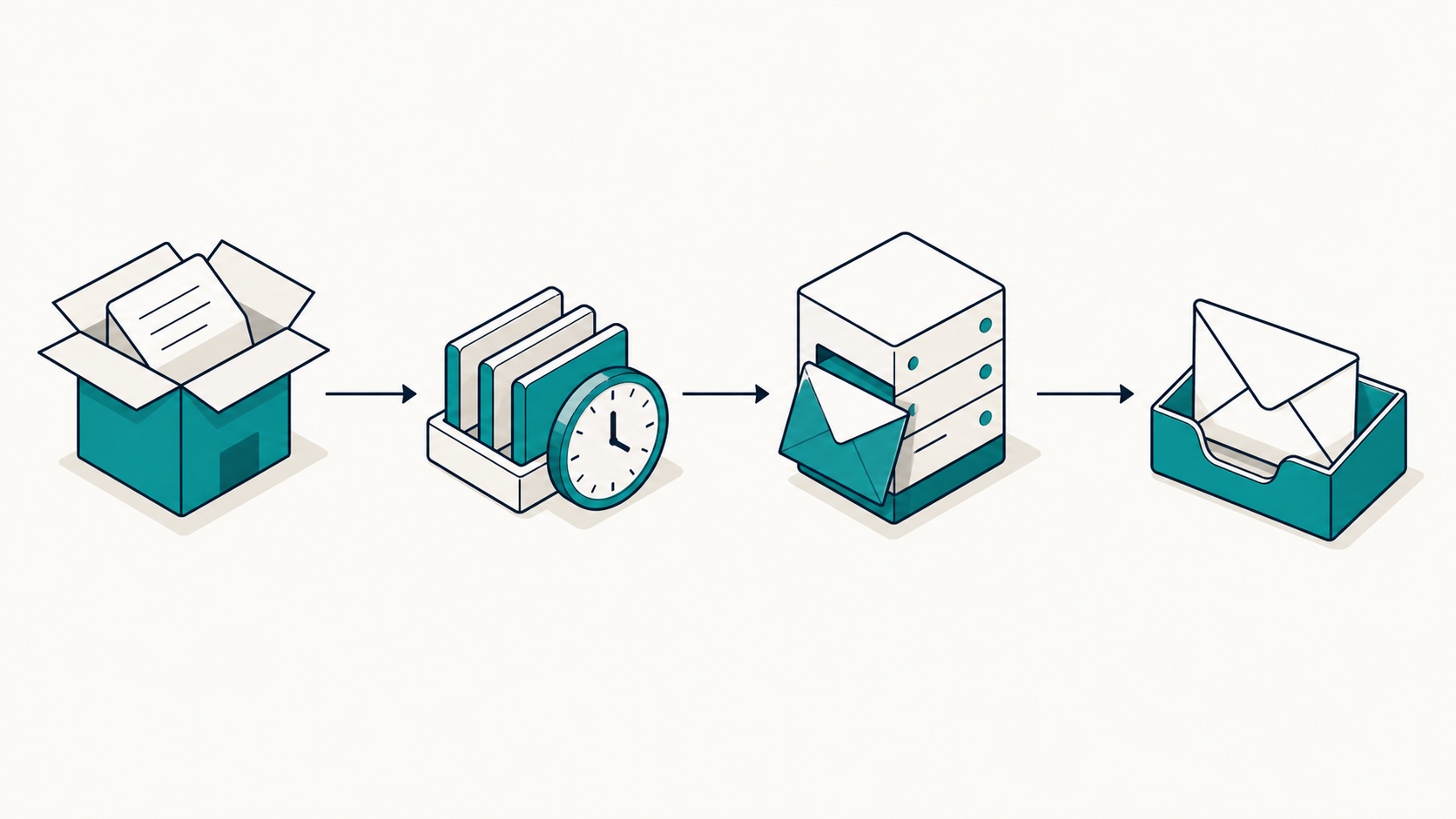
- One old pending action: Open it and read its log before you run it. A plugin callback may be slow or broken.
- Many overdue actions from unrelated plugins: The queue runner or WP-Cron is a stronger suspect.
- Repeated failed actions with one hook: Save the error and contact that plugin’s support team. Cron can be healthy while one task fails.
- A completed action at the correct time: The delay is probably after the queue. Check the WooCommerce email log and the provider events.
Action Scheduler lets an administrator run one pending action and read its log. Use that control only for a known test action. Do not bulk-run an unknown production backlog; it can create load or send old customer messages.
Check WP-Cron without deleting events
Action Scheduler normally depends on WP-Cron to start its runner. WordPress explains that WP-Cron checks due tasks during page loads; it does not run continuously. Low traffic is less likely at 700 orders a week, but a host can change cron or loopback behavior.
- Ask the host whether it disables page-load WP-Cron and replaces it with a server task. If
DISABLE_WP_CRONis enabled, confirm that the replacement still callswp-cron.phpon a regular schedule. - Install WP Crontrol on a staging copy or during a controlled check. It shows cron events, missed schedules, callbacks, and cron-system warnings.
- Look for missed or late events across several plugins. This supports a site-level cron problem. One failing event points more strongly to its owner.
- Ask the host to check blocked loopback requests, HTTP authentication, firewall rules, and recent cron configuration changes.
- If accurate timing matters, have the host or developer configure a real system scheduler. Follow the official WordPress system scheduler guide. Do not disable WP-Cron until the replacement is tested.
Do not delete a cron event because its name is unfamiliar. WP Crontrol states that plugins can recreate their events and that safety depends on what the event does. Save the event name, schedule, callback, and warning before you change it.
Use logs to test the host or plugin change
Go back to WooCommerce > Status > Logs. Check fatal-errors and the logs for the payment, email, and recently changed plugins around the test order time. The WooCommerce System Status guide explains where these logs and background-action details appear.
Test the suspected change on staging with WooCommerce, the payment gateway, and the mail connector active. Then restore plugins one at a time. Do not disable payment or fulfillment plugins on the live store.
A developer can enable debug logging for a short staging test. The official WordPress debugging guide advises against debug mode on a live site. Remove extra logging after the test, and remove customer data and secrets before you share logs.
If WooCommerce sent on time, follow the provider events
WooCommerce uses WordPress wp_mail() by default. Its Sent result means that WooCommerce handed the message to the mail system. It does not mean that a receiving server placed the message in the inbox. Open the SMTP or transactional email provider and search for the test recipient.
- No provider event: Check the WordPress mail connector, API key, SMTP credentials, outbound port, and From address.
- Accepted quickly, then deferred: Read the provider response. The receiving server or a sending limit may be holding the message.
- Bounced or blocked: Correct the address, authentication, or policy problem shown in the event. Do not keep resending a hard bounce.
- Delivered quickly: The provider reached the recipient’s mail server. Check mailbox rules, quarantine, spam filtering, and the recipient organization’s mail administrator.
Current transactional mail options include Postmark, SendGrid, Mailgun, and Brevo. Connect one through SMTP & Email Logs for WooCommerce or a current connector such as WP Mail SMTP or FluentSMTP. Compare provider support, log retention, and data access.
Provider terms matter. For example, Postmark defines Delivered as the destination server returning an OK response. The destination server can still queue the message before it reaches the inbox. Use the exact event definition from your provider when you compare timestamps.
Prove the fix before the next order rush
After you correct the failed stage, run three controlled orders: one with the main card gateway, one with any delayed-payment method you support, and one manual status change used by the warehouse. Record the four timestamps again. Confirm that customer and admin emails arrive on time and only once.
Keep an incident record with the cause, changed setting, host ticket, and test results. Add monitoring for failed actions and provider bounces. A ten-minute alert is better than learning about a delay from a customer.
Start with one new test order now. If WooCommerce logs the message on time, go to the provider. If it logs late and the action queue is overdue, go to WP-Cron and the recent hosting or plugin change. That single timestamp split prevents hours of random fixes.
Sources

Clif Griffin
WooCommerce is my patronus. Husband of Jennifer. Father of three. Believer.