
Suppose you are the technical SEO manager for a growing WooCommerce apparel store with about 1,000 products. The store has reviews, the Rich Results Test reports valid Product data, and Google still shows no review stars. The change started after you replaced an SEO or review plugin. This is a common shape of the WooCommerce review stars not showing problem: the markup can be valid, but another part of the page or search process can still prevent the result that you expect.
Valid structured data makes a page eligible for a Google rich result. It does not guarantee that Google will show one. Use these seven checks to find errors that you can control and to separate them from Google’s display decision.
| Test result | Likely cause | Next action |
|---|---|---|
| The Rich Results Test reports an error. | A required property is missing or invalid. | Open the error and fix the named property. |
| The test is valid, but visible values do not match. | Cached or duplicate Product data is stale. | Find each Product item and compare its values. |
| The test is valid, but Product data is absent from page source. | A script adds important data after the first HTML response. | Move stable Product data into initial HTML. |
| The page is valid and indexed, but no stars show. | Google selected another search treatment. | Monitor the correct report and avoid repeated markup changes. |
1. Confirm that Google can access the product page
Test the final public URL. Do not test a preview, staging URL, filtered admin view, or URL that needs a login. Open the page in a private browser window and confirm that the product name, price, availability, average rating, review count, and review text are visible to a visitor.
Next, use Google’s Rich Results Test with the URL. If the page is not indexed, use Search Console URL Inspection to check robots rules, a noindex directive, the canonical URL, and Google’s last crawl. Structured data cannot repair an access or indexing problem.
2. Read the Product result, not only the green status
Expand every detected Product item in the Rich Results Test. A green result can still contain warnings or show values from the wrong plugin. Treat required-property errors as blockers. Review warnings because they can identify useful missing data, but do not assume that removing every warning will make stars appear.
Google’s Product structured data guide covers two product search experiences. Merchant listings apply to pages where a shopper can buy the product. Product snippets apply mainly to product information and review pages where a shopper cannot buy directly. A normal WooCommerce product page is usually a merchant page.
3. Match the visible product and rating values
Compare the detected Product data with the page that a shopper sees. Check the product name, URL, image, currency, price, availability, rating value, and review count. If the page shows a rating of 4.6 from 128 reviews, the structured data must not show an old value from a cache or a different product.
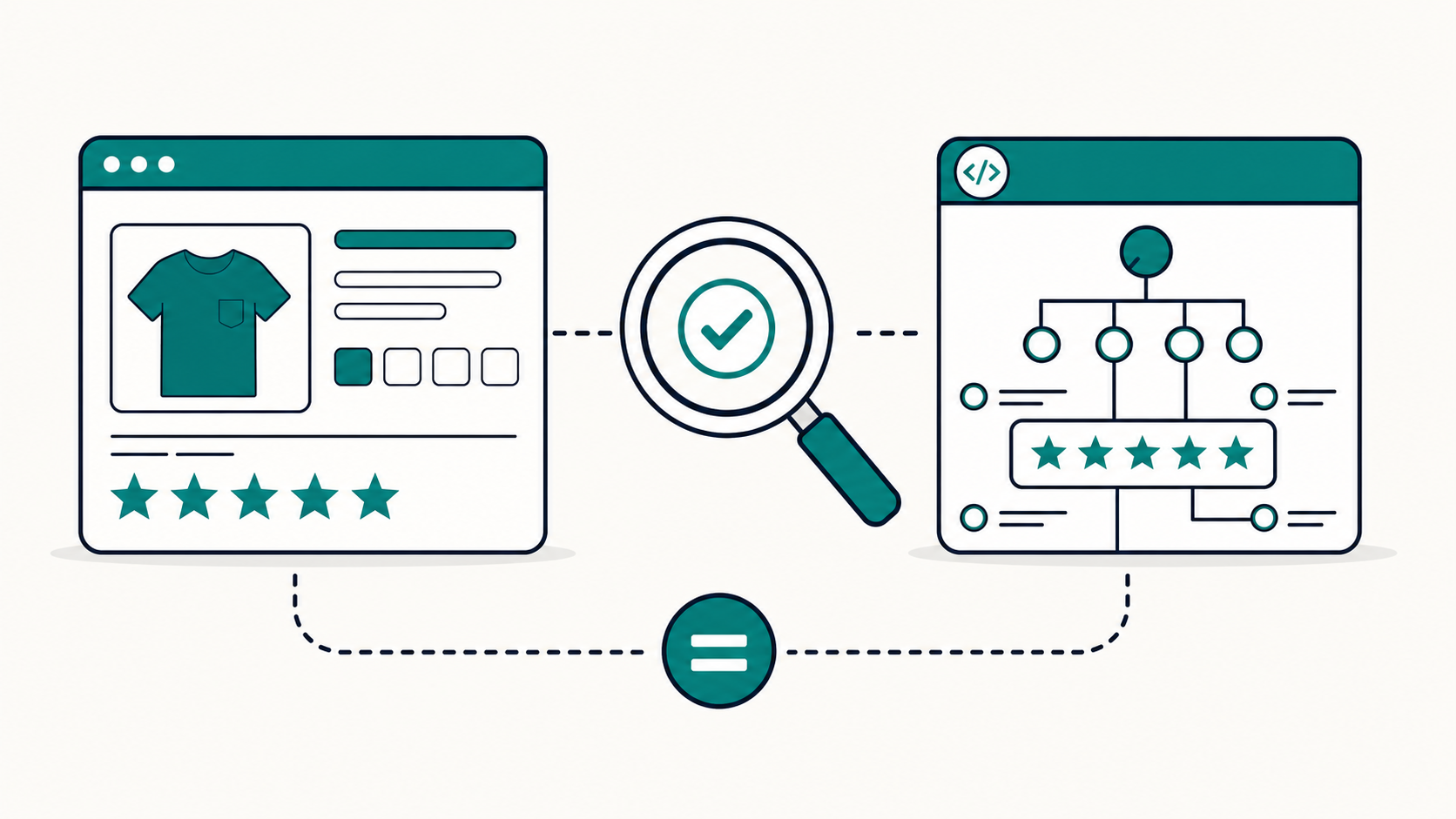
Use genuine reviews for that product. Do not copy ratings or reviews from another site. Google’s Review snippet guide requires review and aggregate-rating content to be visible, accurate, and about the marked-up item.
4. Find Product data from every plugin and theme layer
WooCommerce core generates Product, Review, and aggregate-rating data. An SEO plugin, review plugin, theme, or custom snippet can extend that data. After a plugin change, an old layer can remain active or a new layer can create another Product item with different values.
Do not search the source for one exact string such as "@type":"Product". Spacing, an @graph, Microdata, or RDFa can make that search miss an item. Use the Rich Results Test to list detected Product items. Then inspect the source and plugin settings to identify the owner of each item.
- Yoast WooCommerce SEO extends and connects WooCommerce Product data.
- Rank Math can add WooCommerce Product Schema through its WooCommerce integration.
- Reviewbird adds its rating and review data to the existing WooCommerce Product schema.
More than one structured-data item is not automatically wrong. Google supports multiple related items. The problem is two items that describe the same product but disagree. Use stable, consistent @id values to connect related data, or disable one generator when two layers compete for the same Product item. Retest after you clear the page and object caches.
5. Confirm that important data is in the initial HTML
Open View Source for the public product URL. Search for the exact product name and one visible rating value. Confirm that the Product, offer, and rating data are present in the first HTML response, not only after a browser script runs.
Google can process structured data that JavaScript creates. Its JavaScript structured data guide warns that dynamically generated Product data can make Shopping crawls less frequent and less reliable. Keep stable product facts in the server response when your stack permits it.
6. Use the correct Search Console report
For a WooCommerce product page where customers can buy the item, use the Search Console Merchant listings report. It shows valid and invalid merchant-listing items that Google found. The Product snippets report is for product pages where a visitor cannot buy the item, such as an editorial review or product comparison page.
The Search Console Shopping report guide explains this split. Use URL Inspection for one affected product, and compare its last crawl with the date of the plugin change. A clean report means Google found eligible markup. It still does not promise a star result for a query.
7. Do not confuse Search schema with a Product Ratings feed
Review schema on a product page supports eligibility for organic Google Search features. A Google Product Ratings feed sends review data to Merchant Center for the Product Ratings program in Shopping ads and free listings. These are separate jobs.
Do not add a feed as a repair for missing organic Search stars. First complete the six page checks above. If you also want Shopping ratings, read the Google Product Ratings policies and use a supported feed or aggregator process.
How Reviewbird adds review schema
Reviewbird does not need to create a separate Product item. Its current integration hooks into the existing WooCommerce Product schema. It can add the aggregate rating, review count, and up to ten reviews. Reviewbird refreshes this data in the background, so clear any full-page cache after a setting or plugin change and then test the public URL again.
To use it, connect the WooCommerce store, enable Reviewbird schema in the plugin settings, and make sure approved reviews are visible on the matching product page. Follow the current Reviewbird schema setup guide for the exact setting path.
Retest once, then give Google time to crawl
- The public URL is indexable and uses the correct canonical URL.
- Visible product and review values match the detected Product data.
- No same-product schema items contain conflicting values.
- Important Product data is present in initial HTML.
- The Merchant listings report has no relevant error.
- The schema job and Product Ratings feed job are separate.
After you make a material fix, use URL Inspection to request a recrawl for a small number of important pages. Google says that a recrawl request does not guarantee inclusion or an immediate update. For many changed products, keep the sitemap current instead of requesting each URL. See Google’s recrawl guide.
Sources
- Google Search Central: Product structured data
- Google Search Central: Review snippet structured data
- Google Search Central: Structured data policies
- Google Search Central: Generate structured data with JavaScript
- Google Search Console: Shopping reports
- WooCommerce code reference: WC Structured Data
- Yoast: WooCommerce SEO schema
- Rank Math: WooCommerce Product Schema
- Reviewbird: Enable SEO schema for WooCommerce reviews

Clif Griffin
WooCommerce is my patronus. Husband of Jennifer. Father of three. Believer.