
You manage a migration of about 2,000 apparel products with size and color options. A small test import finishes, but some parent products have no variations and other variation rows seem to be attached to nothing.
Do not run the full file again. First, repair the parent-child map. In a WooCommerce CSV variation import, every parent needs a stable, unique SKU. Every variation needs its own unique SKU, a Type value of variation, and a Parent value that exactly matches the parent SKU or uses the form id:100 for an existing product ID. The parent must also list every attribute value that its variations use.
Why variations go missing
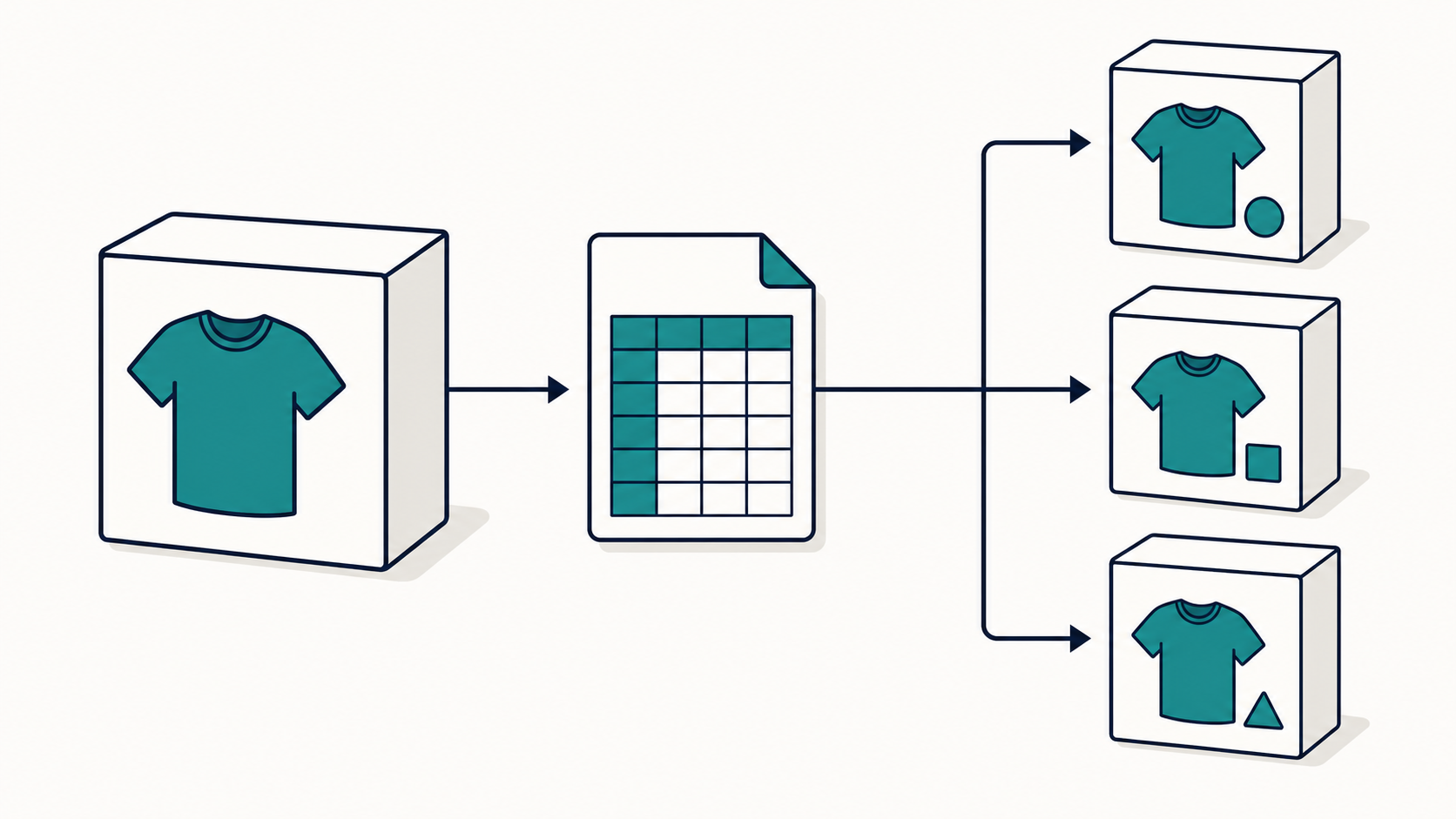
WooCommerce stores a variable product and its variations as related records. The variable product is the parent. Each size-and-color combination is a child variation. The CSV does not create that relationship from the product name. It uses the Parent field.
A variation can fail to appear when the parent SKU is misspelled, the parent row is not a variable product, the child row is not marked as a variation, or the attribute values do not match the values available on the parent. A duplicate variation SKU can also cause a row to be skipped. These checks come from the current WooCommerce core importer schema and troubleshooting guide.
A cross-site migration adds one more risk: product IDs belong to the target database. WooCommerce does not let an import assign a specific WordPress product ID. For a move between stores, parent SKUs are usually safer links than source-site IDs. Use an ID only when it already identifies the correct parent on the target store, and write it as id:100.
Fix these four fields first
- Type: Use variable for the parent and variation for every child row.
- SKU: Give the parent and every variation a unique SKU. Do not reuse one variation SKU for two colors or sizes.
- Parent: Leave it empty on the parent. On each variation, use the exact parent SKU or a valid target-site ID with the id: prefix.
- Attributes: Put the full set of sizes and colors on the parent. Put only the applicable size and color on each variation row.
For global attributes that already exist in the target store, set the global field to 1. For product-specific local attributes, use 0. Keep the attribute names and values consistent across the parent and child rows.
Use a small field map before the full catalog
This example creates one T-shirt parent and four sellable variations. The blank parent price is intentional; each variation has its own price.
| Type | SKU | Parent | Name | Regular price | Size value(s) | Color value(s) |
|---|---|---|---|---|---|---|
| variable | TEE-100 | Essential Tee | S, M | Black, White | ||
| variation | TEE-100-S-BLK | TEE-100 | Essential Tee – S – Black | 29.00 | S | Black |
| variation | TEE-100-S-WHT | TEE-100 | Essential Tee – S – White | 29.00 | S | White |
| variation | TEE-100-M-BLK | TEE-100 | Essential Tee – M – Black | 29.00 | M | Black |
| variation | TEE-100-M-WHT | TEE-100 | Essential Tee – M – White | 29.00 | M | White |
Map the size columns to Attribute 1 name and Attribute 1 value(s). Map color to the corresponding Attribute 2 fields. Set each parent attribute’s visible field to 1. The core importer marks mapped attributes as used for variations automatically. The mapping screen lets you correct a source column name before the import runs.
Diagnose the failed test without making more duplicates
- Save the import results and error log. Do not edit your only copy of the source file.
- Export the affected parents from Products → All Products → Export. Compare the target SKU and attribute values with the failed CSV.
- Search the failed file for every parent SKU. Confirm that each variation points to one parent and that no parent SKU has hidden spaces or a changed character.
- Search all variation SKUs for duplicates. Include products that were already on the target store in this check.
- Build a repair CSV that contains one parent and only its missing variations. Do not use the entire 2,000-product file as the next test.
Be careful with Update existing products. WooCommerce matches existing records by ID or SKU when that option is selected, and it skips products that do not exist. That behavior is useful for correcting an existing parent, but it is not the right pass for creating missing variation rows.
Use a two-pass staging workflow
WooCommerce can read parent and variation rows from its standard schema. For a large migration, two controlled passes make the relationship easier to inspect. The official conversion workflow also uses separate update and creation passes.
- Back up first. Create a full database and file backup. A product CSV export is useful, but it is not a full store backup and it does not include draft products.
- Clone staging. Use a current copy of the target store so that its SKUs, attributes, extensions, and product IDs match the environment you will use.
- Import one parent. Import the variable parent row with its complete size and color lists. If you are converting an existing simple product, select Update existing products for this pass.
- Verify the parent. Open Product data → Attributes. Confirm that both attributes exist and are enabled for variations.
- Import the child file. Use a variation-only CSV. Do not select Update existing products when the purpose is to create new variations.
- Test the result. Confirm all four combinations in the product editor and on the storefront. Check price, stock status, image, default choice, and add-to-cart behavior.
- Increase the batch carefully. Use smaller batches that your server can complete, keep a count of parents and variations in each file, and inspect the result before the next batch.
The Product CSV Import Suite variation guide also imports parents before child variations. That is the required flow for that extension, while the table above uses the column names from the built-in WooCommerce importer.
Prepare a rollback before production
From Products → All Products → Export, export the current target catalog with all columns. Include custom meta when the migration changes extension data. Keep this baseline export, the final import files, the import logs, and a list of every SKU in each batch.
Also take a full backup of the database and files. The WooCommerce backup guide explains why the database is essential: products, orders, and store settings live there, and a WordPress content export does not capture all WooCommerce tables.
- If the staging test fails, reset staging from the clean clone and correct the file.
- If a production batch created only new products, use the batch SKU list to identify the exact products before moving anything to Trash. Do not empty Trash until you verify the remaining catalog.
- If a batch updated existing products, use the baseline export only for fields it actually contains. Use the full backup when relationships or extension data cannot be restored from CSV.
- Do not restore an older production database without accounting for orders and customer changes made after the backup. Ask your host or developer to plan that restore.
Choose the importer that fits the source
| Option | Good fit | Tradeoff |
|---|---|---|
| WooCommerce core importer | Standard products, variations, attributes, prices, stock, categories, and images in the core schema | The source file must fit WooCommerce field and parent-mapping rules |
| Woo Product CSV Import Suite | Large imports or supported Woo extension data that needs separate parent and variation files | It is a paid extension with its own column format |
| WP All Import with its WooCommerce add-on | CSV, XML, Excel, or Google Sheets data that needs flexible field and variation-group mapping | It adds another tool and mapping layer that you must test |
Woo recommends its core importer for standard product data and points to Product CSV Import Suite for extensive imports or custom extension data. The official WP All Import variation guide documents parent-SKU and other grouping methods. None of these options removes the need for unique identifiers, a staging test, and a rollback.
Final preflight check
- Every parent SKU is unique.
- Every variation SKU is unique.
- Every Parent value resolves to the intended target product.
- Parent attributes include every child value.
- The test covers each size and color path.
- The baseline export, full backup, logs, and batch SKU list are saved.
When those checks pass for one product, repeat the same controlled process for a small batch. The goal is not to make the importer finish. The goal is to prove that every child variation belongs to the correct parent before the catalog goes live.
Sources

Clif Griffin
WooCommerce is my patronus. Husband of Jennifer. Father of three. Believer.